How to add your team and set up who clients can book
Invite a teammate, make them bookable, choose the services they offer, set their weekly hours, and add time off, so clients can book them for the right things at the right times.
On this page
What you need
- Your services set up in Parlor
- Each teammate's email address
- The days and hours each person works
The people clients book are your providers: a stylist, a nail artist, a barber. Each one has a profile clients see on your booking page, a list of the services they do, and weekly hours. Parlor only offers a time when the person is working, does the service, and is free.
This guide walks through adding a teammate and setting all of that up. We added a nail artist, Nina Park, to the Marigold demo studio for the screenshots, and checked each step on the booking page as a client would see it.
The whole setup in about three and a half minutes. Every step is also written out below, with the screenshots.
Your Team page
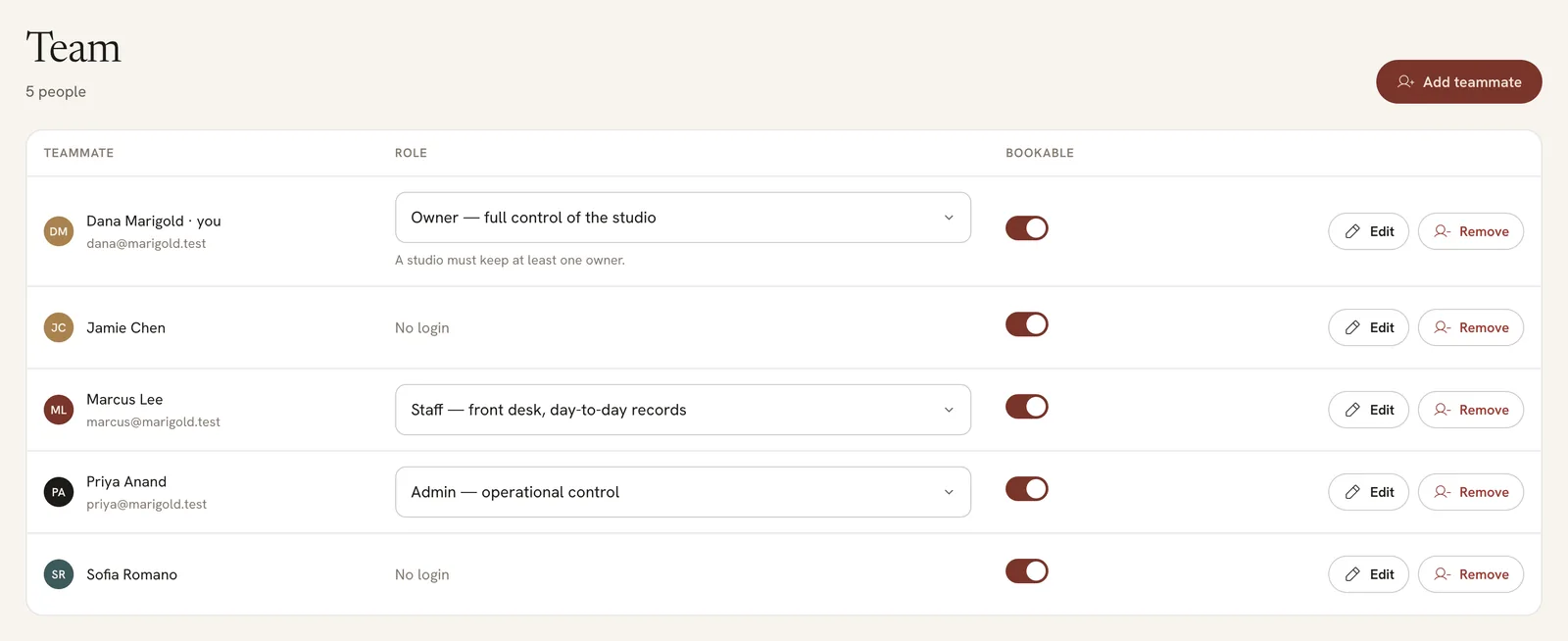
Open Team in the sidebar. Everyone at your studio is listed with their role and a Bookable switch. Bookable people show up on your booking page. People marked No login can be booked but don’t sign in to Parlor.
 Open full size
 Each person’s role, whether clients can book them, and Edit.
The role decides what someone can do in Parlor:
| Role | What they can do |
|---|---|
| Owner | Full control of the studio |
| Admin | Operational control |
| Staff | Front desk and day-to-day records |
| Viewer | Read-only |
A studio must keep at least one owner. Only owners and admins can add teammates and change their setup.
Add a teammate
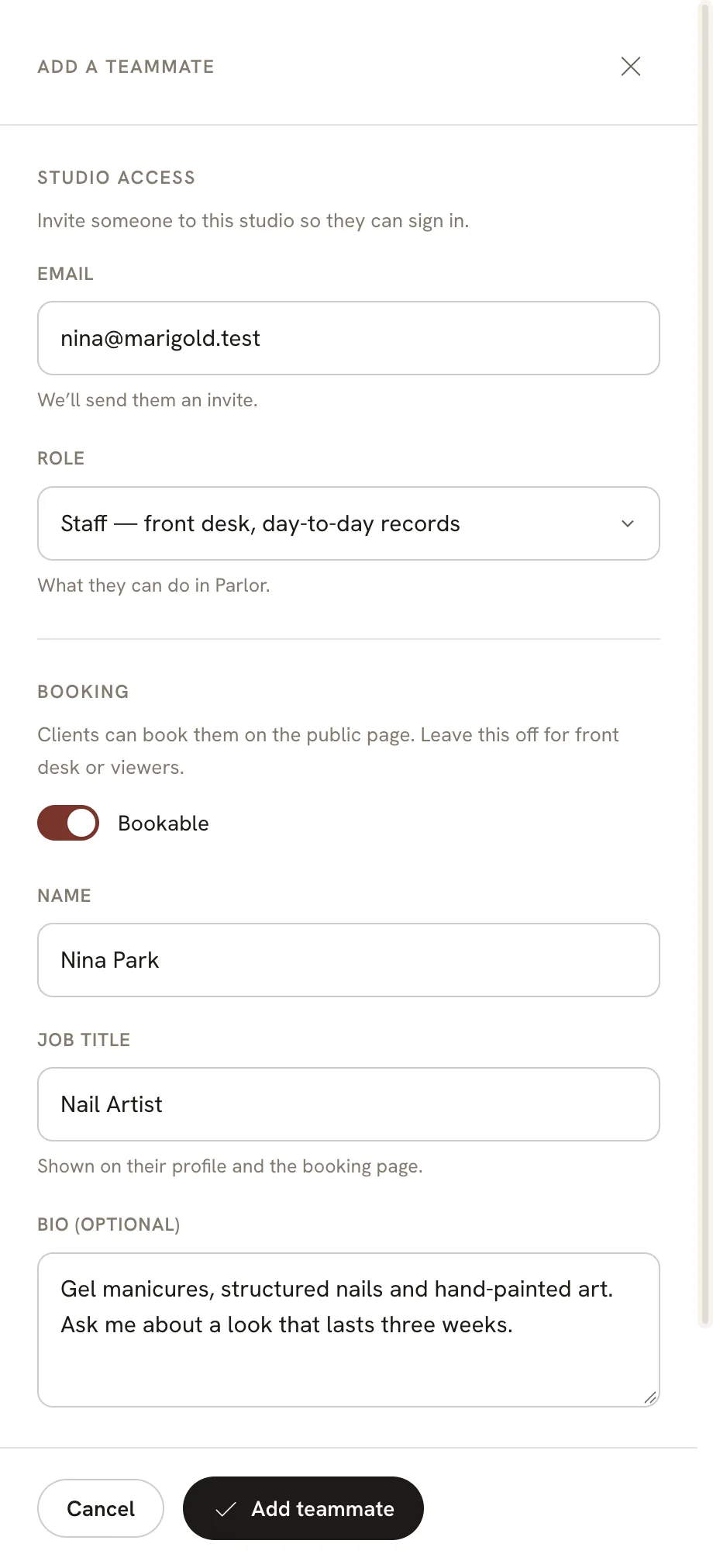
Click Add teammate and fill in:
- Email. Parlor sends them an invite so they can sign in.
- Role, from the table above.
- Bookable. Leave it on for anyone clients book, and turn it off for front desk or viewers.
- Name and Job title, the way clients should see them. The title shows on their profile and the booking page.
- Bio (optional), a short intro in their own words.
Click Add teammate. Parlor says “Nina Park added to your team.” and the invite goes out by email.
 Open full size
 A bookable nail artist with Staff access.
Choose the services they offer
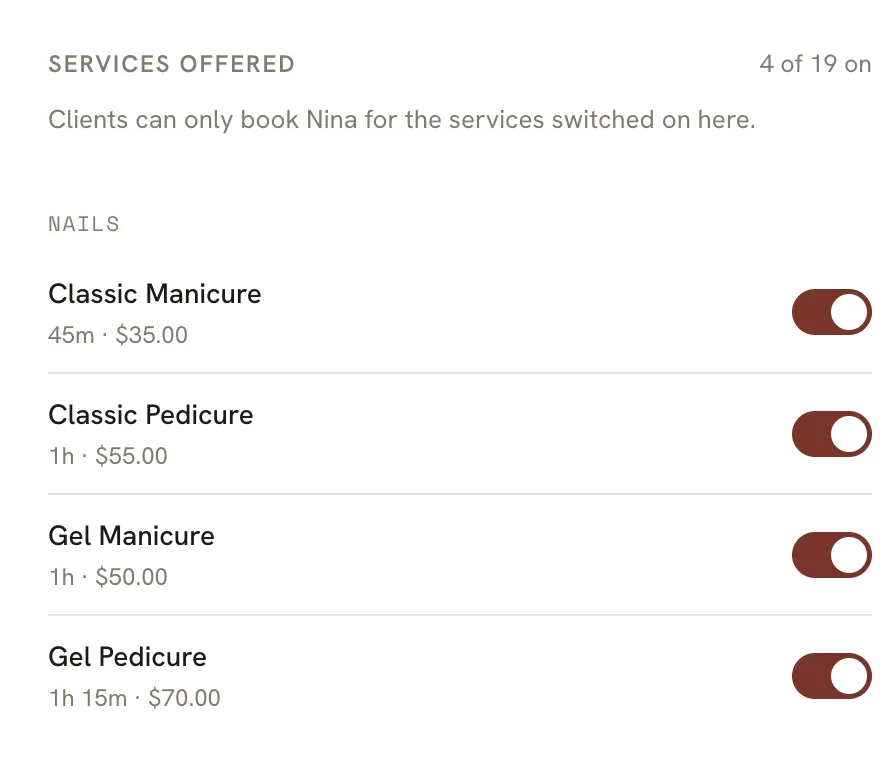
Click Edit next to the new teammate and scroll to Services offered. A new teammate starts with none switched on, so switch on every service they perform. Each switch saves right away, and the count at the top goes up.
 Open full size
 Clients can only book Nina for the services switched on here.
Set their weekly hours
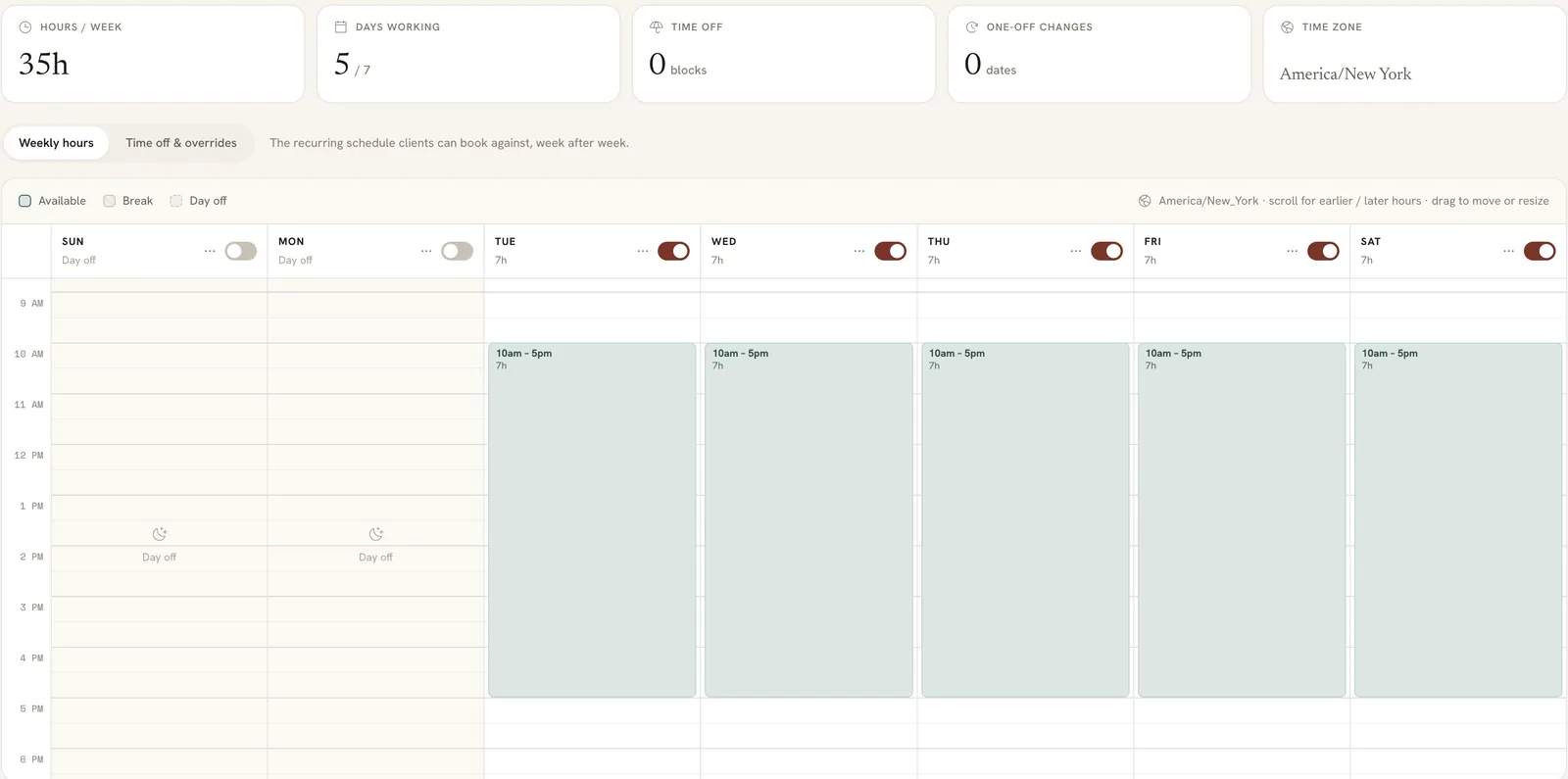
At the bottom of the same drawer, click Hours. A new teammate starts with every day as a day off.
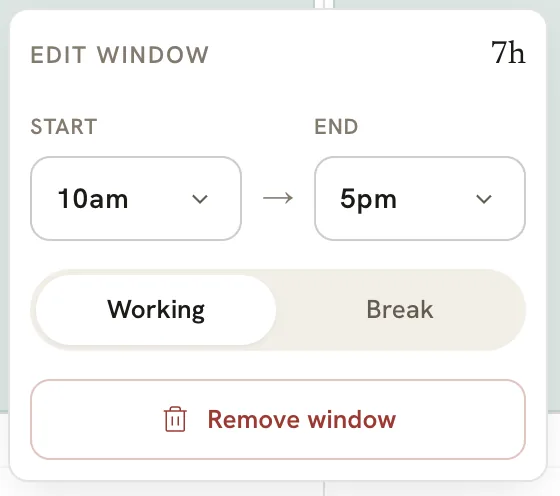
Switch on each day they work. A day starts at 10am to 5pm. To change it, click the block and set a Start and End, or drag the block to move it and its edges to resize it. The same box has Working and Break, for a lunch hour, and Remove window.
 Open full size
 Tuesday to Saturday, 10am to 5pm: 35 hours over 5 days.
 Open full size
 Click a block to change its times or make it a break.
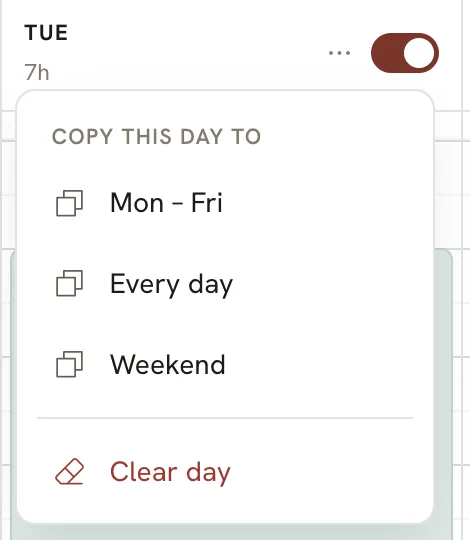
To repeat a day, open its … menu and choose Copy this day to: Mon – Fri, Every day, or Weekend. Clear day empties it.
 Open full size
 Set one day, then copy it to the rest of the week.
Click Save changes. Parlor says “Nina’s availability saved.” Clients only see times inside these hours: with Nina working 10am to 5pm, a one-hour manicure can start from 10:00 until 4:00, and Sundays and Mondays say “No availability that day.”
Add time off
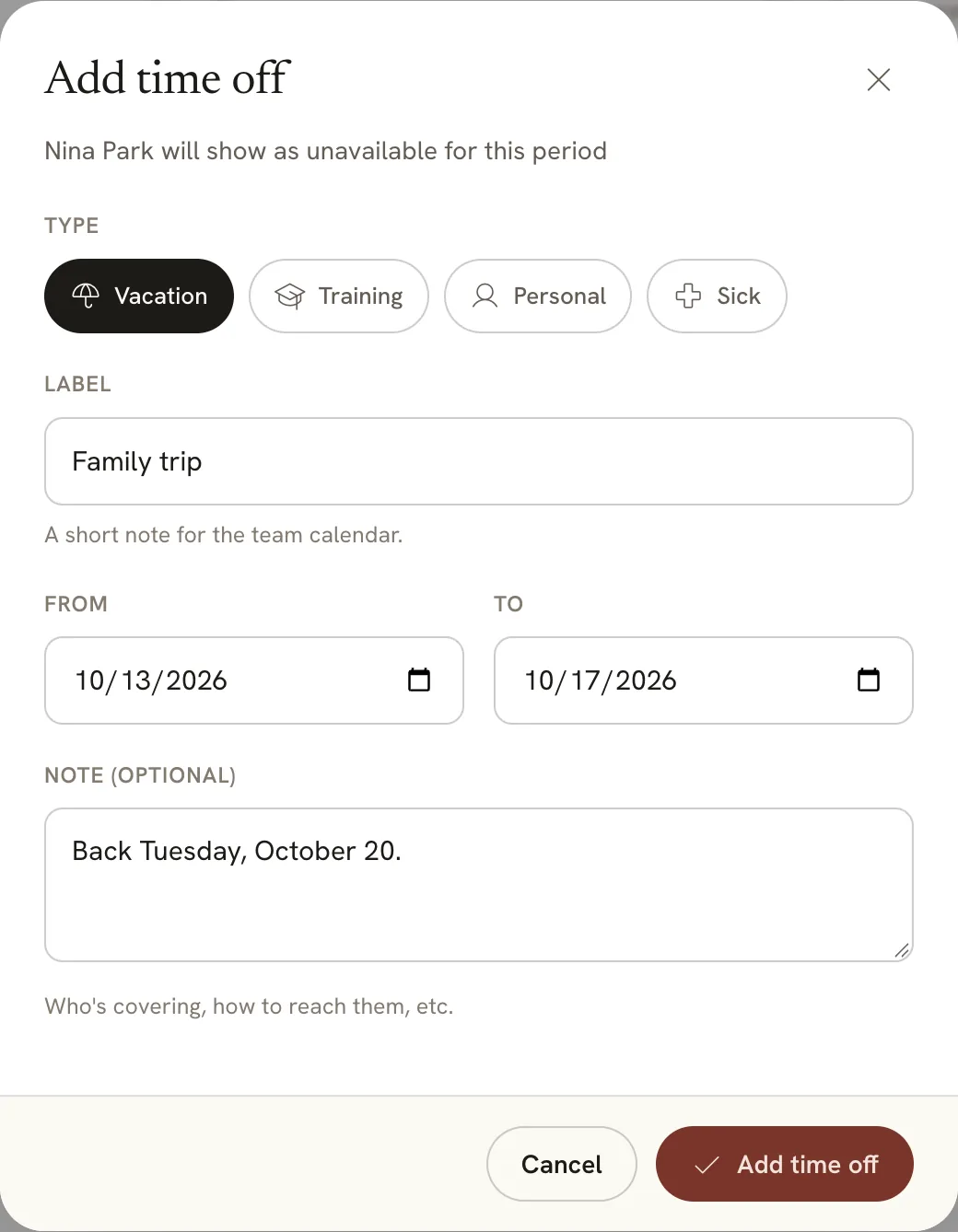
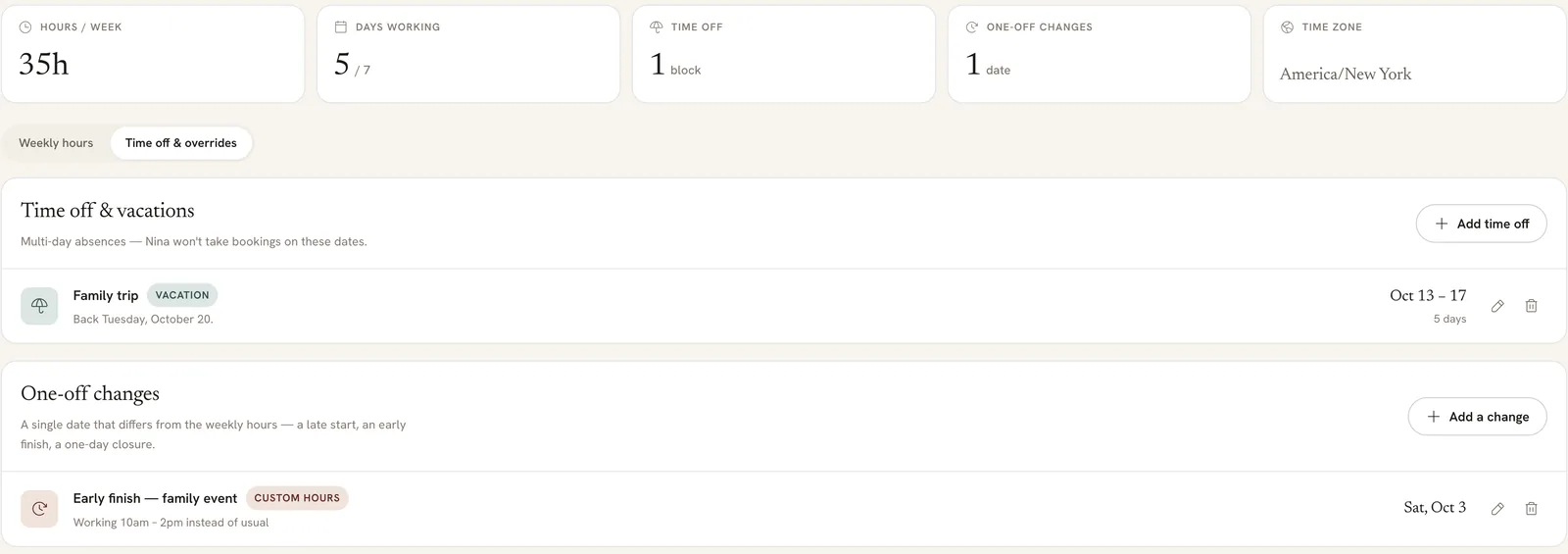
For a vacation, training or a sick day, open Time off & overrides and click Add time off. Pick the type, give it a label for the team calendar, choose the From and To dates, and add a note if it helps, like who’s covering. Click Add time off.
 Open full size
 Nina won’t take bookings from October 13 to 17.
Nobody can book them on those dates. We checked: every day of Nina’s vacation had no times, and her first day back did.
Change the hours for one day
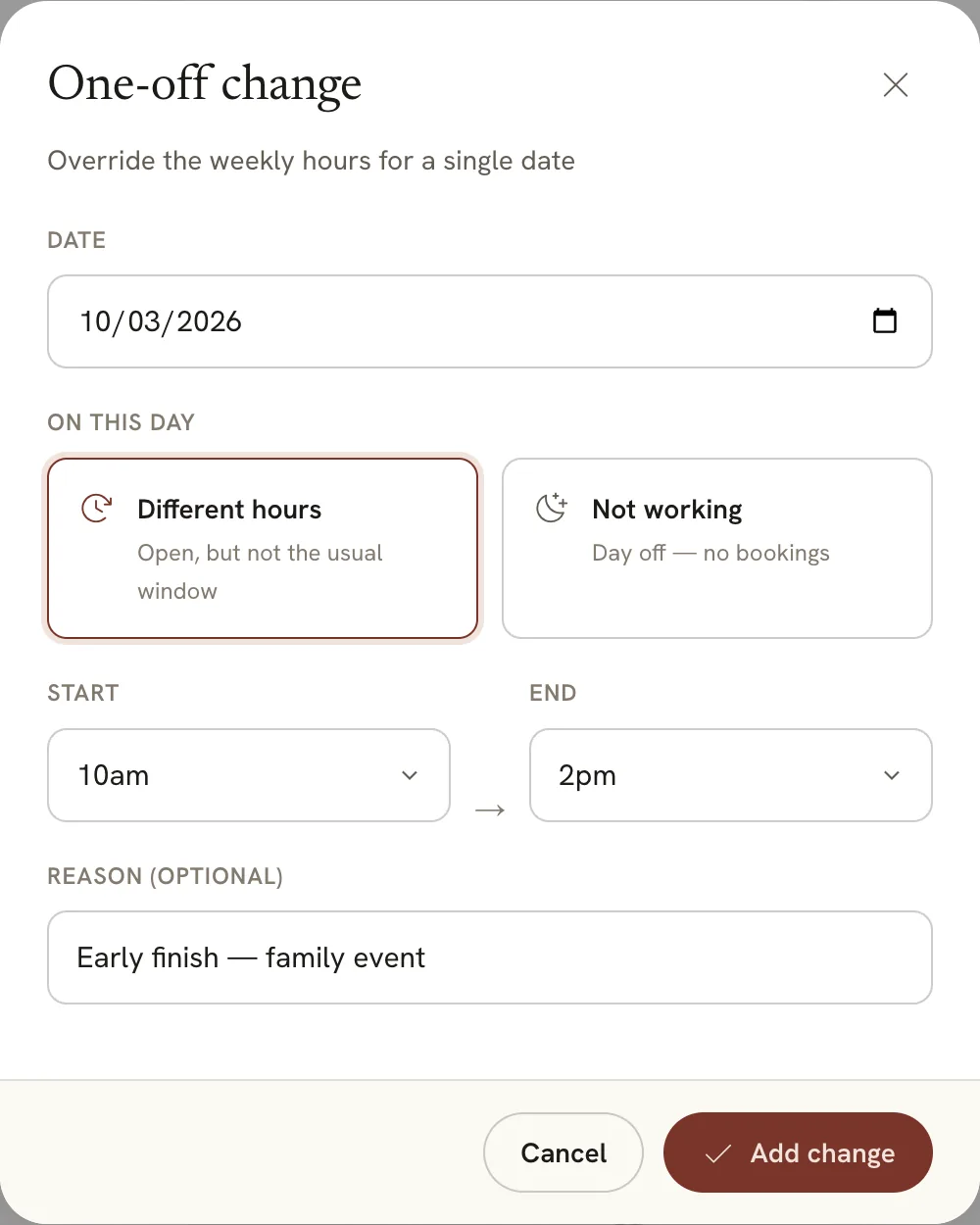
For a late start, an early finish or a single day off, click Add a change under One-off changes. Pick the date, then Different hours with a new start and end, or Not working. Add a reason if you like, and click Add change.
 Open full size
 Only that date changes. The weekly hours stay the same.
On that day, clients only see times that fit the new hours. With Nina finishing at 2pm, the last one-hour start was 1:00.
 Open full size
 Time off and one-off changes, listed with Edit and Remove.
Edit their profile and bio
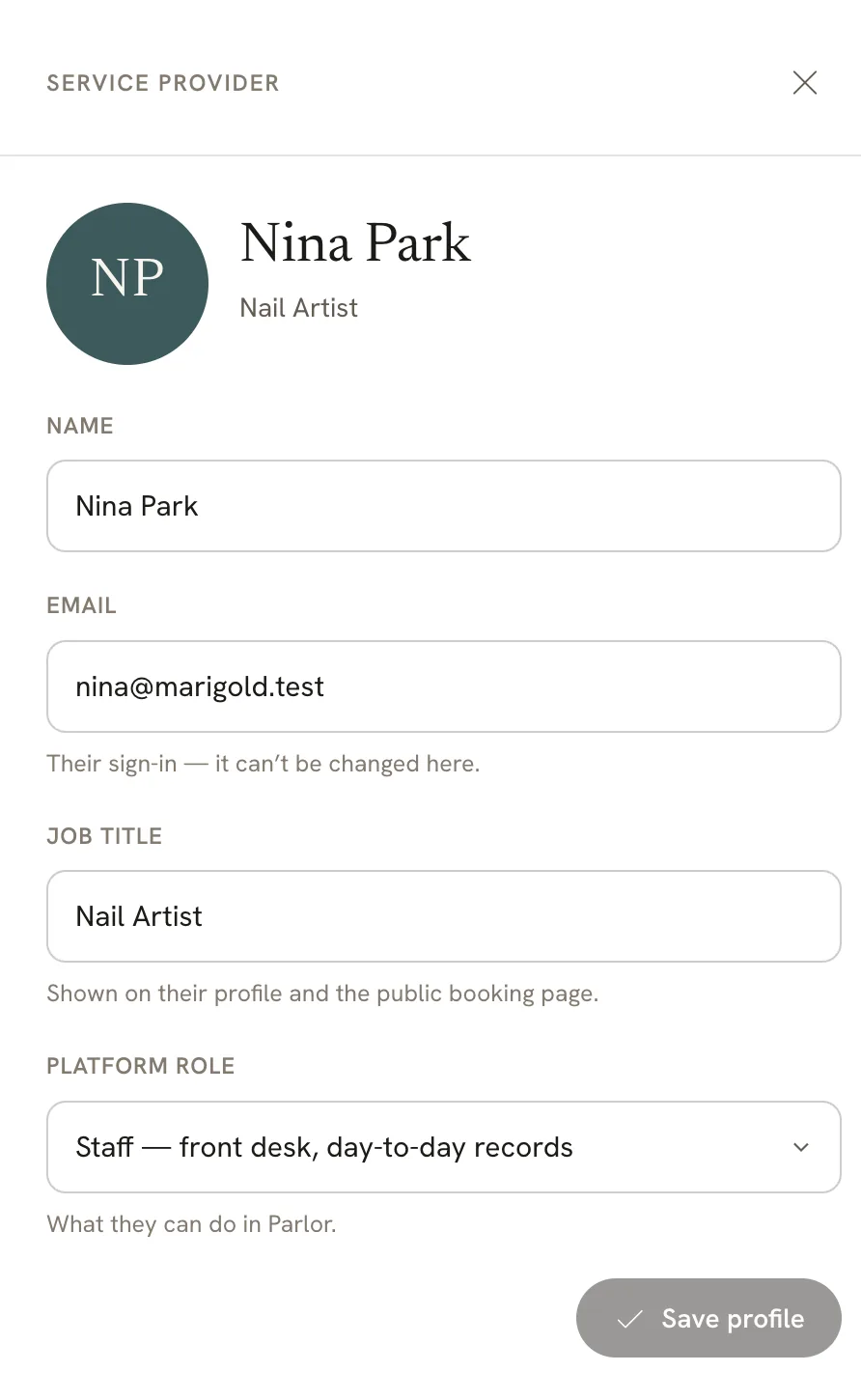
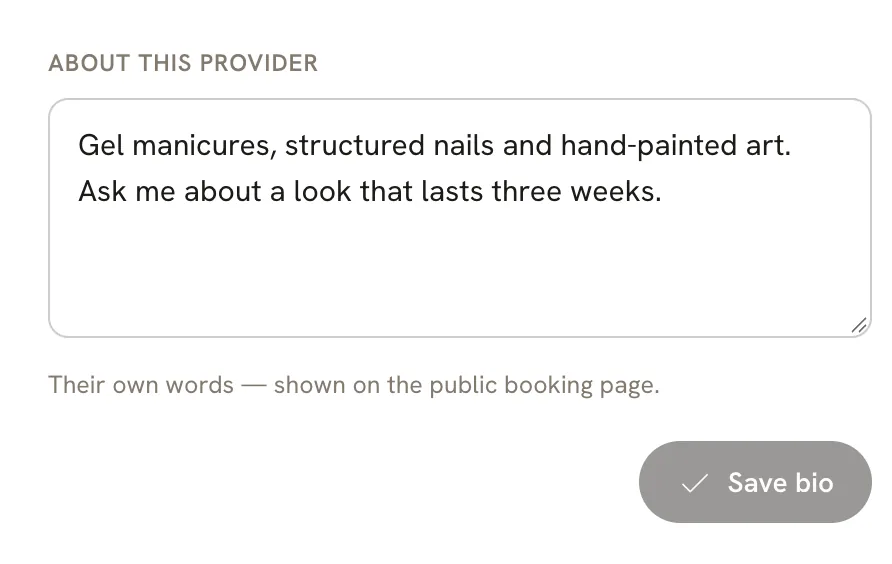
Everything you entered when you added them can be changed in their drawer. Update the Name, Job title or Platform role and click Save profile. The bio has its own box, About this provider, with a Save bio button.
 Open full size
 Their email is their sign-in, so it can’t be changed here.
 Open full size
 Their own words, shown on the public booking page.
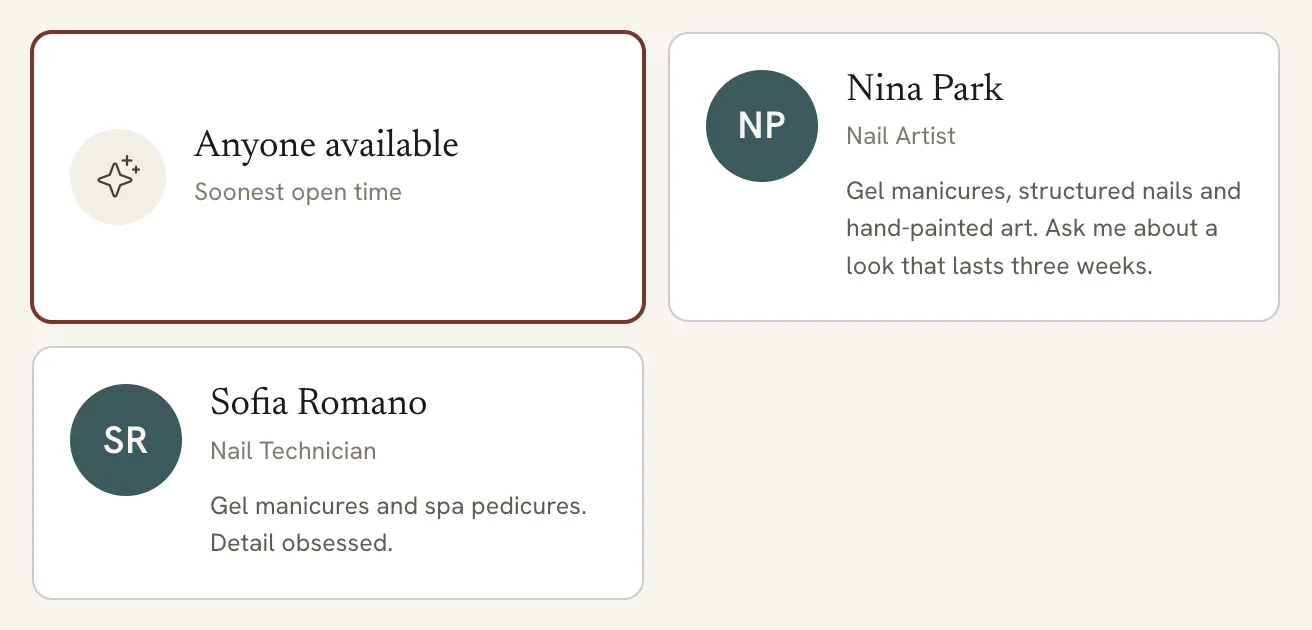
Clients see the name, title and bio when they pick who to book:
 Open full size
 The provider step on the booking page, for a gel manicure.
Hold their bookings for approval
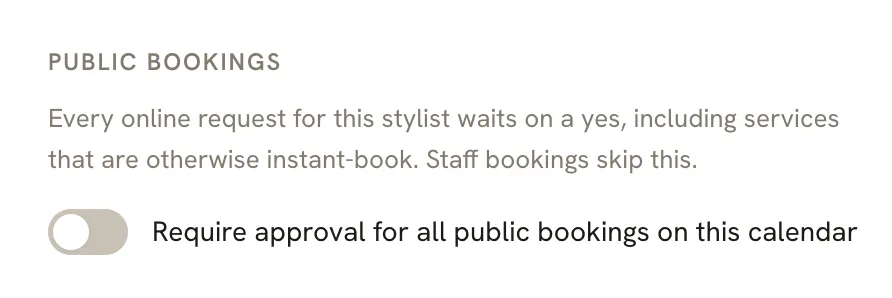
If you want to review every online booking for one person, like a new hire in their first weeks, switch on Require approval for all public bookings on this calendar in their drawer.
 Open full size
 This covers every service they offer, even ones that are usually instant-book.
Clients then see “All bookings wait on a studio yes” on that person’s card. Their times start at least 24 hours out, and a booked time is held while your studio reviews it, usually within 24 hours. Bookings your staff make skip this.
Take someone off the booking page
To stop clients booking someone, like a teammate moving to the front desk, turn off their Bookable switch on the Team page. They come off your booking page straight away and keep their login. Turn it back on to make them bookable again.
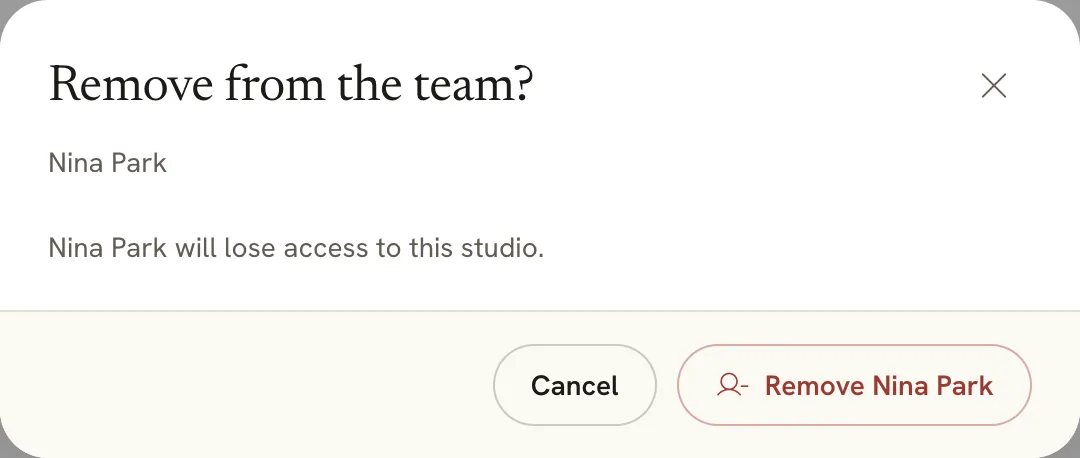
When someone leaves, click Remove on their row. A teammate with a login loses access to your studio.
 Open full size
 Removing is for people who have left. Bookable is the switch for everything else.
If something doesn’t look right
- A teammate isn’t on your booking page. Check that their Bookable switch is on, and that the service the client picked is switched on under their Services offered.
- A client sees no times for someone. It may be a day off in their weekly hours, time off, or a one-off change. Check Hours in their drawer.
- You can’t find Hours. Open the teammate with Edit. Hours is at the bottom of their drawer.
- You can’t add a teammate or change their setup. Only owners and admins can.
That’s the whole setup: add each person, switch on what they do, and set when they work. Clients will only see the times that fit.