How to set up your services in Parlor
Add each service with its length and price, choose who offers it, and tune the details: processing time, a deposit, approval, a required form, and how your menu is grouped.
On this page
What you need
- Your studio set up in Parlor, with your team added
- Your menu: each service's length in minutes and its price
- For deposits: payments set up in Parlor (Settings → Payments)
Your services are what clients book: each one has a name, a length and a price, and belongs to a group like Hair or Color. The groups become the sections of your booking page, so the way you set them up here is the way clients see your menu.
This guide walks through adding a service, choosing who offers it, and every setting you can tune afterward. We set up a Keratin Smoothing service in the Marigold demo studio to take the screenshots, and checked each step on the booking page as a client would see it.
The whole setup in about four minutes. Every step is also written out below, with the screenshots.
How your services are organized
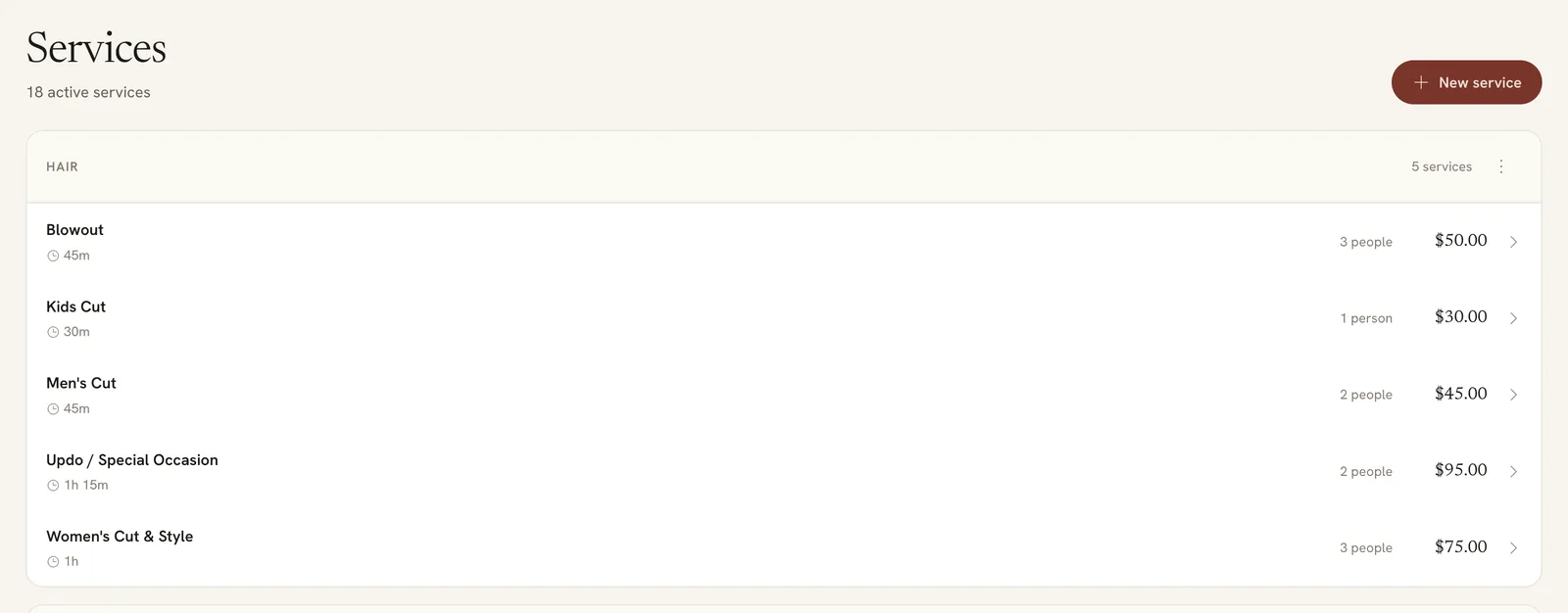
Open Services in the sidebar. Services are grouped by category, and each row shows the service’s length, how many people on your team offer it, and its price. The count at the top says how many services are active.
 Open full size
 Services, grouped by category. Click any row to open its settings.
Add a service
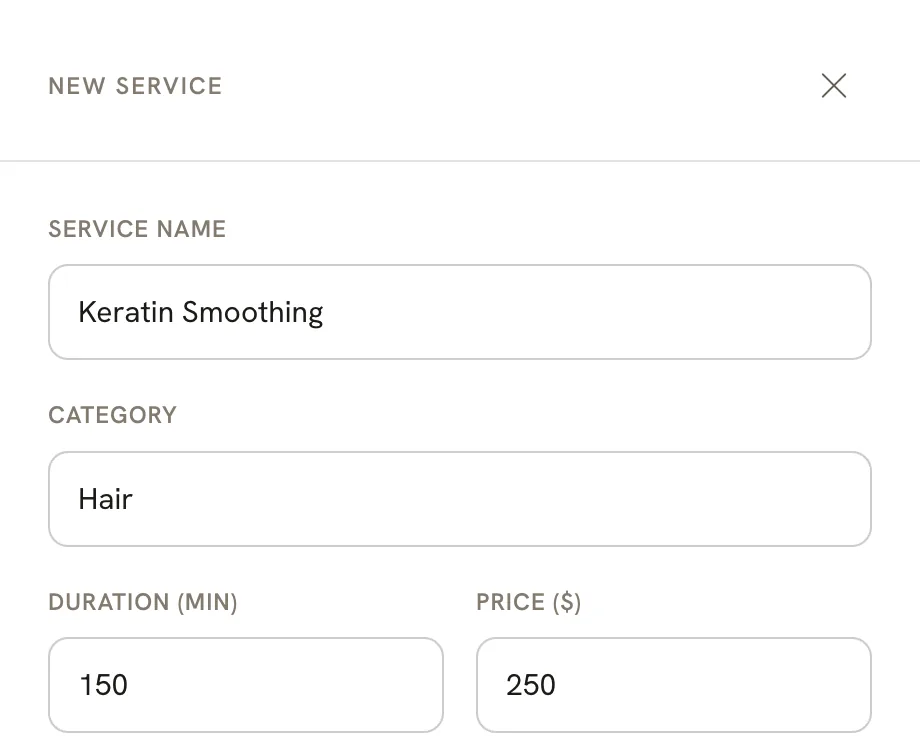
Click New service and fill in:
- Service name, the way clients should see it, like “Keratin Smoothing”.
- Category, the group it belongs in, like Hair or Color.
- Duration (min), the whole appointment in minutes, including any processing time.
- Price ($).
Then click Add service. Parlor says “Keratin Smoothing added.” and the service appears in its group.
 Open full size
 A 2½-hour service at $250, in the Hair group.
Choose who offers it
A new service starts with nobody offering it: its row says 0 people. Clients can only book a person for the services switched on for them, so this step is what makes the service bookable.
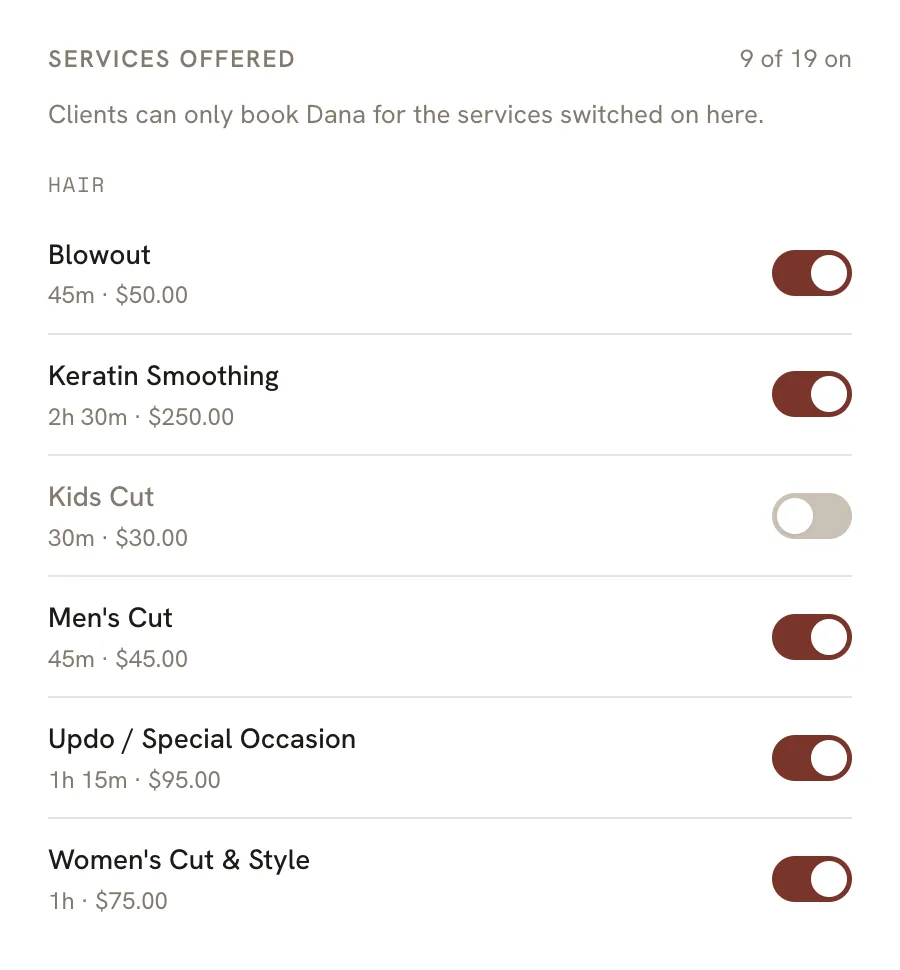
Go to Team, click Edit next to a teammate, and scroll to Services offered. Switch the service on. It saves as soon as you switch it, and the count at the top goes up. Do this for everyone who performs the service.
 Open full size
 Each teammate has their own list. Here Dana offers Keratin Smoothing but not Kids Cut.
Only owners and admins can change which services a teammate offers.
Add processing time
Some services have a stretch where the client sits and you’re free: color developing, a keratin treatment setting. Parlor can treat that stretch as time you’re free to take another client.
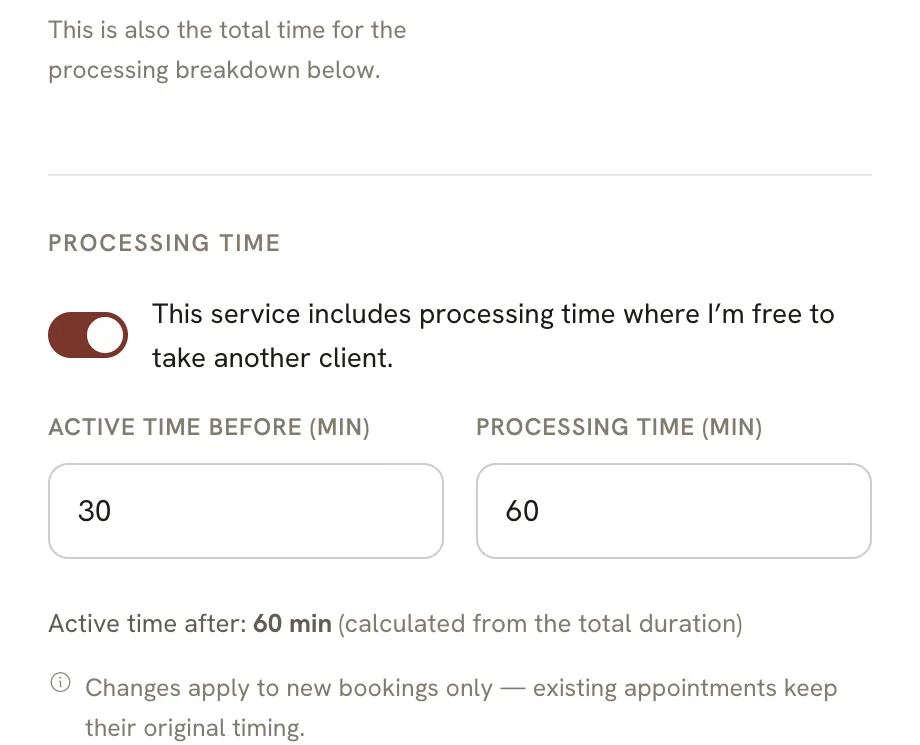
When you add or edit the service, switch on This service includes processing time where I’m free to take another client, then fill in:
- Active time before (min): the part you’re working before the processing starts.
- Processing time (min): the time the client waits.
Parlor works out Active time after from the total duration, so you never do the math. For the 150-minute keratin service, 30 minutes before and 60 minutes of processing leaves 60 minutes after.
 Open full size
 The duration above is the total; the three parts always add up to it.
The before and processing times have to leave at least a minute after. If they don’t, Parlor says “Active time and processing time exceed the total duration” and won’t save until you shorten them or lengthen the service. Changes apply to new bookings only; appointments already booked keep their original timing.
Set a deposit for one service
Every service uses your studio’s deposit unless you change it here. Your studio’s deposit is set in Settings → Payments, under Deposits & fees. Deposits only apply once payments are set up in Parlor, on Booking deposits or Full payments.
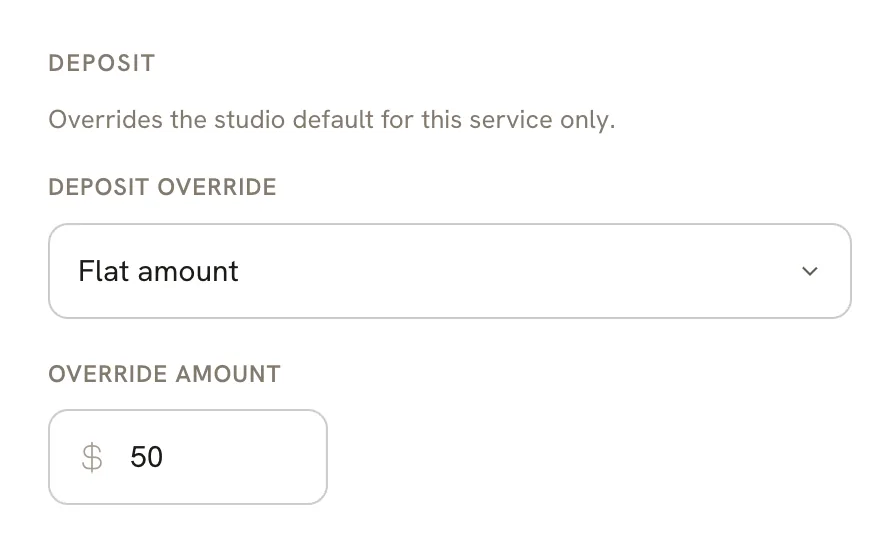
To give one service its own deposit, click the service to open it, and under Deposit pick a Deposit override:
- Use studio default, the setting every service starts with.
- No deposit for this service.
- Percentage of price, from 0 to 100.
- Flat amount, at least $0.50.
Click Save changes.
 Open full size
 A flat $50 deposit for this service only.
In the demo studio, the studio deposit is 25%, so the $250 keratin service asked for $62.50. With a flat $50 override, the booking page says “A $50 deposit holds your spot.”
Hold bookings for your approval
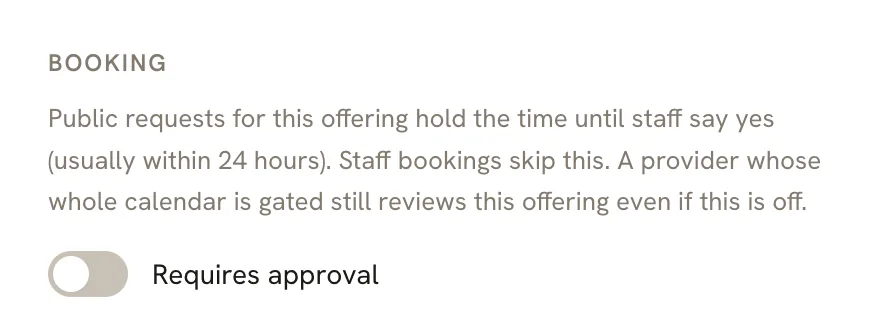
For a service you want to look at before you commit, like a big color correction, switch on Requires approval under Booking and click Save changes.
 Open full size
 Bookings you make yourself skip approval.
When a client books it online, the time is held until your studio says yes, usually within 24 hours. Bookings your staff make from the calendar skip this.
Ask for a form before the visit
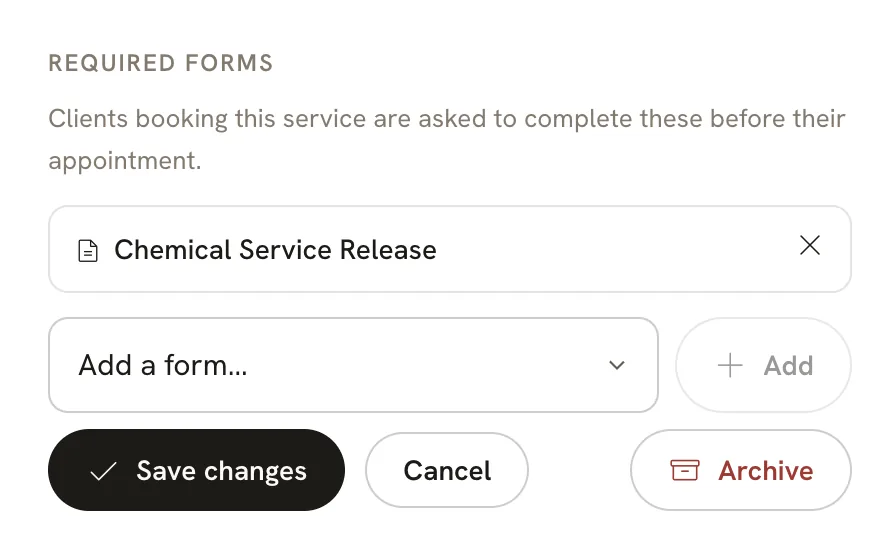
If a service needs a signed form, like a release for a chemical service, attach it to the service. Open the service, go to Required forms, pick the form from Add a form… and click Add. Parlor says “Form attached.” To take a form off, click the × beside it.
 Open full size
 Forms come from your library under Forms in the sidebar.
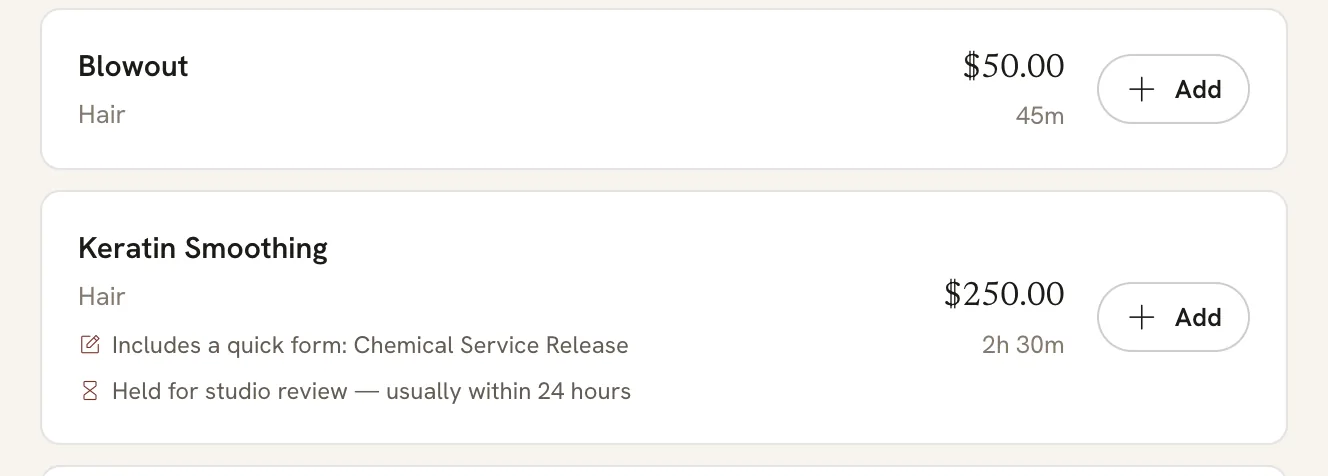
Clients who book the service are asked to complete the form before their appointment. On your booking page, the service says so, and it also says when a booking waits for your approval:
 Open full size
 What clients see before they add the service.
Rename, move and delete groups
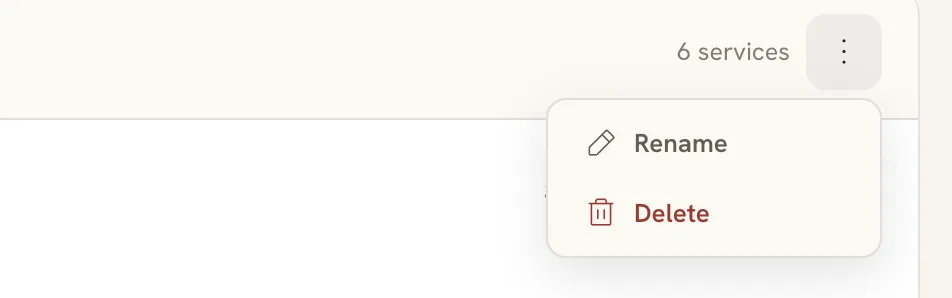
Your groups are the sections clients see on your booking page. To change them, use the ⋮ menu on a group’s header.
 Open full size
 The menu on the Hair group’s header.
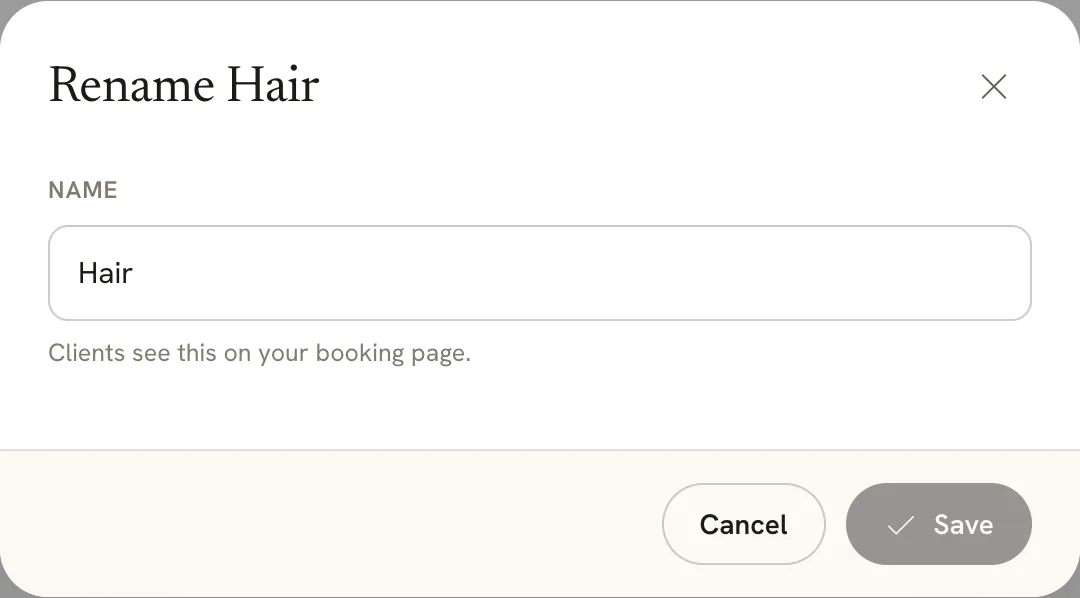
Rename a group for every service in it: choose Rename, type the new name, and click Save.
 Open full size
 Renaming changes the section name on your booking page.
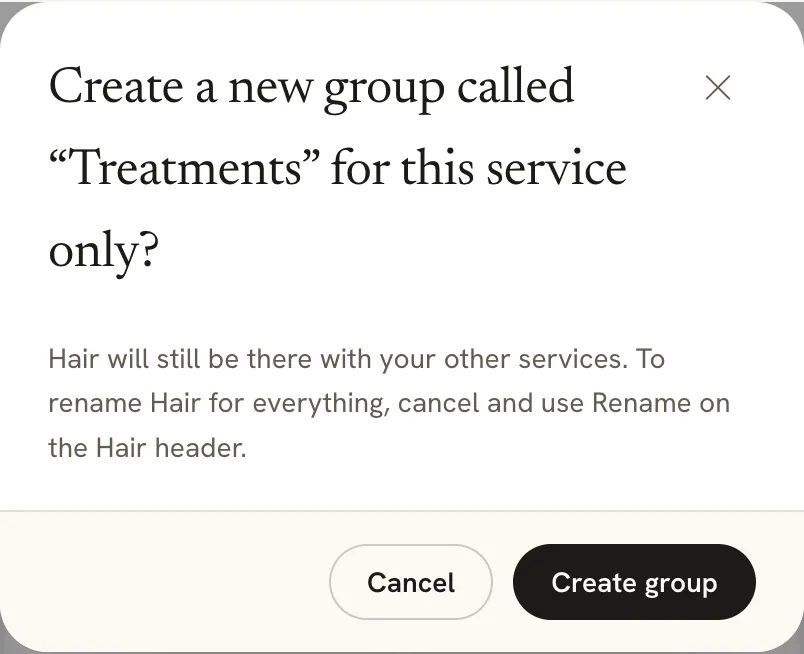
Move one service to another group: open the service and change its Category. If you type a name that isn’t one of your groups, Parlor checks first, because that starts a new group for this service only.
 Open full size
 To rename the whole group instead, cancel and use Rename on its header.
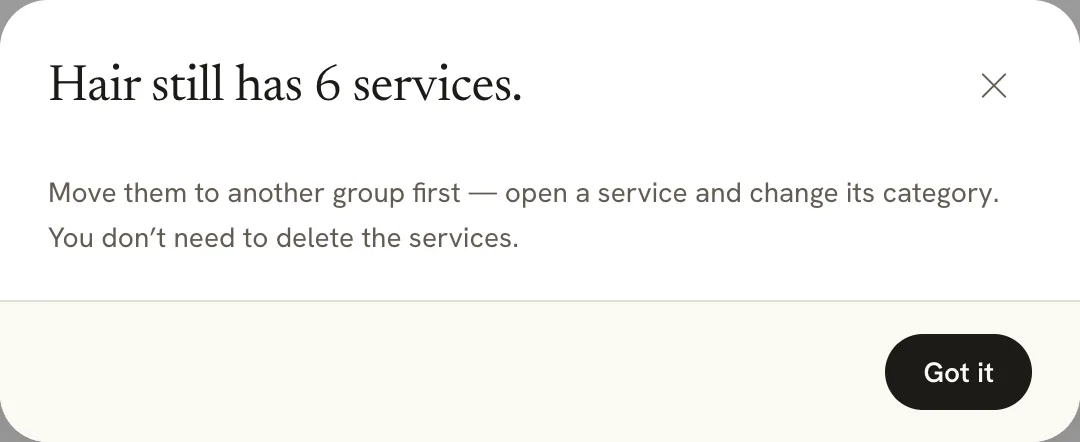
Delete a group only once it’s empty. If it still has services, Parlor tells you to move them to another group first. You don’t need to delete the services themselves.
 Open full size
 Delete only removes an empty group.
Archive a service you’ve stopped offering
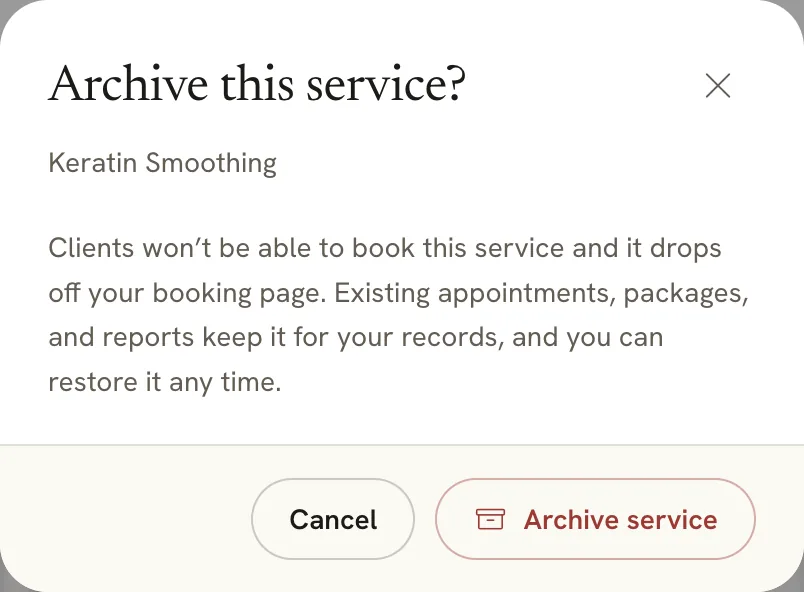
To stop taking bookings for a service, open it and click Archive, then Archive service. It drops off your booking page. Existing appointments, packages and reports keep it for your records.
 Open full size
 Archiving isn’t deleting. You can bring it back.
An archived service stays on your Services page, marked Archived, and the count at the top shows it separately. To bring it back, open it and click Restore.
 Open full size
 Archived services stay listed, greyed out, so you can restore them.
If something doesn’t look right
- Clients see “0 of our team can do everything you’ve chosen.” Nobody offers that service yet. Switch it on for someone under Team → Edit → Services offered.
- Parlor won’t save a service with processing time. The before and processing times add up to the whole duration or more. Shorten them, or lengthen the service.
- The deposit override doesn’t show on the booking page. Deposits only apply once payments are set up, on Booking deposits or Full payments. Check Settings → Payments.
- You can’t delete a group. It still has services. Open each one and change its category, then delete the empty group.
- A service disappeared from your booking page. It may be archived. Find it on the Services page, marked Archived, open it and click Restore.
- You can’t switch services on for a teammate. Only owners and admins can change which services a teammate offers.
That’s the whole menu: add each service, switch it on for the people who do it, and tune the details as you go. Every change shows on your booking page as soon as you save it.