How to sell gift cards, give a comp card, and redeem them at checkout
Share the link clients buy gift cards from, sell one at the front desk, give a card for free, take it off a ticket at checkout, and refund or void a card.
On this page
What you need
- A Parlor login. Giving a comp card, refunding and voiding take Owner or Admin access.
- Payments set up in Parlor, with the studio on Full payments (Settings → Payments). Until then, Gift cards isn’t in the sidebar and your gift card link doesn’t sell.
A gift card is money on a code. Someone pays for it, or you give it away, and the person it’s for spends it at your studio until the balance runs out. Parlor emails the card to its recipient, keeps the balance, and takes it off the ticket at checkout.
This guide walks through gift cards in the Marigold demo studio. We bought one online, sold two at the front desk, gave one away, spent two at checkout, refunded one and voided one. Anything only an owner or admin can do says so.
The whole thing in about five minutes. Every step is also written out below, with the screenshots.
What’s on the Gift cards page
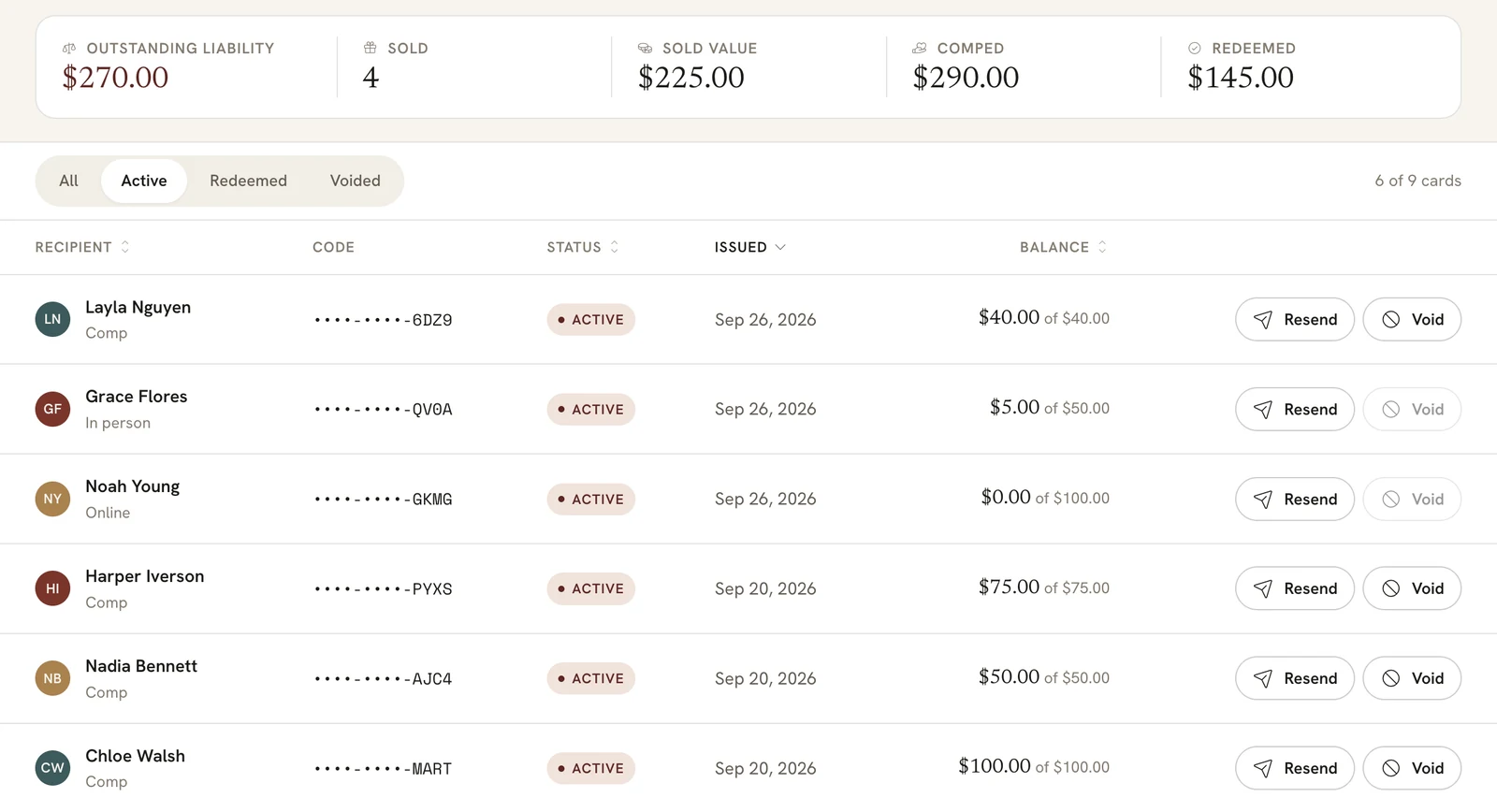
Open Gift cards in the sidebar, under Sell. Across the top:
- Outstanding liability is the balance left on every active card: what your clients can still spend.
- Sold and Sold value count the cards people paid for.
- Comped is the value of the cards you gave away.
- Redeemed is what’s been spent at checkout.
Each card in the list shows who it’s for, the last four characters of its code, its status, the day it was issued, and its balance out of what it started with. Under the name, Online, In person or Comp says how the card came to exist. All, Active, Redeemed and Voided narrow the list.
 Open full size
 Active cards at Marigold, bought online, sold at the desk and comped.
Share your gift card link
Clients buy gift cards on a page of their own, at app.parloros.com/gift?studio= followed by your booking link name. The Gift cards page shows yours next to Clients buy at. Click Copy and put it on your website, your social profiles, or in a text.
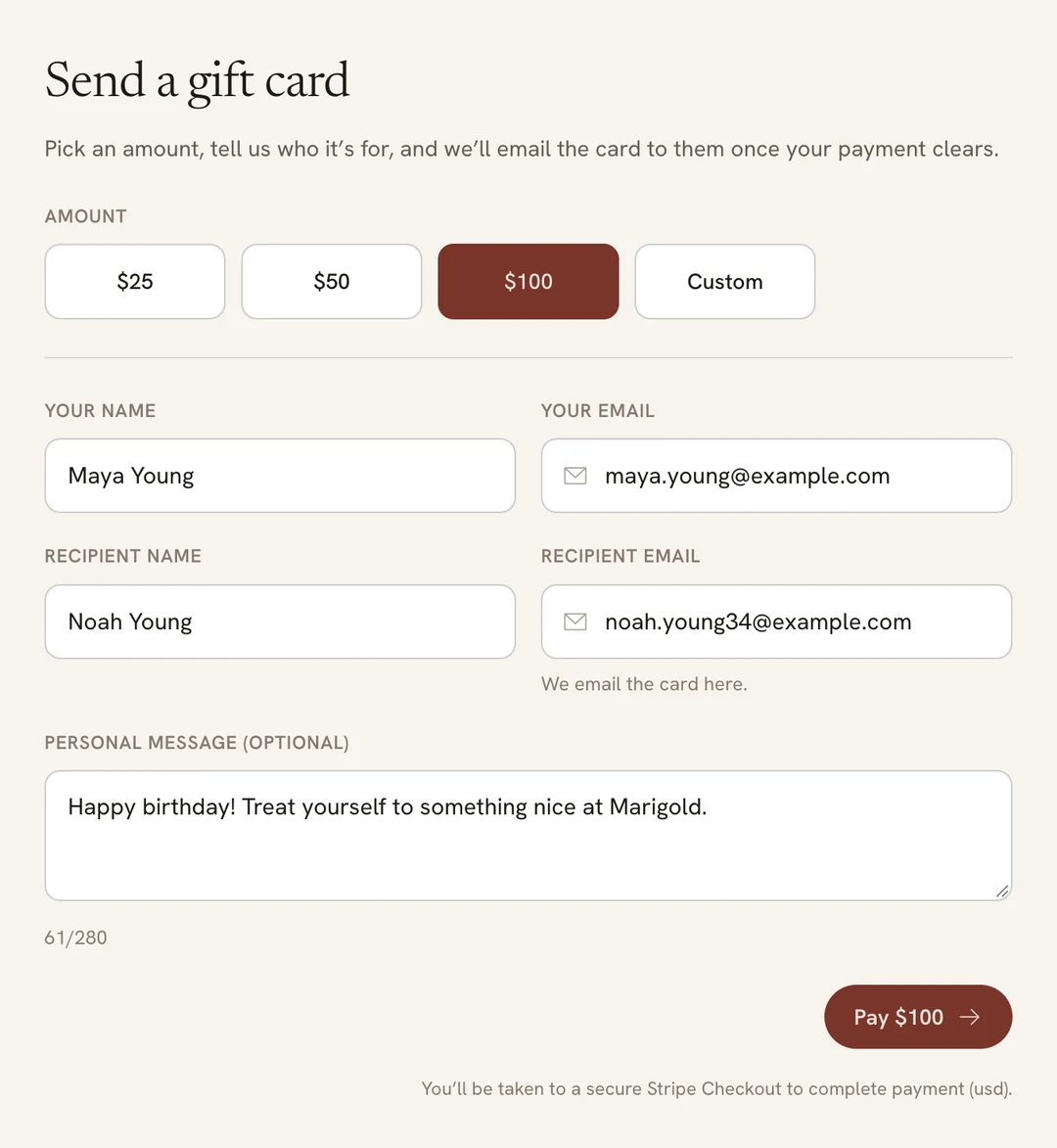
On that page the buyer picks $25, $50, $100, or a custom amount from $5 to $500. They type their name and email, the recipient’s name and email, and a message if they want one, then pay by card on a secure Stripe page.
 Open full size
 Maya is buying Noah a $100 card for his birthday.
Once the payment goes through, Parlor emails the recipient the amount, the code and the message. The card shows on your Gift cards page as Online.
Sell a gift card at the front desk
Anyone who can take payments can sell a gift card at the desk, in $25, $50 or $100. Click New sale in the sidebar, or add it to a client’s ticket at Checkout.
- Attach the client the card is for: search their name under the sale’s heading.
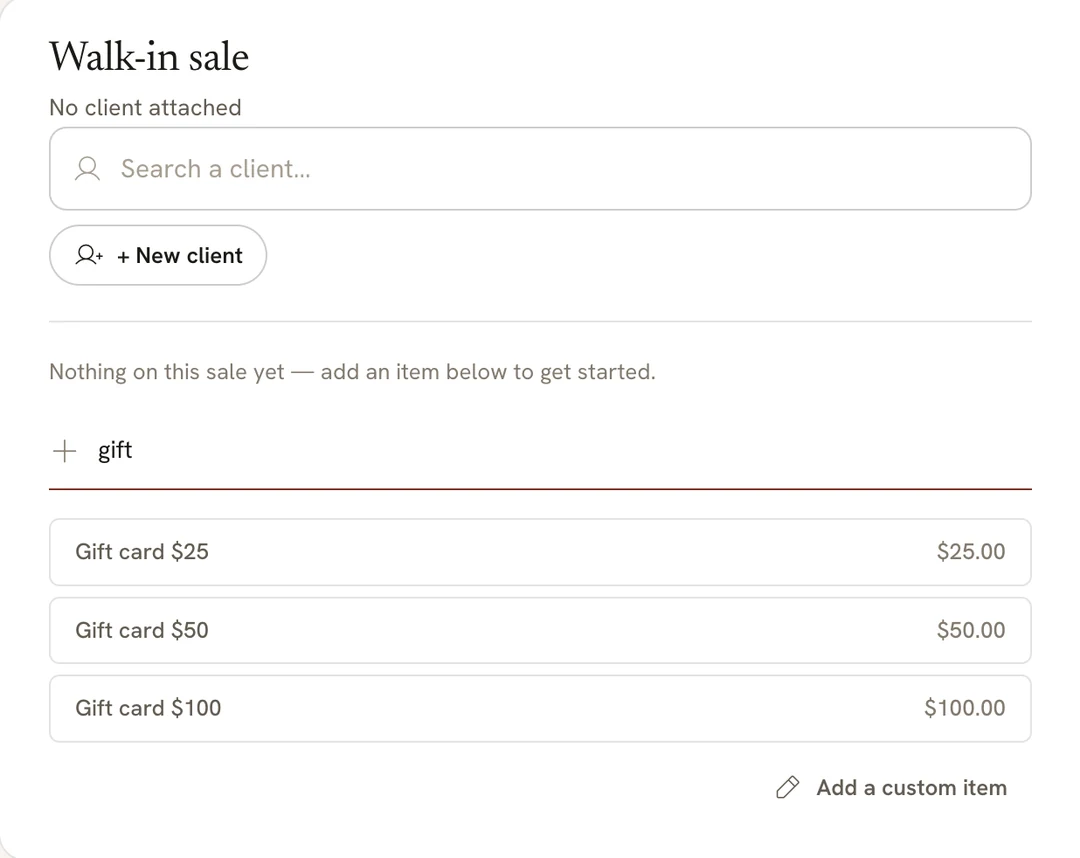
- In Add a service, product, or gift card…, type “gift” and pick the amount.
- Take the payment the usual way.
 Open full size
 Type “gift” and the three amounts come up.
When the payment goes through, the card is made out to the client you attached. If they have an email on file, Parlor emails them the card. If they don’t, open the card on the Gift cards page, click Copy code, and give them the code yourself.
Give a comp card
Only an owner or admin can give a comp card. Use it for a make-good, a raffle prize, or a thank-you. Nobody pays for it, so it adds to what your clients can spend.
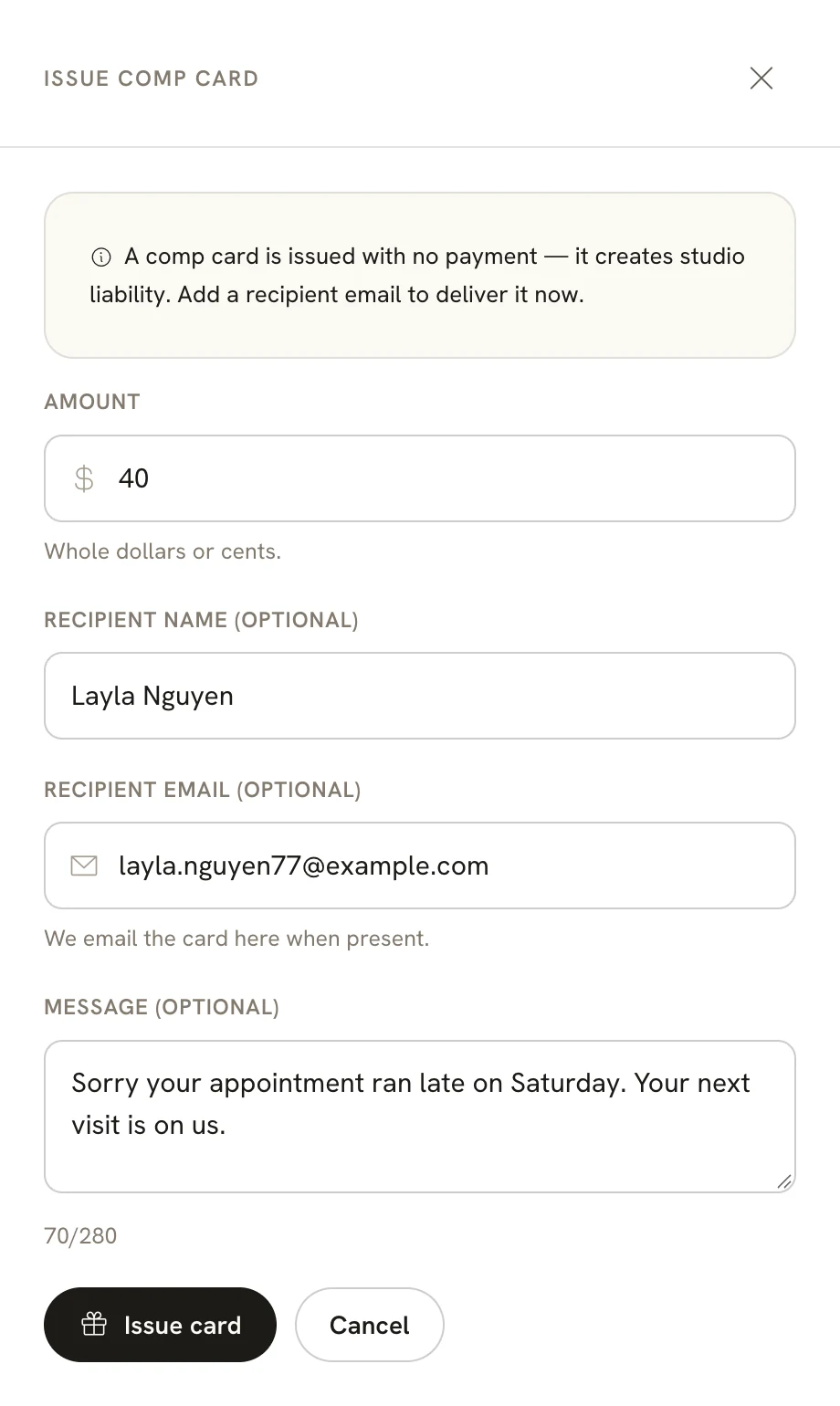
On the Gift cards page, click Issue comp card and fill in:
- Amount, in whole dollars or cents.
- Recipient name (optional).
- Recipient email (optional). Parlor emails the card here straight away. Leave it blank and nobody is emailed.
- Message (optional), up to 280 characters.
Click Issue card. Parlor says “Comp card issued.” and adds it to the list as Comp.
 Open full size
 A $40 card for Layla, whose appointment ran late.
To give a client a free package of sessions instead, see Give a package for free.
Take a gift card off a ticket at checkout
Open the appointment and click Checkout, or start a New sale. There are two ways to add the card.
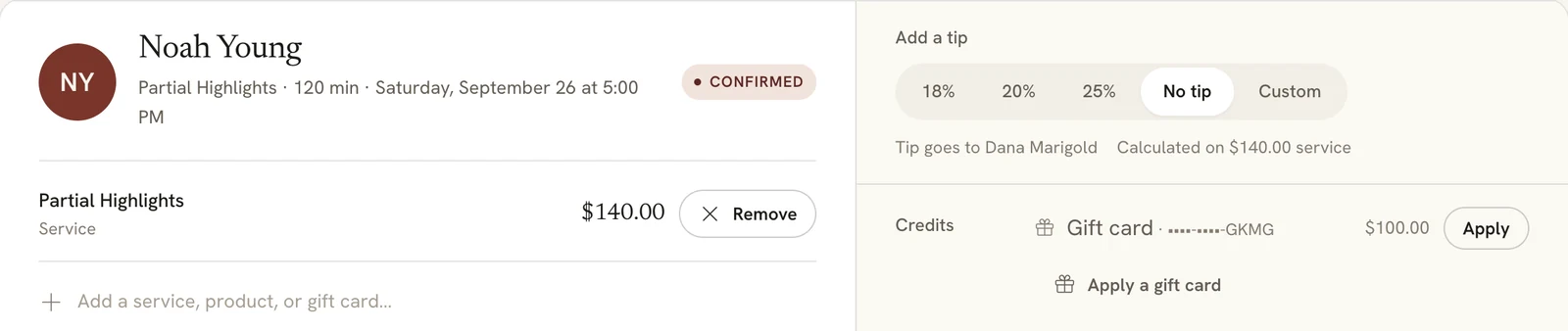
The card is on file. A card is on file for a client when its recipient email matches the email on their profile. It’s listed under Credits with its last four characters and its balance. Click Apply.
 Open full size
 Noah’s $100 card is on file because it was sent to the email on his profile.
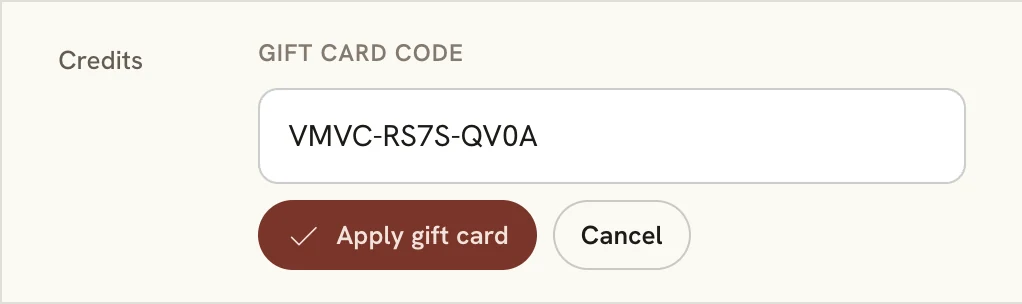
The client has the code. Under Credits, click Apply a gift card, paste the whole code, and click Apply gift card.
 Open full size
 Paste all of it. The last four characters aren’t enough.
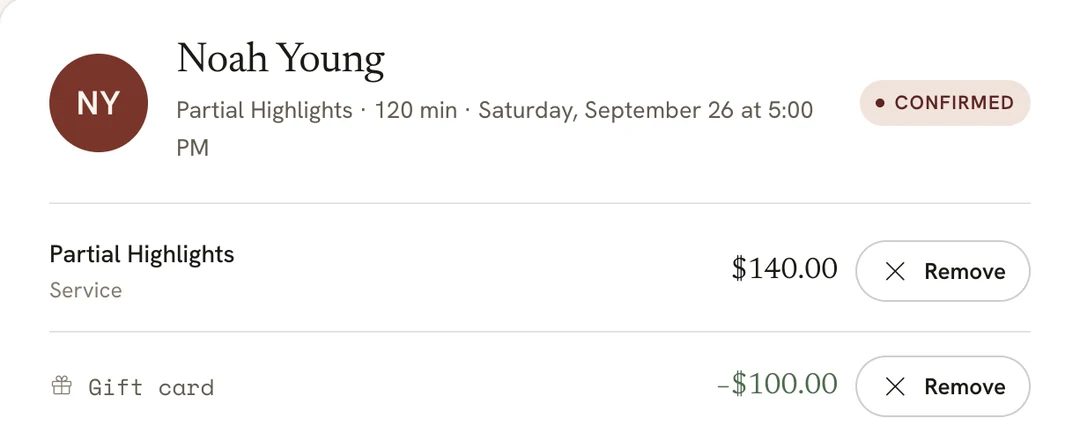
Either way, the card goes on the ticket as its own line and takes its balance off what’s owed, up to the total. If something is still owed, take it the usual way. Noah’s $100 card covered most of a $140 appointment, and he paid the other $40.
 Open full size
 The card takes $100 off. Noah pays the other $40.
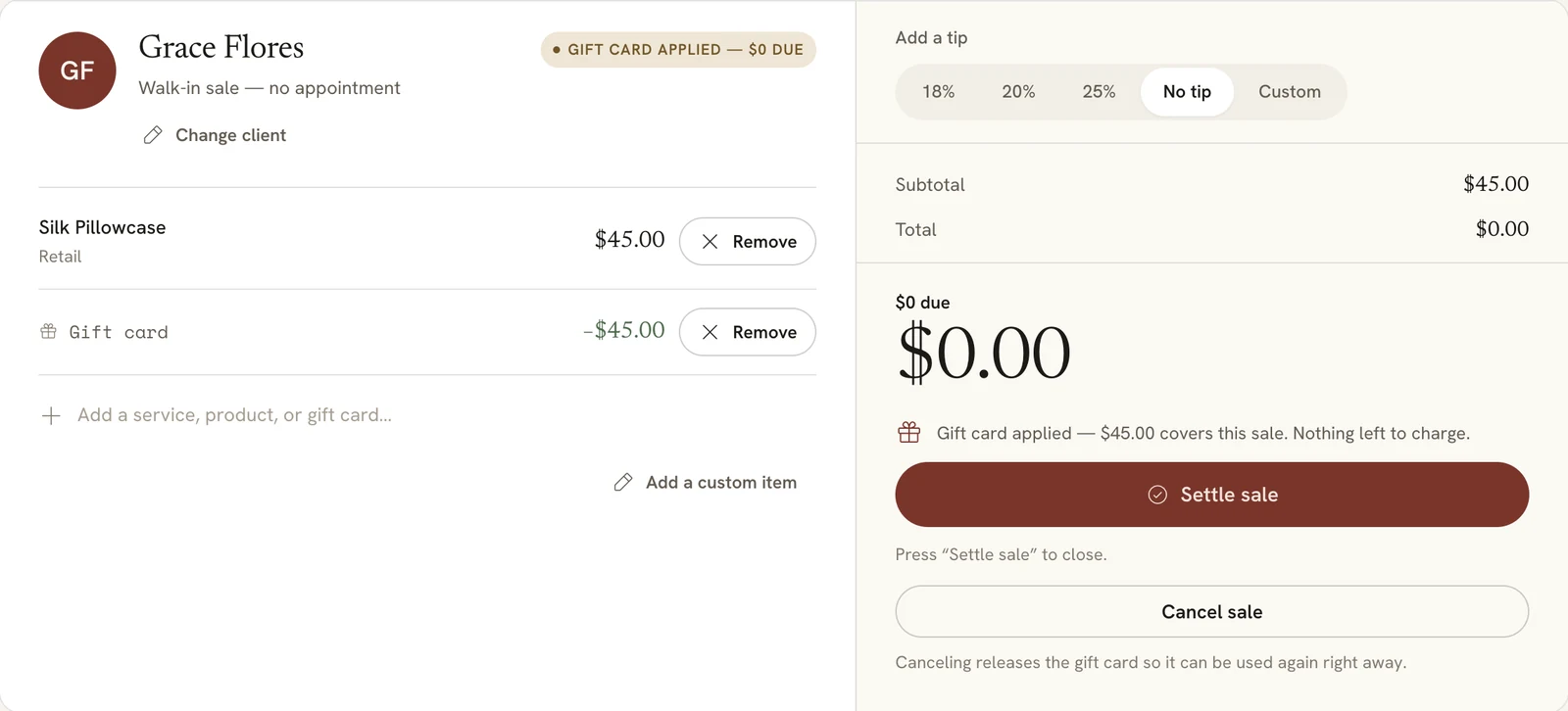
When the card covers everything, Parlor shows $0 due. Click Settle ticket on an appointment, or Settle sale on a new sale, to close it.
 Open full size
 Grace’s $50 card covers the $45 pillowcase, with $5 left on it.
Applied the wrong card? Before you settle, click Remove on its line, then Remove gift card. Canceling a new sale also puts the balance back on the card.
Check a card’s balance
Paste the whole code in the box at the top of the Gift cards page and click Check. Or click any card in the list.
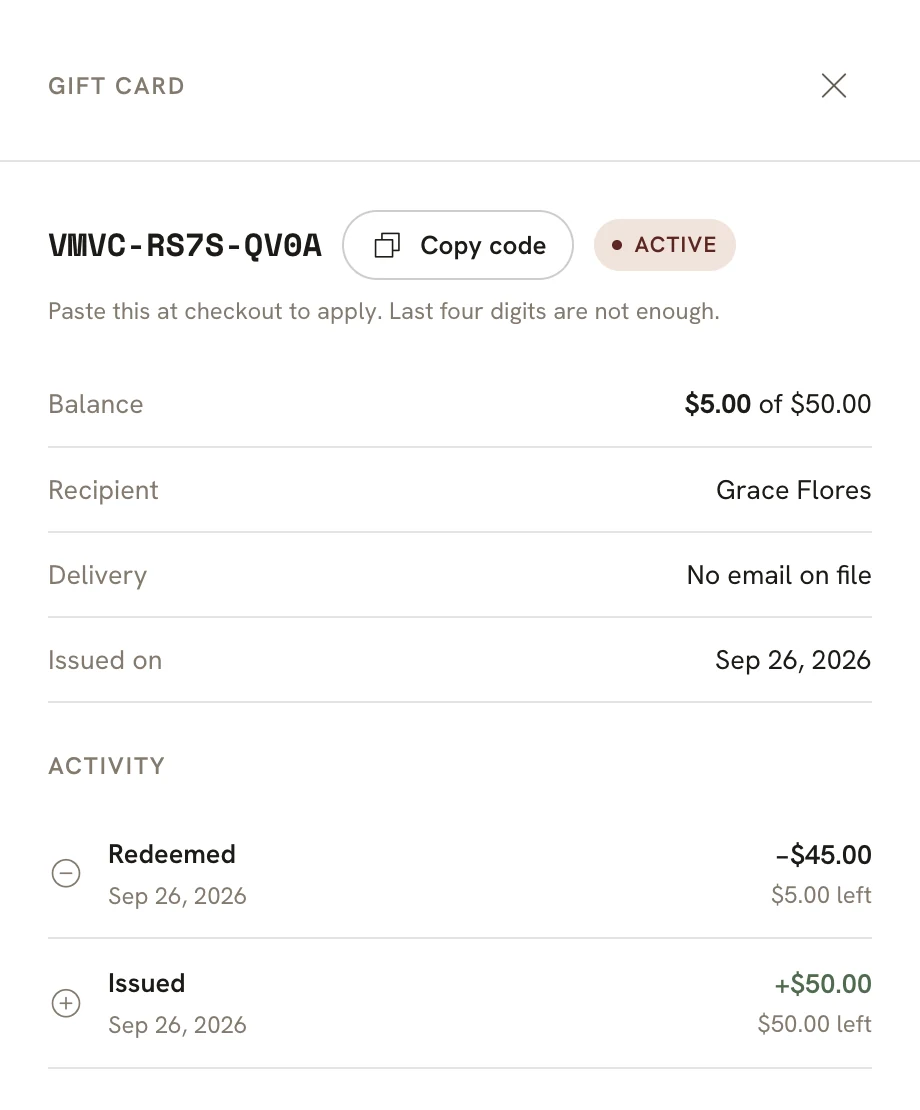
The card opens with its code, Copy code, its balance, who it’s for, whether it was emailed, and every time it was issued, spent, refunded or voided under Activity.
 Open full size
 Grace spent $45 of her $50 card on a pillowcase.
A client’s cards are also on their profile. Open the client and go to the Gift cards tab. It lists every card sent to the email on their profile.
 Open full size
 Layla’s comp card on her profile.
Send the card email again
If a client can’t find their card, click Resend on its row. Parlor emails the card to the recipient again and says “Delivery email re-sent.”
Refund a card someone bought online
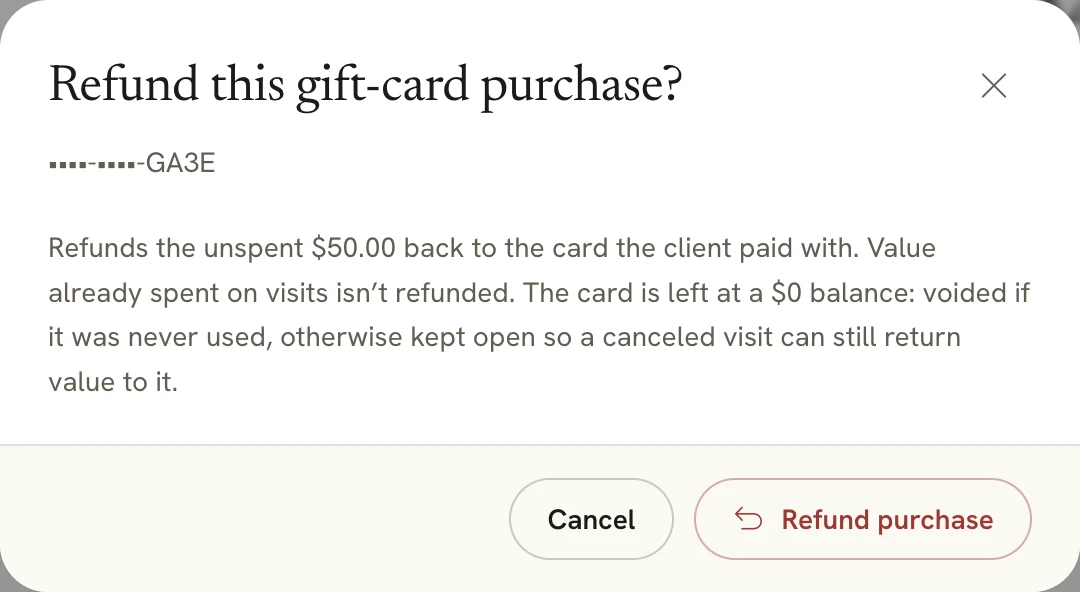
Only an owner or admin can refund a card, and only a card bought online that still has money on it. Click Refund on its row, then Refund purchase.
 Open full size
 Only what’s left on the card goes back to the buyer.
The unspent balance goes back to the card the buyer paid with, and the gift card drops to $0. A card that was never used is voided. A card that was partly spent stays open at $0, so a canceled visit can still put value back on it.
To refund a card sold at the front desk, click Refund Charge on the sale it was sold on. When we refunded an unused $25 card that way, Parlor voided the card.
Void a card
Only an owner or admin can void a card, and only before any of it has been spent. After that, Void is greyed out.
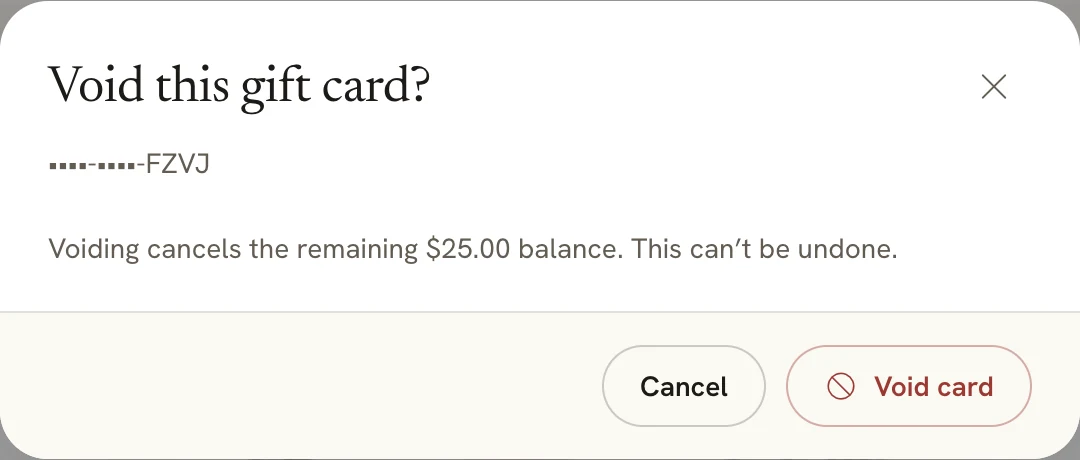
Click Void on the card’s row, then Void card. Parlor says “Card voided.” and marks it Void. It can’t be undone.
 Open full size
 Voiding cancels the whole balance.
If something doesn’t look right
- Gift cards isn’t in the sidebar. Payments aren’t set up, or the studio isn’t on Full payments. An owner or admin can finish it in Settings → Payments.
- “Gift card not found.” Paste the whole code, dashes included. The last four characters aren’t enough.
- The card isn’t under Credits at checkout. Its recipient email doesn’t match the email on the client’s profile, or the profile has no email. Use Apply a gift card with the code.
- A card says Held. It’s on a ticket or sale that hasn’t been paid yet, and its balance is set aside until then. Finish or cancel that checkout, or click Release hold to put the balance back.
- Refund isn’t there. The card was comped or sold at the desk, or it has no money left.
- Issue comp card or Void is greyed out. Your login has Staff access. Ask an owner or admin. Void is also greyed out once any of the card has been spent.
That’s a gift card from start to finish: share the link or sell it at the desk, give one away when you owe someone, and take it off the ticket each visit until it’s spent.