How to sign in to Parlor with a magic link or a passkey
What a passkey is, how to sign in with an emailed link or a passkey, and how to add and remove a passkey for each phone and computer you use.
On this page
What you need
- The email address your studio added you with. Owners use the one they created the studio with.
- For a passkey: a phone or computer with a screen lock, such as Face ID, a fingerprint, Windows Hello, or a PIN.
Parlor has no passwords. There are two ways in: a magic link, which Parlor emails you each time, or a passkey, which your phone or computer keeps and unlocks with your face, your fingerprint or your PIN.
This guide explains what a passkey is, then walks through signing in both ways and adding and removing passkeys. We did every step on the Marigold demo studio, as its owner and as an admin. It works the same for everyone on your team, owner to staff.
The whole thing in under five minutes. Every step is also written out below, with the screenshots.
What a passkey is
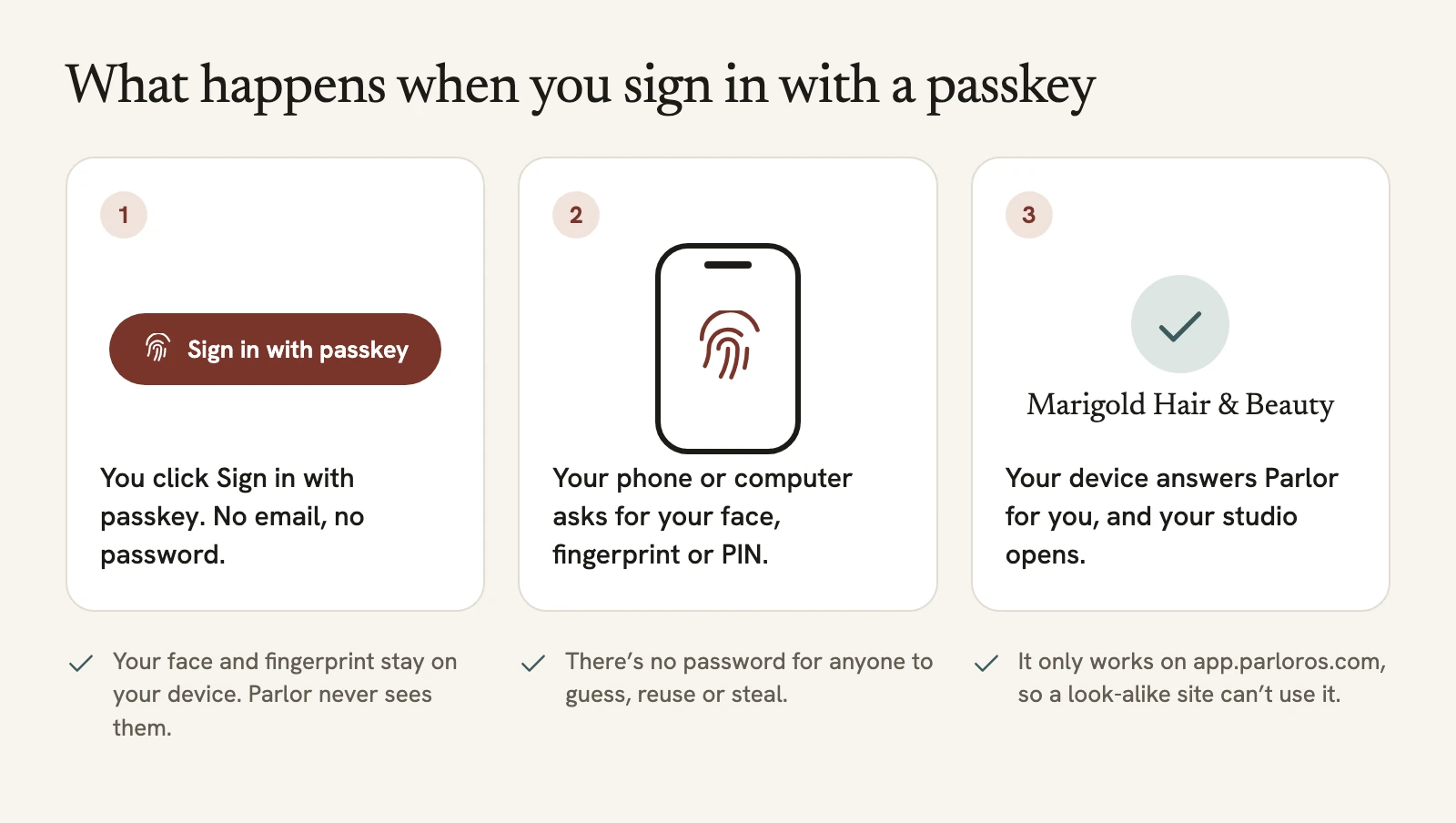
A passkey is a sign-in that lives on your phone or computer. When you sign in with one, your device asks for what it asks for when you unlock it: your face, your fingerprint, or your PIN. Then it vouches for you to Parlor. There’s nothing to type and nothing to remember.
- Your face and fingerprint never leave your device. Parlor doesn’t receive them or store them.
- There’s no password to guess, reuse or steal. Parlor keeps only the public half of the passkey, which can’t sign anyone in by itself.
- It only works on app.parloros.com. A look-alike site in a phishing email can’t use it.
 Open full size
 Illustration, not a screenshot.
A magic link and a passkey sign you in to the same account. Most people use a passkey on the devices they use every day, and a magic link everywhere else.
| Magic link | Passkey | |
|---|---|---|
| What you need | Your email inbox | The phone or computer you saved it on |
| Each time you sign in | Request a link, open the email, click Sign in | Click Sign in with passkey, then use your face, fingerprint or PIN |
| Best for | A new or borrowed computer, or a device you’ve lost your passkey on | The phone and computers you use every day |
Sign in with a magic link
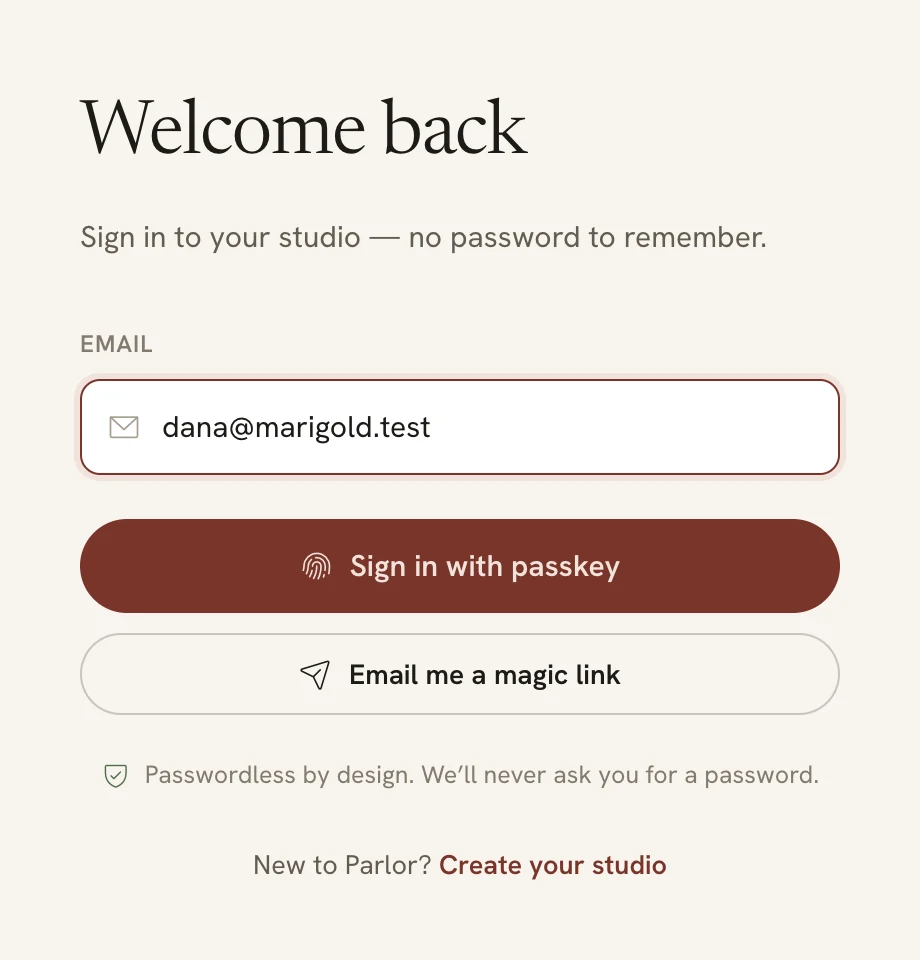
- Go to
app.parloros.com, and type your email under Email.
 Open full size
 The sign-in page. Type your email only for a magic link; a passkey doesn’t need it.
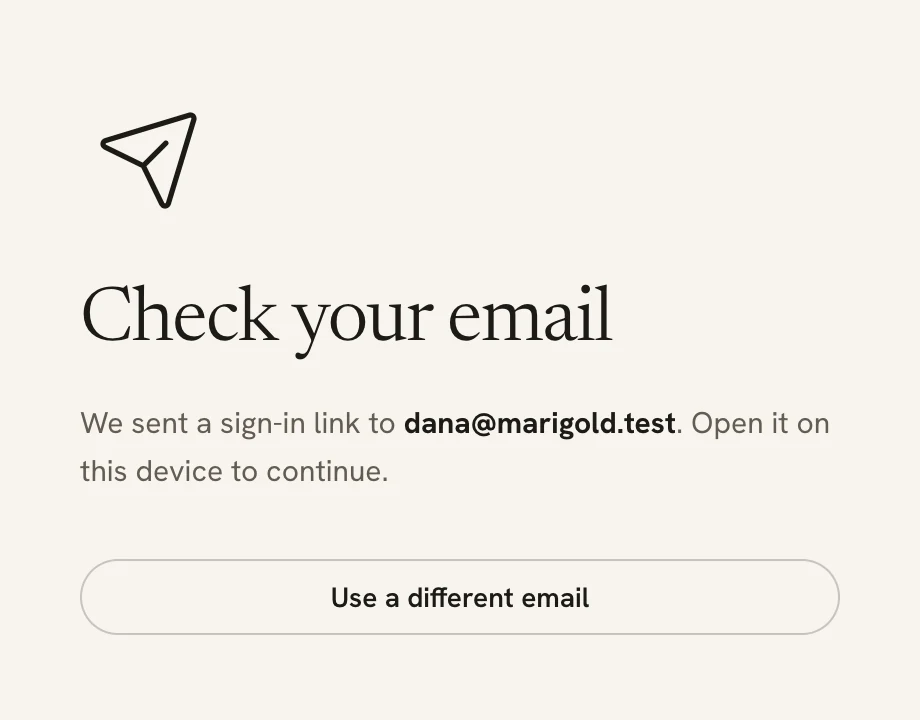
- Click Email me a magic link. Parlor shows Check your email with the address it sent the link to. If the address is wrong, click Use a different email.
 Open full size
 Open the email on the phone or computer you’re signing in on.
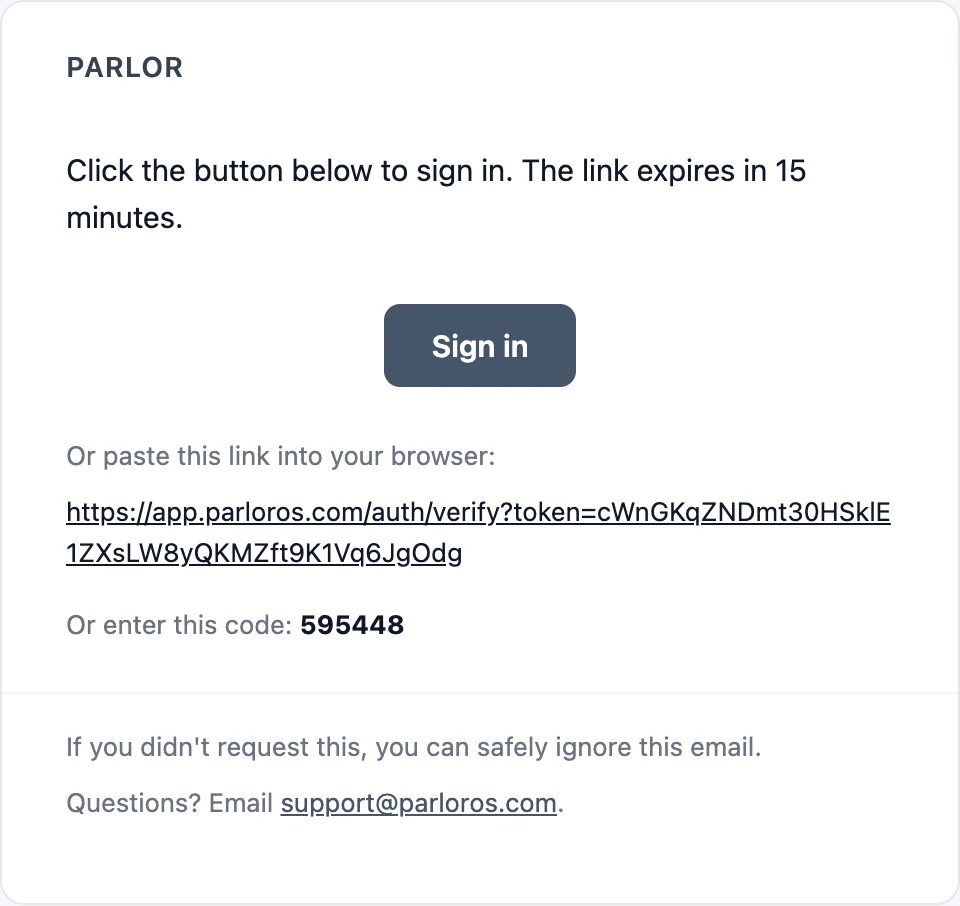
- Open the email from Parlor with the subject Sign in to Parlor, and click Sign in. Do this on the phone or computer you want to be signed in on: the device where you click the link is the one it signs in.
 Open full size
 The link works once, for 15 minutes.
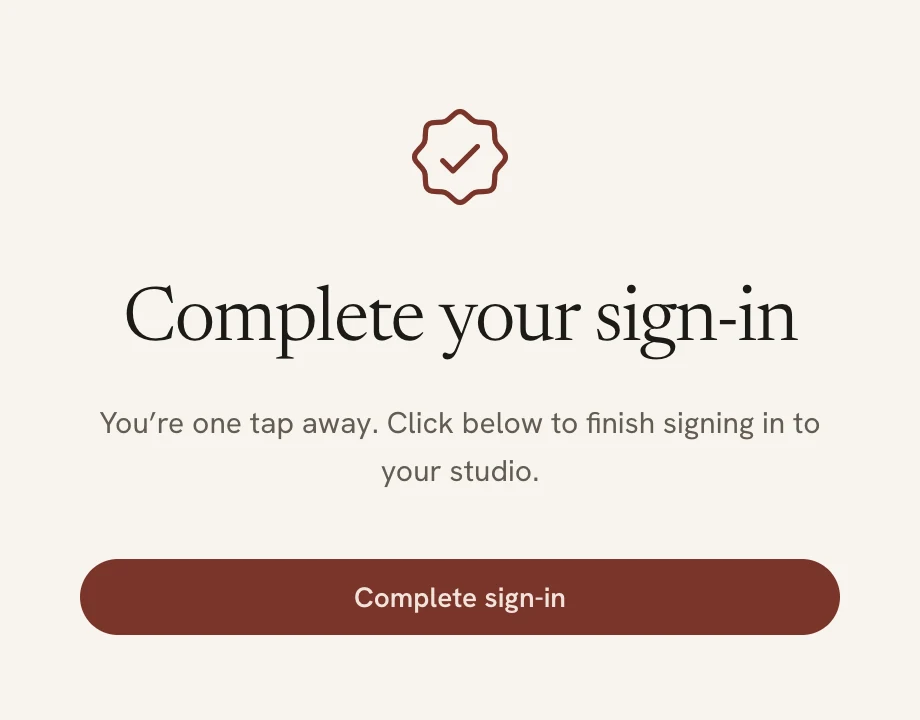
- Parlor opens Complete your sign-in. Click Complete sign-in, and your studio opens.
 Open full size
 The extra click keeps your email app’s link checker from using up the link before you do.
If the link doesn’t work
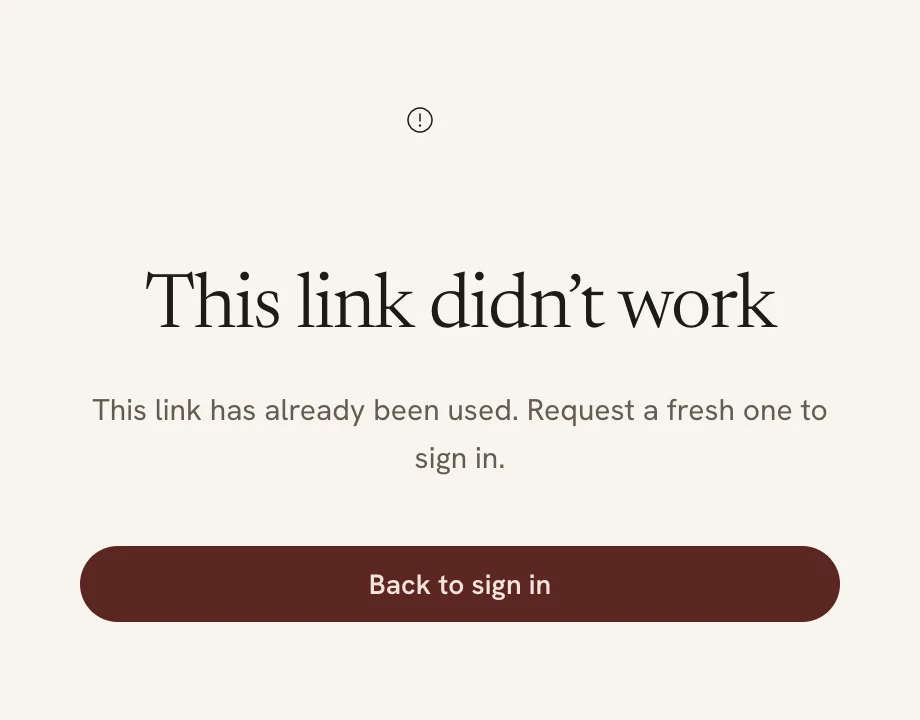
A link works once and expires after 15 minutes. If it’s been used or it’s too old, Parlor shows This link didn’t work. Click Back to sign in and ask for a new one.
 Open full size
 Opening a link a second time shows this.
If the email doesn’t arrive in a minute or two, check your spam or promotions folder, and check the address on the Check your email screen.
Add a passkey
Add a passkey on each phone and computer you sign in on. It takes a minute, and you do it once per device.
- Sign in on the device you’re adding the passkey to. A magic link is fine.
- Open Settings, then the Account tab. Under Sign-in & passkeys, click Add a passkey.
 Open full size
 Priya, an admin at Marigold, before she adds her first passkey.
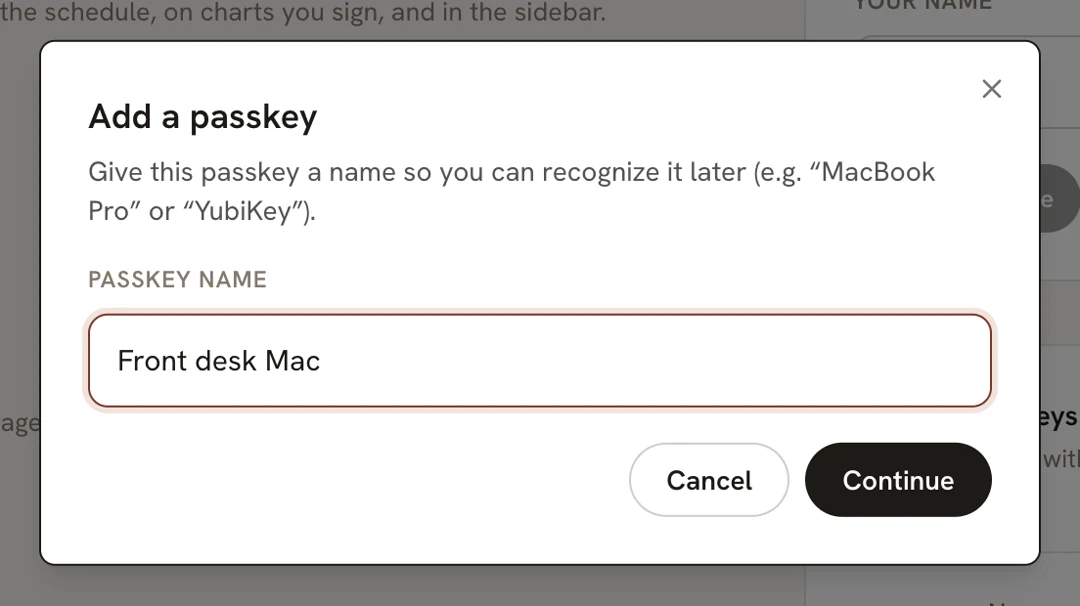
- Name the passkey. Parlor fills in the kind of device, like Mac. Change it to something you’ll recognize in a list, like “Front desk Mac” or “Priya’s iPhone”. Click Continue.
 Open full size
 The name is only for you. It shows in your list of passkeys.
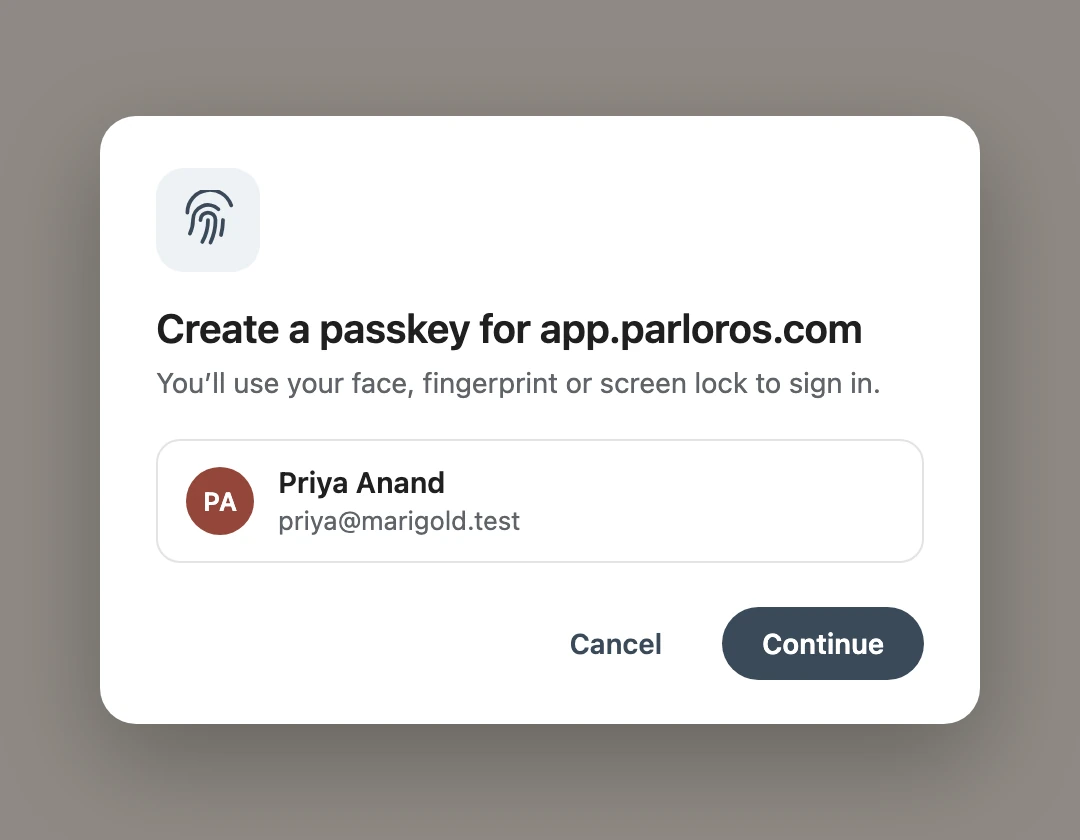
- Your phone or computer asks you to confirm with your face, your fingerprint, or your PIN. Every browser and phone words this differently.
 Open full size
 Illustration. Your phone or browser shows its own version of this.
- Parlor says Passkey added, and the passkey is in your list with the date you added it.
 Open full size
 Next time, Priya can sign in on this Mac with her fingerprint.
Sign in with a passkey
- On the sign-in page, click Sign in with passkey. You don’t need to type your email.
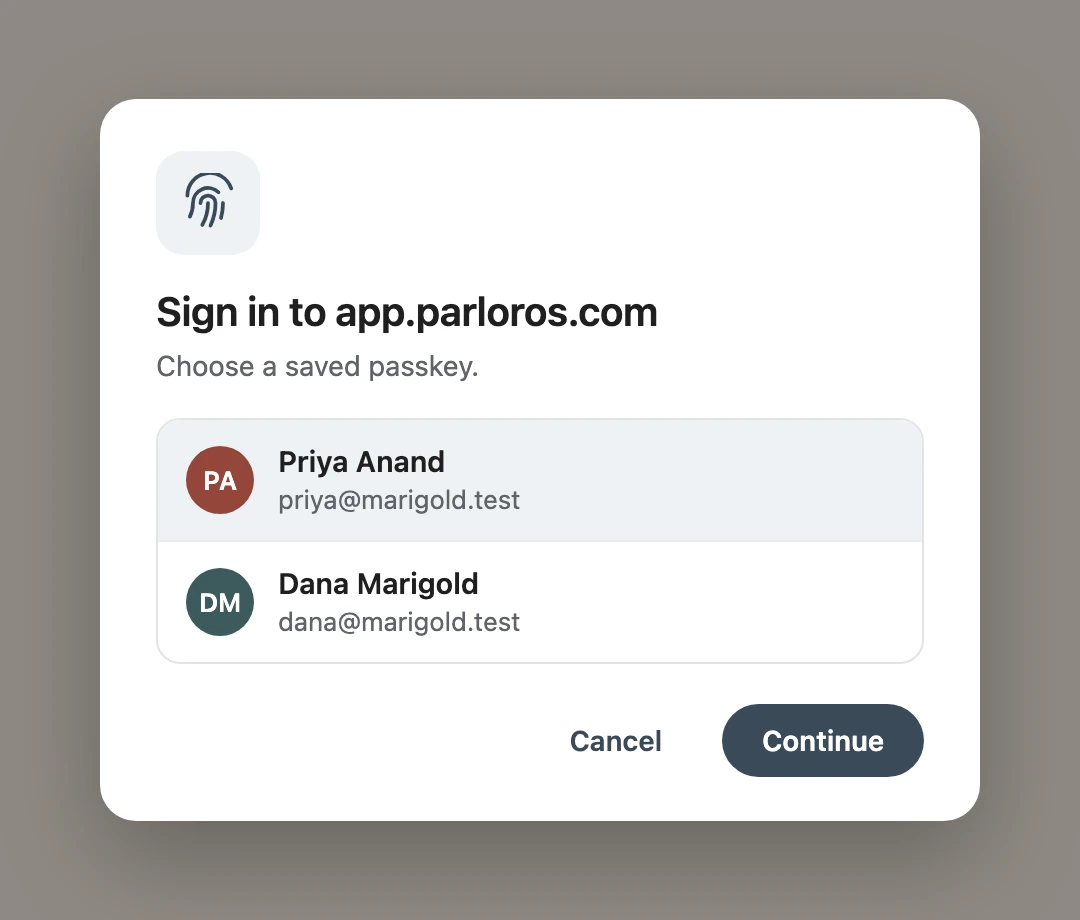
- Your phone or computer shows the passkeys it has for Parlor. Pick yours, then use your face, your fingerprint or your PIN.
 Open full size
 Illustration. On a shared front-desk computer, everyone who added a passkey there is listed. Pick your own.
- Your studio opens.
If you close the prompt without choosing, nothing happens; click Sign in with passkey again, or use a magic link. If there’s no Sign in with passkey button at all, your browser doesn’t support passkeys. Use Email me a magic link.
Remove a passkey
Remove a passkey when you sell, replace or lose the device it’s on.
- Open Settings, then Account. Next to the passkey, click the trash button.
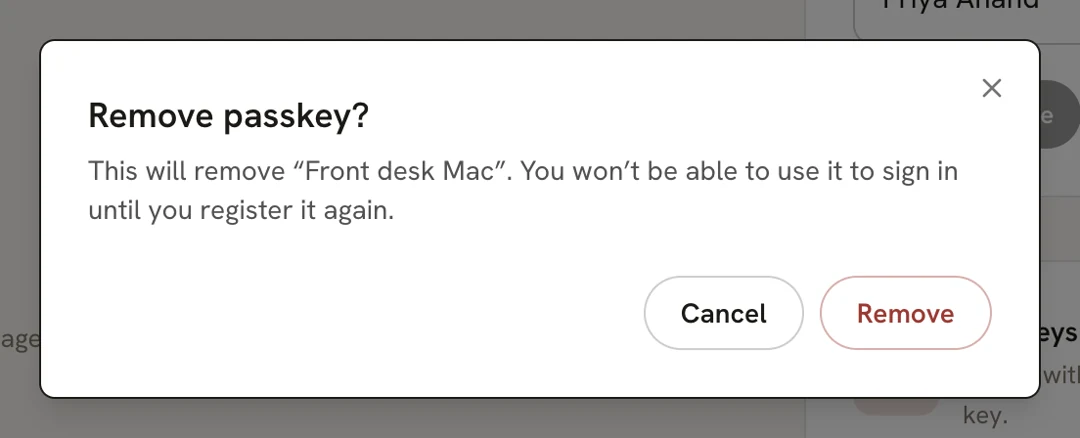
- Parlor asks Remove passkey? Click Remove.
 Open full size
 Removing it here stops it working for Parlor. Your device may still offer it, but it won’t sign you in.
Lost your phone? Sign in on another device with a magic link, and remove the phone’s passkey from there.
Your team and a shared computer
Everyone on your team signs in with their own email and their own passkeys. When you add a teammate on the Team page, Parlor emails them an invitation with a Join the team button that works for 2 weeks. After that, they sign in from the sign-in page with a magic link, like everyone else.
On a computer the whole team uses, each person adds their own passkey. When someone clicks Sign in with passkey, the computer lists everyone’s, and they pick their own. Sign in as yourself, not as a teammate: Parlor puts your name in the sidebar and on the charts you sign.
To sign out, click your name at the bottom of the sidebar, then Sign out.
If something goes wrong
| What you see | What to do |
|---|---|
| This link didn’t work | The link was used or is older than 15 minutes. Click Back to sign in and request a new one. |
| No email after a couple of minutes | Check spam and promotions, and the address on Check your email. Then request another link. |
| Sign in with passkey does nothing | You closed the prompt, or this device has no passkey for Parlor. Try again, or use a magic link and add a passkey on this device. |
| No Sign in with passkey button | This browser doesn’t support passkeys. Use a magic link. |
| An error after choosing a passkey | That passkey may have been removed. Sign in with a magic link, and add a new passkey. |
Still stuck? Email [email protected]. Someone who works on Parlor will answer.