How to buy a Stripe card reader and pair it with Parlor
Which Stripe reader works with Parlor, how to order one from Stripe, and the exact steps to pair it at your front desk and take the first tap.
On this page
What you need
- Payments set up in Parlor, with the studio on Full payments
- A Stripe account to order the reader from. A free one is fine
- Wi-Fi with a password, or an Ethernet cable at the desk
Parlor takes in-person card payments on a Stripe smart reader that sits at your front desk. You ring up the ticket in Parlor, press Charge on reader, and the client taps, inserts, or swipes on the reader. The payout lands in the same bank account as your deposits and online payments.
You buy the reader yourself, straight from Stripe, and pair it to Parlor with a three-word code. We did exactly this with a WisePOS E: ordered it from a Stripe account, paired it to a live Parlor studio, and took a real payment on it. This is that walkthrough, start to finish. Plan on about fifteen minutes once the box arrives.
The whole setup in four and a half minutes. Every step is also written out below, with the screenshots.
Which reader to buy
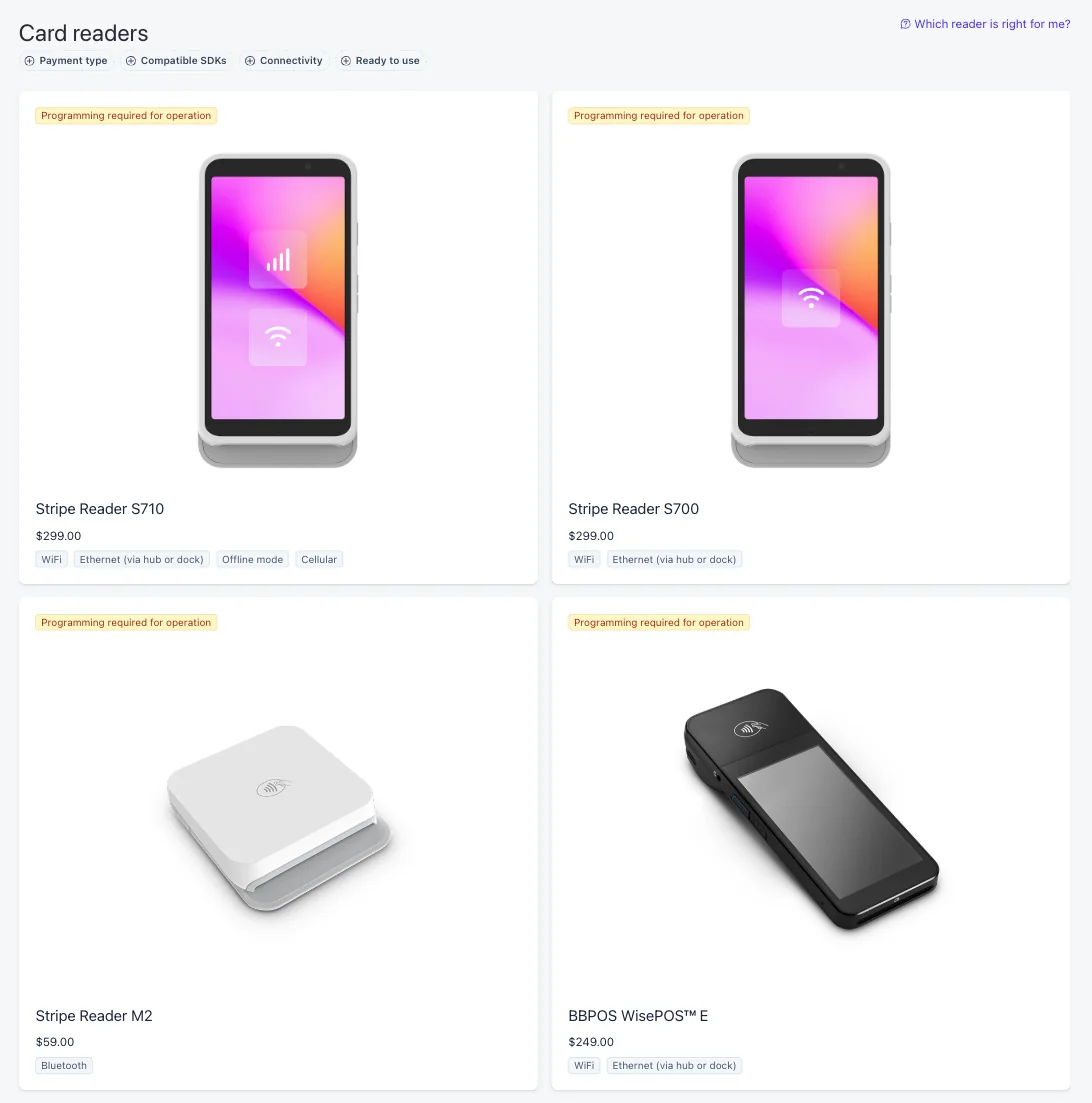
Parlor works with Stripe’s smart readers, the touchscreen ones that connect to the internet on their own. Stripe’s US prices, as listed in its hardware shop on September 25, 2026:
| Reader | Price | Connects over | Good for |
|---|---|---|---|
| Stripe Reader S700 | $299 | Wi-Fi, or Ethernet with the $39 hub or $49 dock | Most shops |
| Stripe Reader S710 | $299 | Same as the S700, plus cellular | Shops with patchy Wi-Fi. Cellular is $10 a month per reader |
| BBPOS WisePOS E | $249 | Wi-Fi, or Ethernet with the $49 dock | The lower-cost option; it’s the one we paired |
The processing rate doesn’t change with the reader. A tap at the desk costs our standard rate, currently 3.25% + 35¢, same as a deposit or a payment link.
Before you order: set up payments in Parlor
The reader pairs with the payment account your studio already uses in Parlor, so that has to be finished first. In Parlor, go to Settings → Payments and complete Set up payments (your business details and bank account, through Stripe). Only a studio owner or admin can do this, and only an owner or admin can pair a reader later.
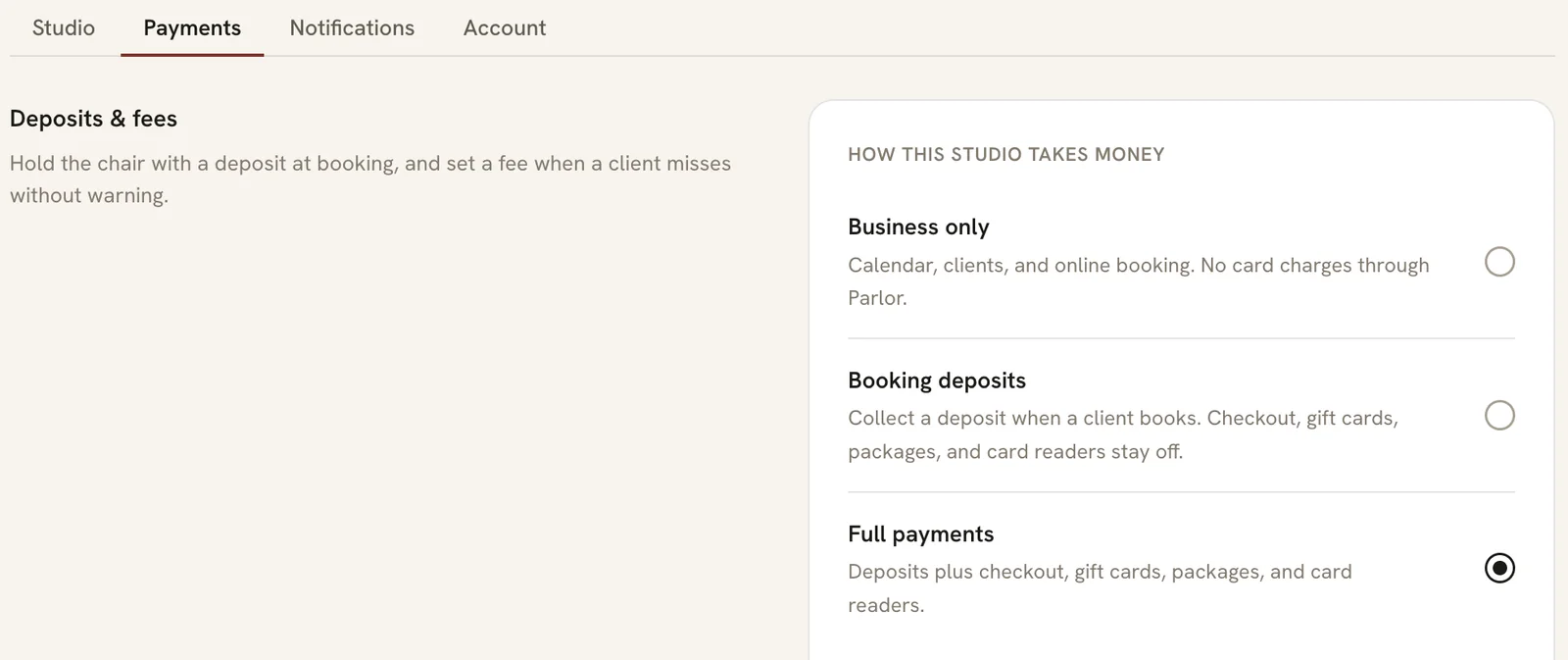
Then, under How this studio takes money, choose Full payments. It saves as soon as you pick it. On Booking deposits, checkout and card readers stay off, and the card reader settings won’t appear at all.
 Open full size
 Settings → Payments. Card readers come with Full payments.
Order the reader from Stripe
The payment account Parlor sets up for your studio doesn’t have a hardware shop, so you order from a regular Stripe account. If you already have one from another tool, use it. If you don’t, create a free one at stripe.com. You won’t take payments through that account (Parlor handles that); it’s only where the order and the receipt live. If Stripe asks for business details before it lets you check out, fill them in.
- Sign in and open the hardware shop: dashboard.stripe.com/terminal/shop. From inside the Dashboard, it’s Terminal → Hardware orders → Shop.
- Check that Deliver to at the top says United States. Stripe restricts a reader to the country it shipped to.
- Pick the reader.
 Open full size
 Stripe’s hardware shop. The M2 (bottom left) is the one that won’t work with Parlor.
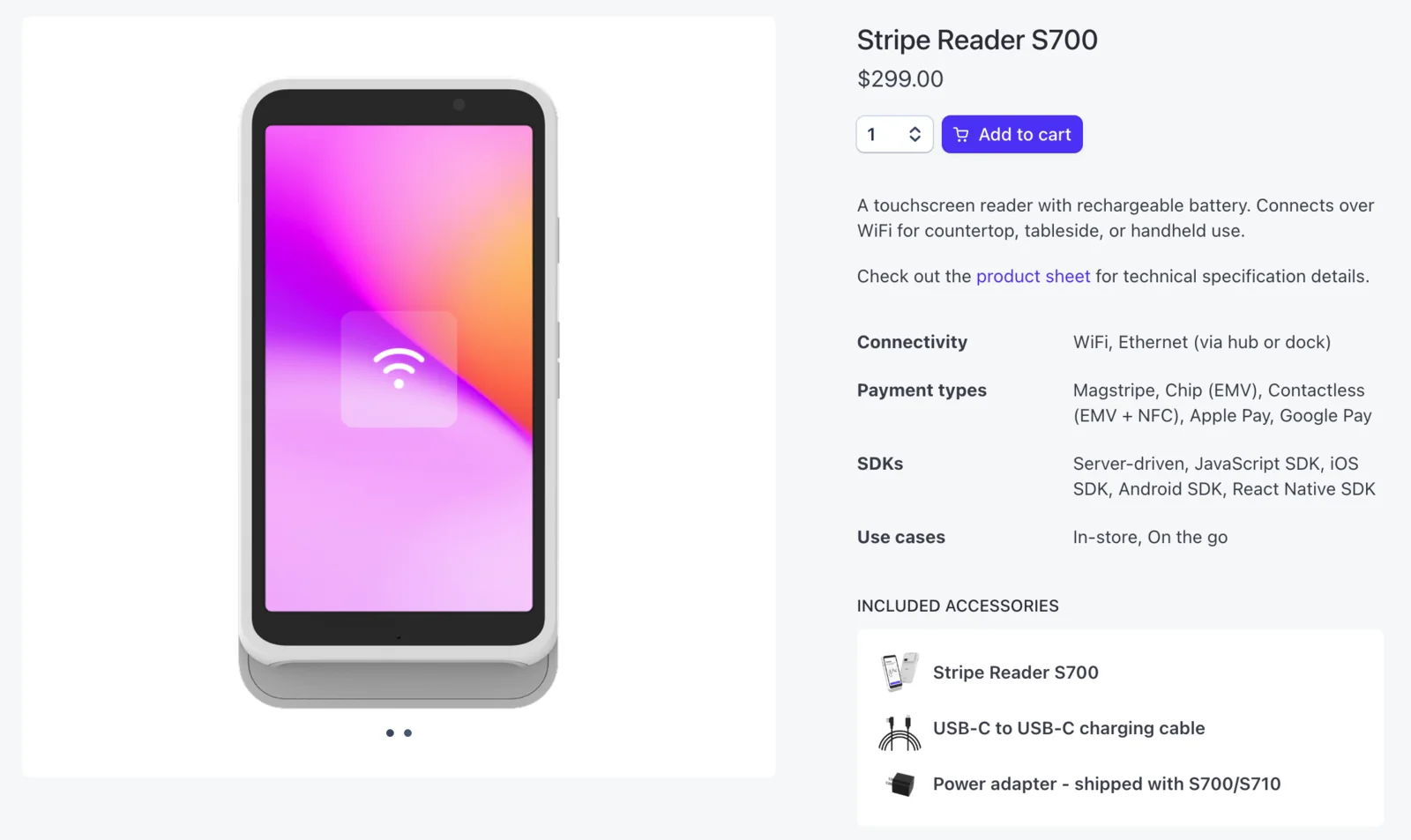
- On the reader’s page, click Add to cart. The S700 comes with a USB-C cable and a power adapter. Add the hub or dock only if you want it wired to Ethernet or standing on the counter.
 Open full size
 The S700’s page. “Server-driven” under SDKs is the kind of connection Parlor uses.
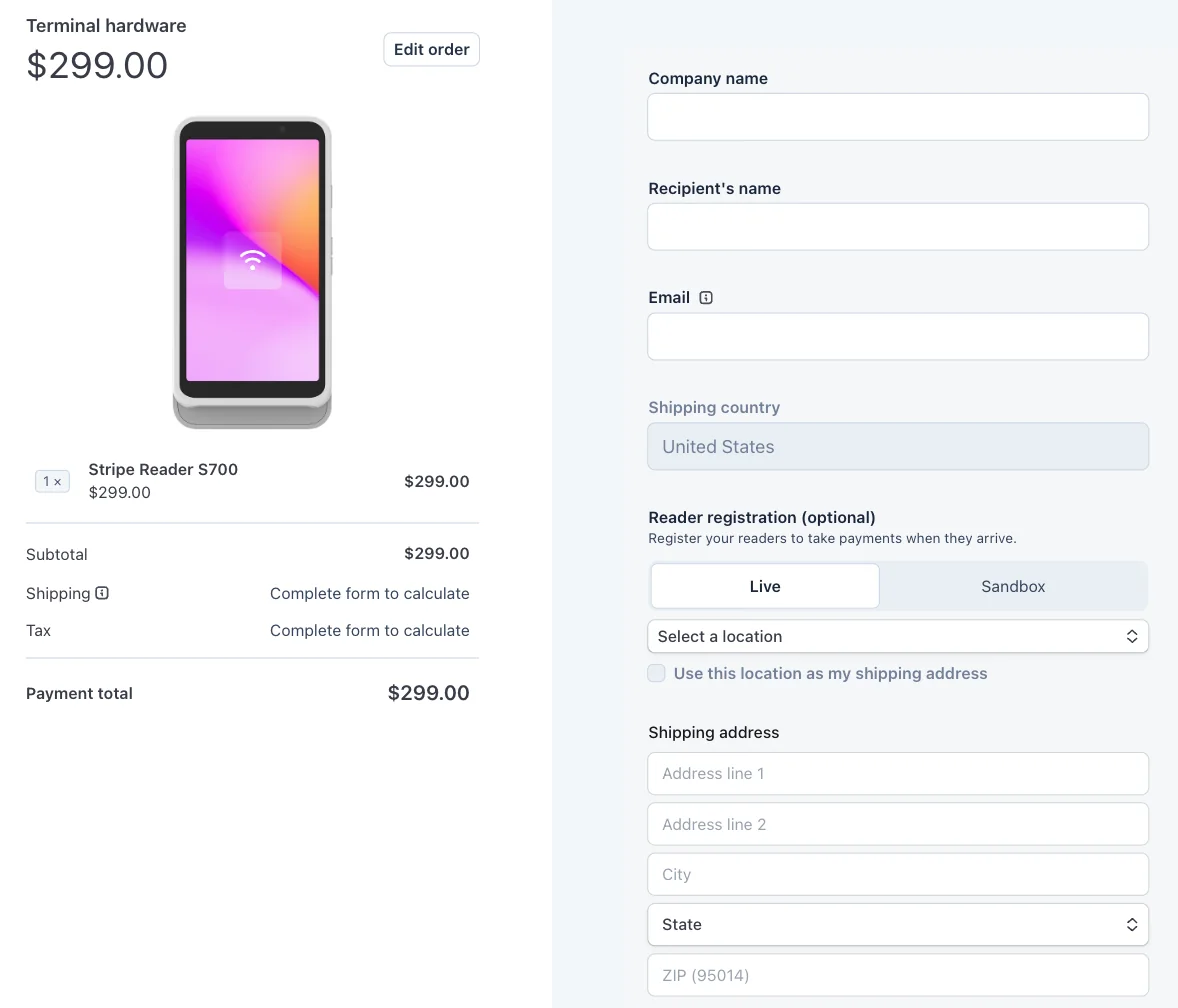
- Open the cart and click Check out. Fill in your company name, the recipient, and a street address (Stripe won’t ship to a P.O. box). Pick a shipping speed: Standard, Express, or Priority. Stripe works out shipping and tax once the address is complete.
 Open full size
 Leave Reader registration (optional) set to “Select a location”. Parlor does the registration.
Stripe’s daily order cutoff is 11:00am Eastern, and an order over $500 needs a signature at delivery. You can cancel from Terminal → Hardware orders for at least the first 30 minutes, until it moves to Ready to ship.
Turn the reader on and get its pairing code
Charge the reader and turn it on. The S700 and S710 have a power button on the right side; hold it until the screen lights. The WisePOS E needs its battery fitted first, unless a note in the box says it’s pre-installed.
Connect it to your network. Swipe right from the left edge of the screen, tap Settings, enter the admin passcode 07139, and tap Network to join your Wi-Fi. On Ethernet (through the hub or dock), the reader connects as soon as the cable is in. Two things trip shops up on Wi-Fi:
- The Wi-Fi needs a password (WPA, WPA2 or WPA3). An open guest network won’t work.
- Readers don’t connect over Wi-Fi 6 (802.11ax). Most routers also broadcast an older mode alongside it, but a router set to Wi-Fi 6 only needs changing, or use the Ethernet hub or dock.
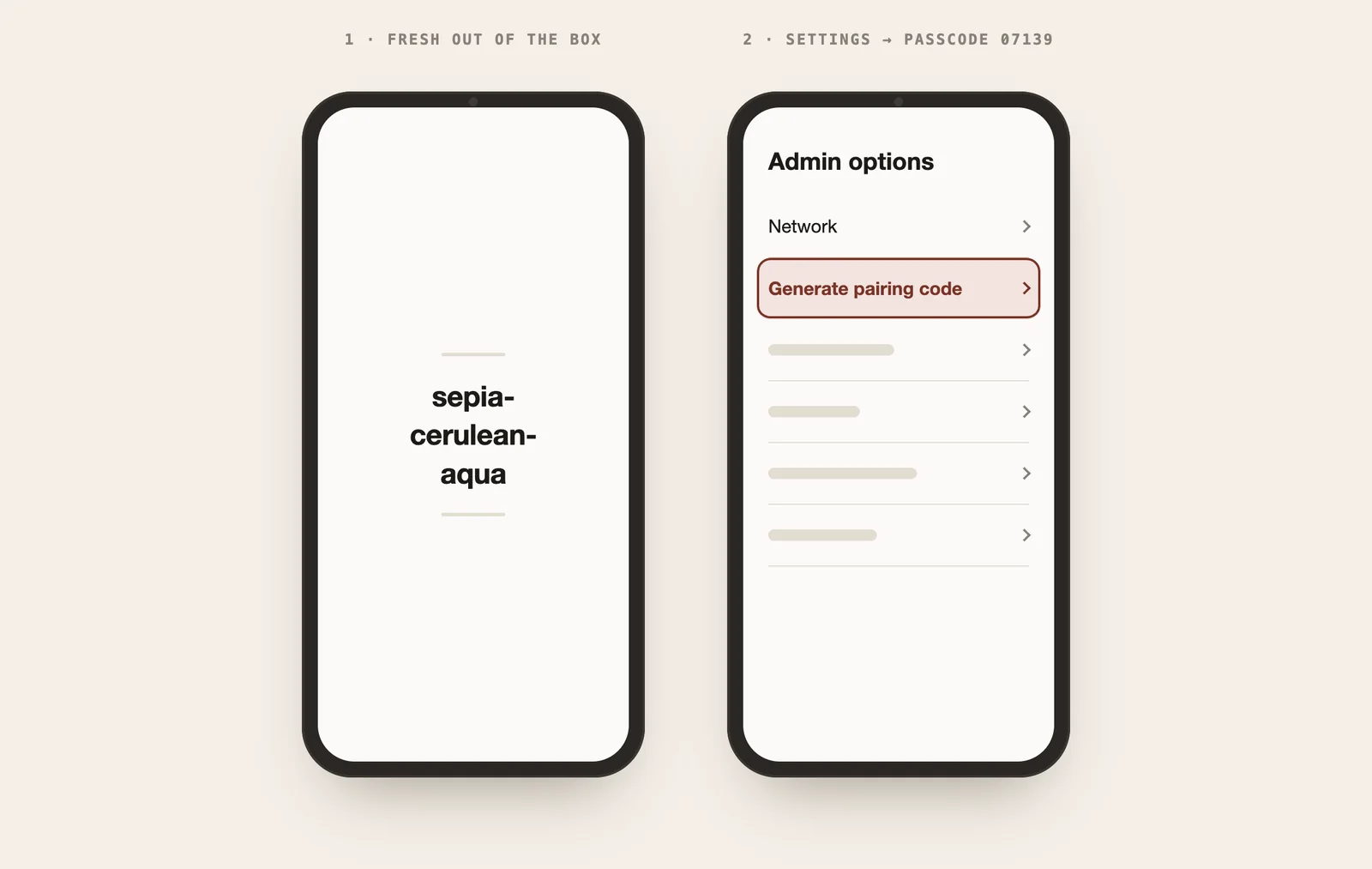
Get the pairing code. A reader that has never been registered shows its pairing code, three words joined by dashes, on screen by itself. Write it down or keep the reader next to your computer.
If the reader shows anything else (you picked a location at checkout, or it was set up somewhere before), make a new code:
- Swipe right from the left edge of the reader’s screen.
- Tap Settings and enter the admin passcode 07139.
- Tap Generate pairing code.
 Open full size
 Illustration, not a photo. The menu labels are Stripe’s; your code will be different words.
Pair the reader in Parlor
Back in Parlor, go to Settings → Payments and scroll to Card readers.
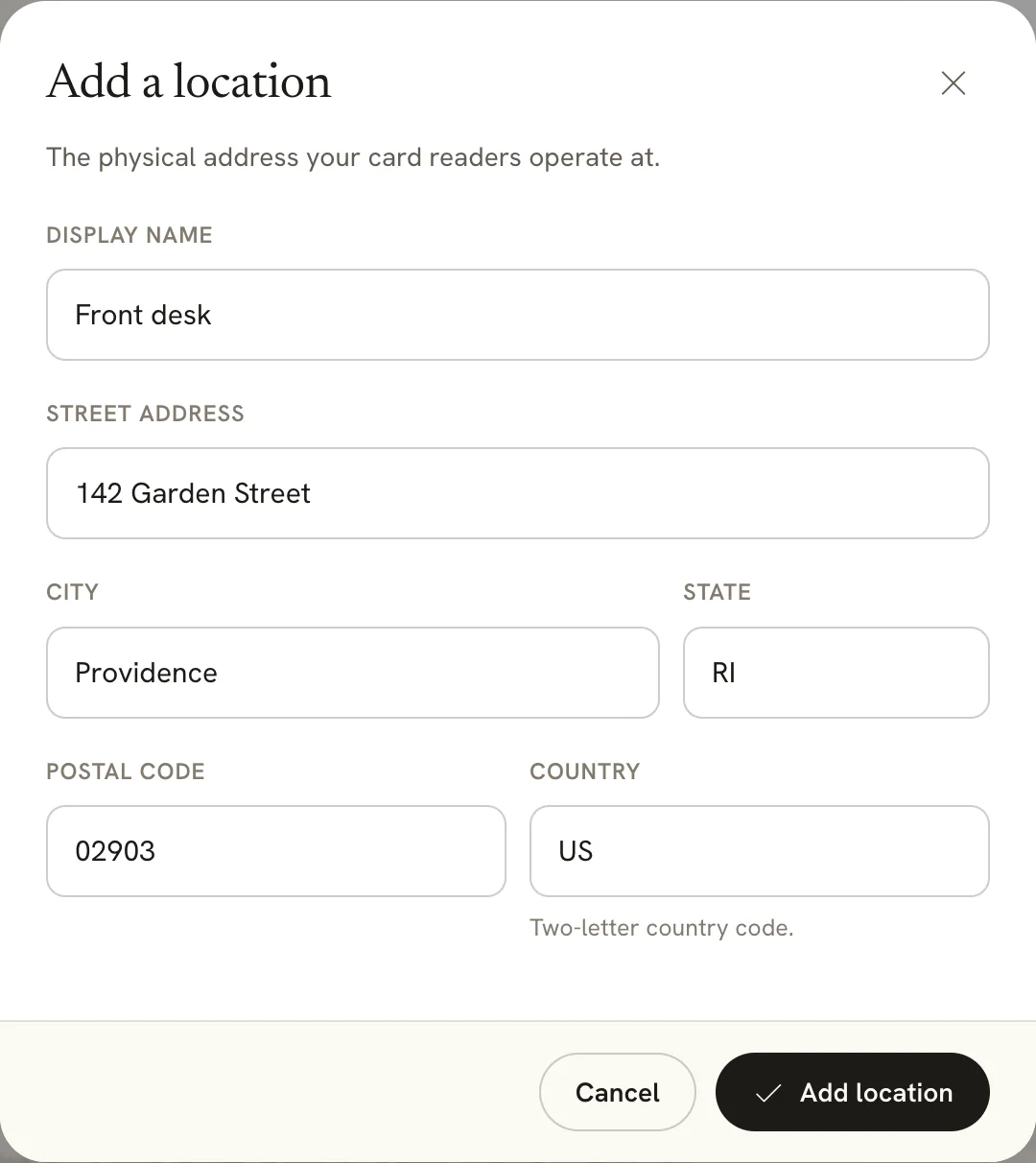
First, add a location. A location is the street address the reader works at, and every reader belongs to one. Click Add location, give it a name you’ll recognise (“Front desk” is fine), enter the shop’s address, and leave the country as US. Click Add location.
 Open full size
 One location per shop address. Two readers at the same desk share it.
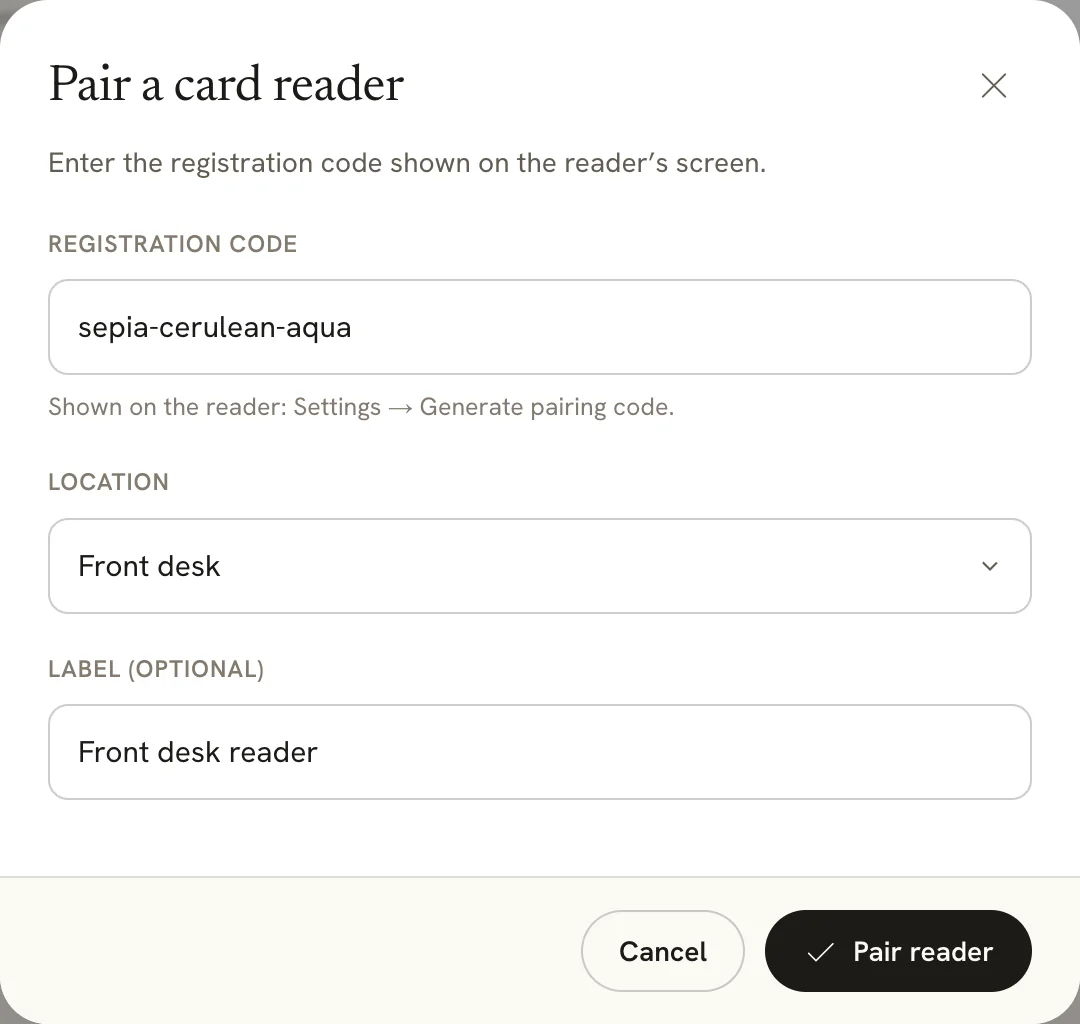
Then pair the reader. Click Pair a reader and fill in:
- Registration code: the three words from the reader’s screen, dashes included.
- Location: the one you just added.
- Label: a name your staff will recognise at checkout, like “Front desk reader”. This matters once you have more than one reader.
Click Pair reader.
 Open full size
 Type the code exactly as the reader shows it.
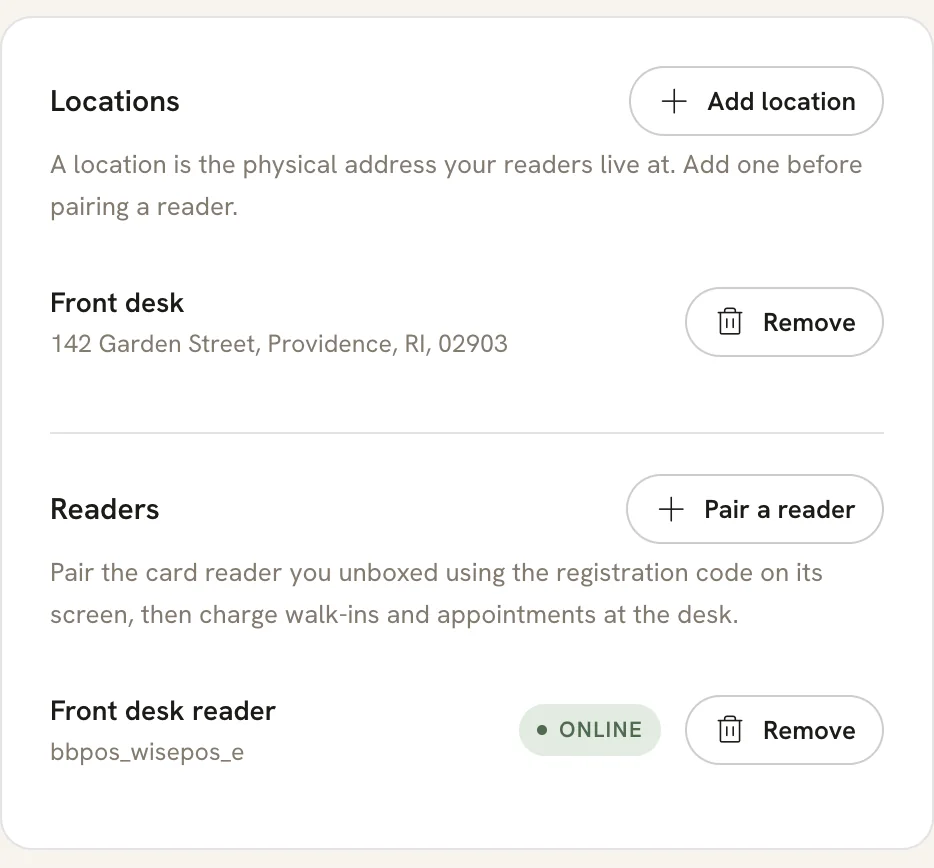
The reader appears under Readers with a green Online badge. That means it’s reachable and ready to charge.
 Open full size
 Paired and online. The small grey line under the name is the reader model.
Take the first payment
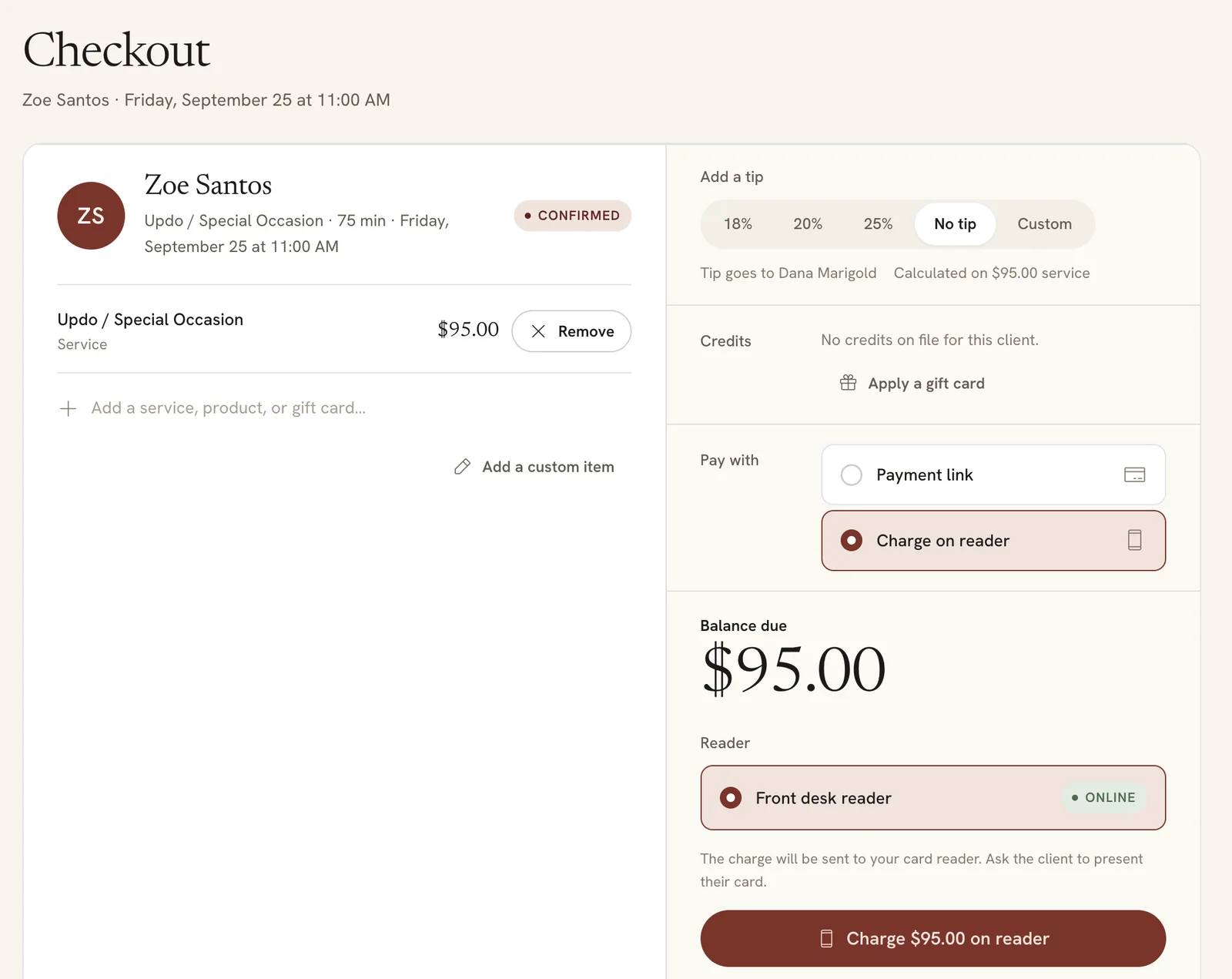
Open the appointment in Checkout (or start a walk-in from New sale). Add the tip in Parlor first, because the reader charges the balance you see. Then:
- Under Pay with, choose Charge on reader.
- Under Reader, pick your reader if you have more than one. Parlor remembers the last one used.
- Click Charge $… on reader. The amount appears on the reader, and the client taps, inserts, or swipes. Apple Pay and Google Pay work too.
 Open full size
 Front-desk staff can charge on the reader. Only owners and admins can pair or remove one.
The ticket marks itself paid when the card goes through. If the card is declined, Parlor tells you, and you can charge again.
If something doesn’t work
- No “Card readers” section in Settings. Payments setup isn’t finished yet, or the studio is on Booking deposits. Finish setup and switch to Full payments.
- “Couldn’t pair the reader.” The code is mistyped or no longer valid. Generate a fresh one on the reader (Settings → 07139 → Generate pairing code) and try again.
- The reader shows Offline. Check that it’s on, charged, and on your Wi-Fi (Settings → 07139 → Network).
- A charge won’t start. The reader may be asleep, updating, or still showing the last payment. Wake it, let it finish, and press charge again.
- It restarted by itself around midnight. That’s normal. Stripe restarts readers daily and installs updates while they’re idle, so leave the reader plugged in overnight. An update skipped for too long can stop it taking payments.
Returns and warranty
These run through the Stripe account you ordered from, not through Parlor.
- Returns: within 30 days, in the original packaging with everything that came in the box. Open the order under Terminal → Hardware orders in that Dashboard and click Return items. Stripe may charge a restocking fee.
- Warranty: one year against defects, excluding cables and accessories. File a claim from the same Stripe account.
That’s the whole setup: one order from Stripe, one code typed into Parlor, and the reader charges from your front-desk checkout from then on. Parlor is $79 a month flat, every payment runs at our standard rate, there’s no contract, and the reader is yours outright, so there’s nothing to pay back if you ever leave.