How to build a consent or intake form and send it with a service
Write the form your clients sign, turn its blanks into questions, send it automatically when a service is booked, and see who has signed.
On this page
What you need
- A Parlor login with Owner, Admin or Staff access. A Viewer can read forms but not change them.
- The service the form is for, already on your menu
- The wording of your consent or intake form, if you have one on paper
A form in Parlor is a document your client reads and signs before their appointment, like a consent, a waiver or an intake sheet. You write the text once, mark the places where the client’s answers go, and attach the form to the services that need it. When a client books one of those services, Parlor emails them the form, and the signed copy lands on their client profile.
This guide walks through a Lash Lift & Tint Consent we built by hand in the Marigold demo studio. We attached it to the Lash Lift & Tint service, booked a client in, signed the form as that client, and watched it turn to Completed.
The whole thing in about four minutes. Every step is also written out below, with the screenshots.
What a form is made of
Every form has three parts, each on its own tab:
- Document, the text the client reads and signs.
- Fields, the questions the client answers. Each answer fills a blank in the document.
- Settings, the form’s name and the services that send it.
A blank is a name in curly braces with a percent sign in front, like %{full_name}. Wherever the document says %{full_name}, the client sees what they typed in the Full name field. You don’t add a signature or a date: Parlor asks for the client’s signature and records the date when they sign.
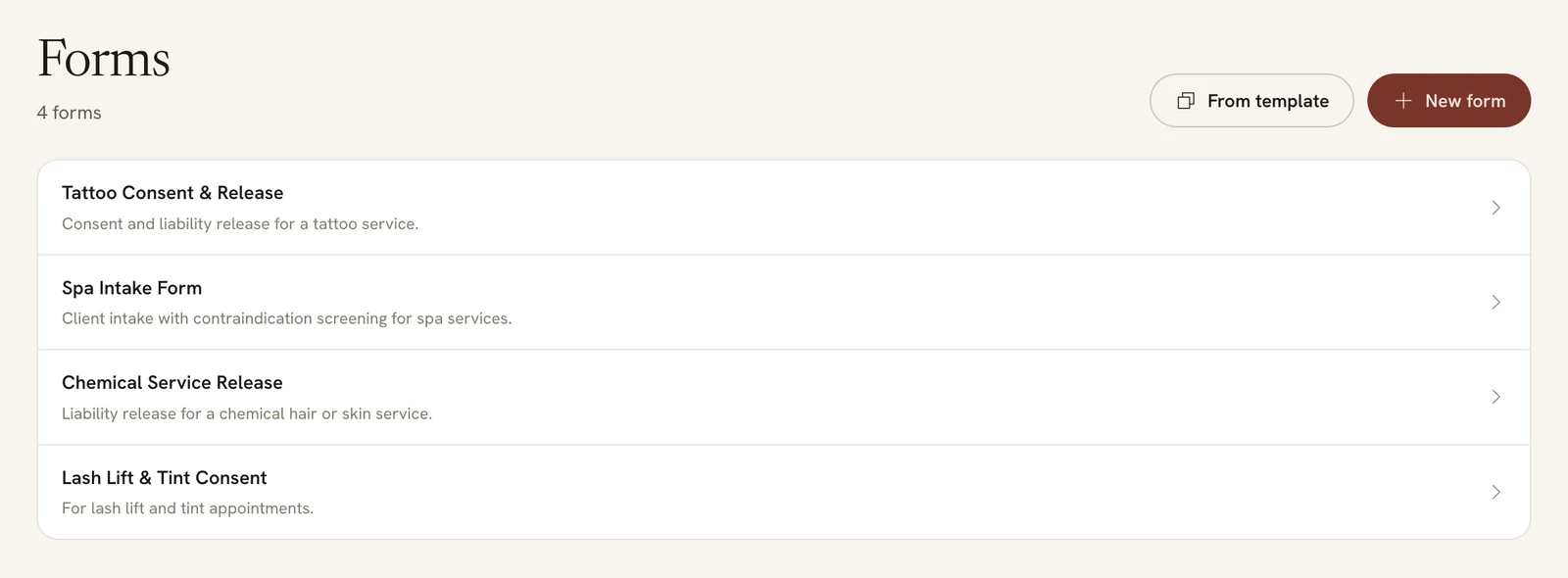
Open Forms in the sidebar, under Manage, to see yours. Click any form to open it.
 Open full size
 The forms at Marigold. The last one is the form we built for this guide.
Name the form
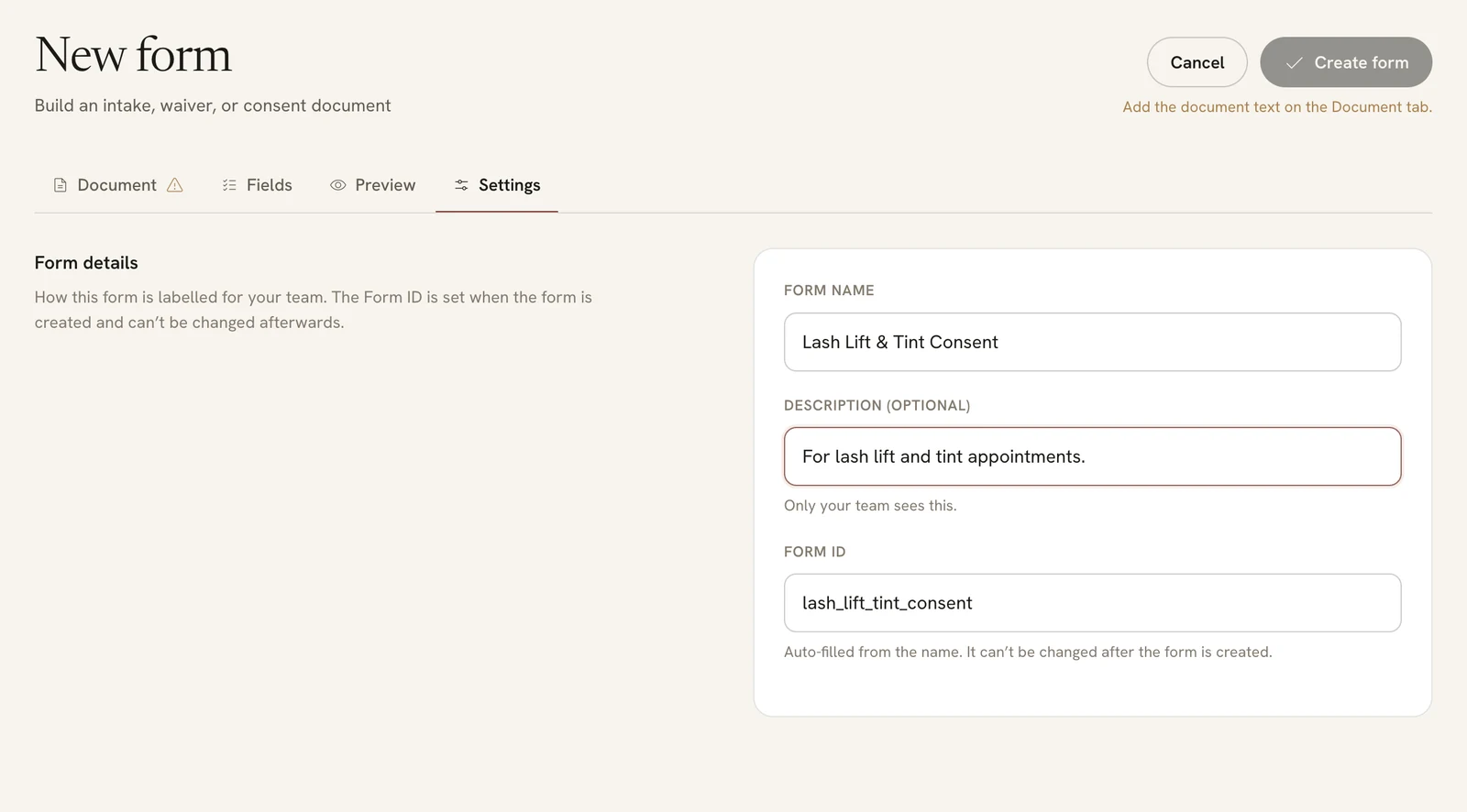
On the Forms page, click New form. The form opens on its Settings tab, because a form needs a name before you can create it.
- Form name, the name clients see at the top of the form, like “Lash Lift & Tint Consent”.
- Description (optional). Only your team sees this.
- Form ID fills itself in from the name. You can change it now, but not after the form is created.
 Open full size
 The Form ID is lash_lift_tint_consent, made from the name.
Write the document
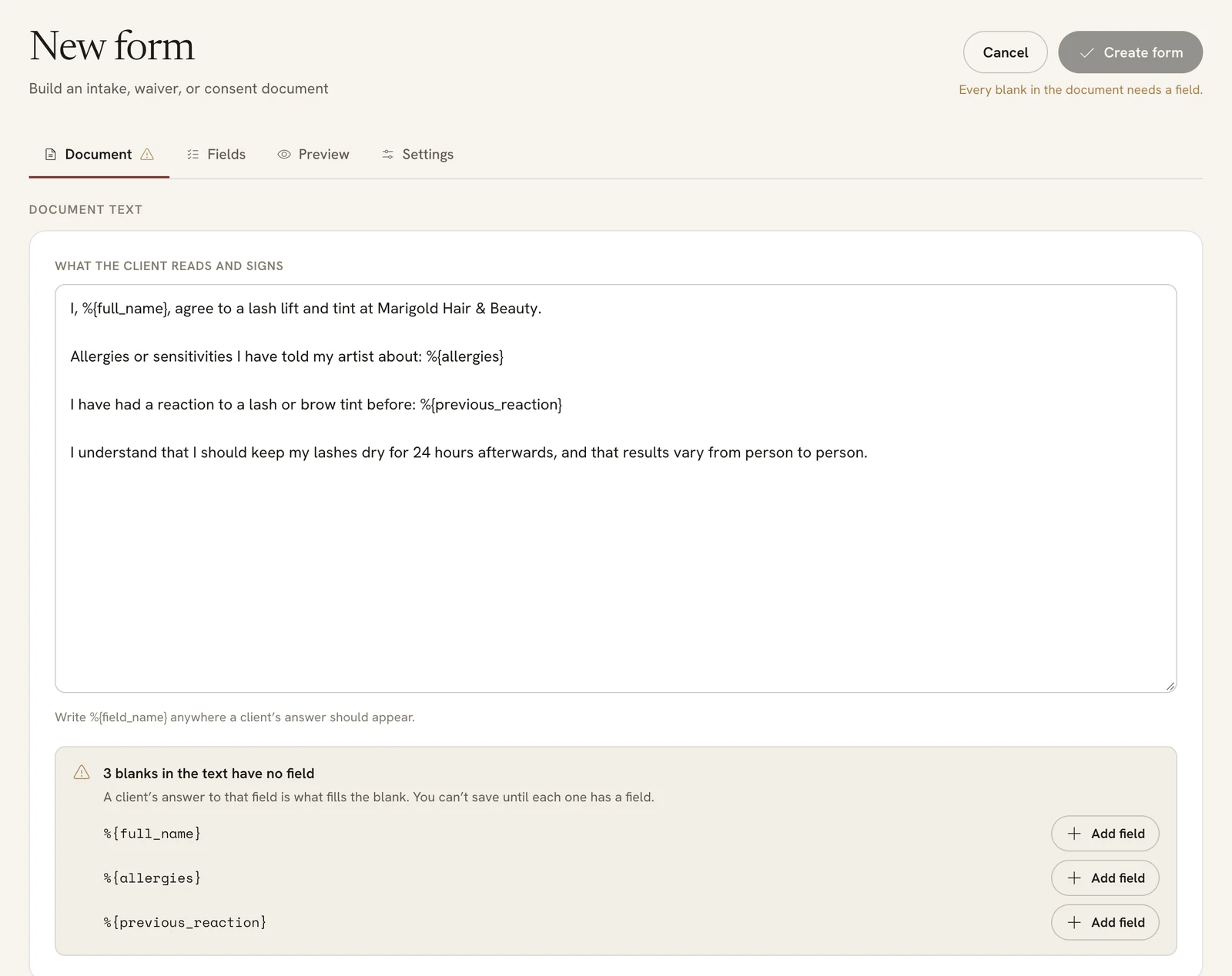
Click the Document tab and type or paste your text into What the client reads and signs. Wherever a client’s answer belongs, type a blank: a percent sign, then the name in curly braces, like %{allergies}. Use only letters, numbers and underscores in the name, with no spaces.
Parlor lists every blank that doesn’t have a field yet, under “blanks in the text have no field”. Click Add field next to each one. Parlor creates the field and names its label for you, so %{previous_reaction} becomes “Previous reaction”.
 Open full size
 Three blanks, each with an Add field button. You can’t create the form until every blank has a field.
Set up the fields
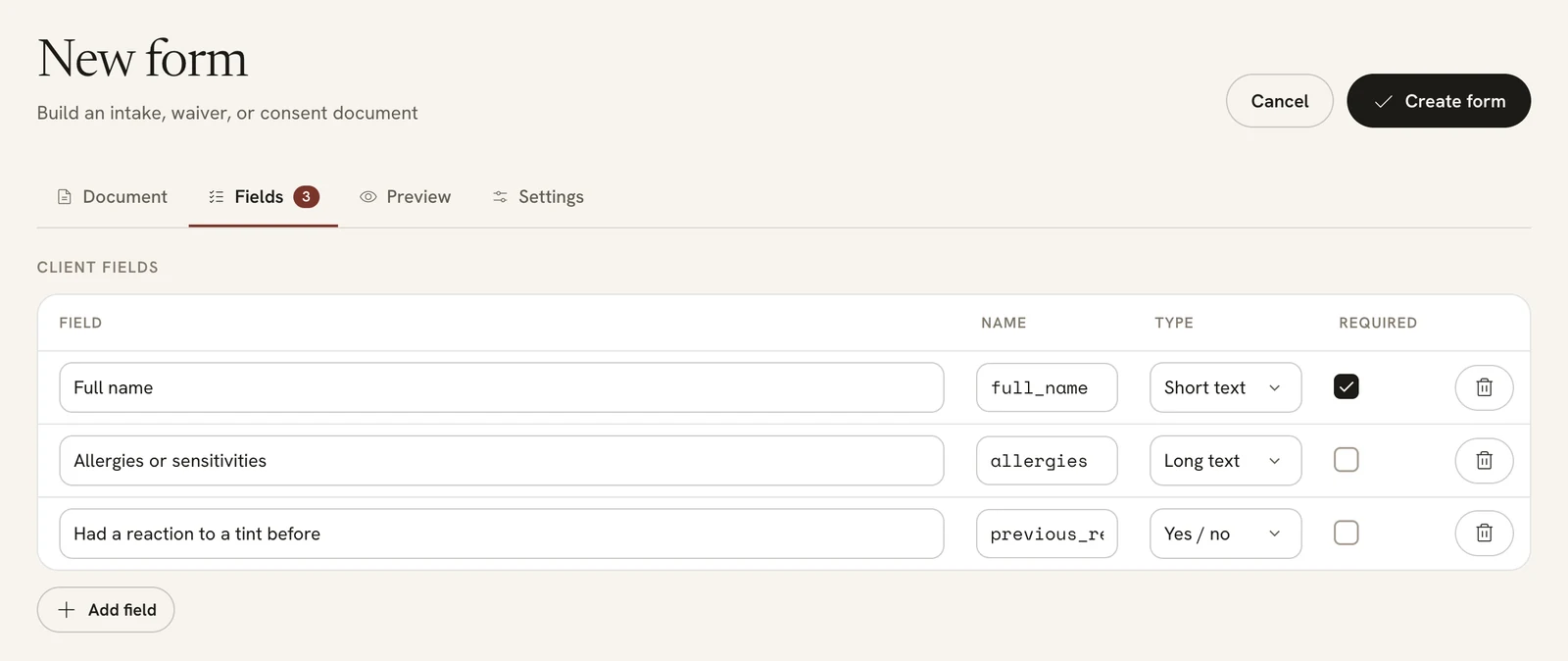
Click the Fields tab. Each row is one question:
- Field is the question the client sees. Reword it however you like. It doesn’t change the blank.
- Name is the blank it fills. Leave it as it is.
- Type is the kind of answer: Short text, Long text, Yes / no, Date or Number. A Yes / no field is a single tick box.
- Required means the client can’t sign until they’ve answered.
To ask something that isn’t in the document text, click Add field under the list. The client answers it, but it doesn’t appear in the document.
 Open full size
 Full name is required. The allergies question takes a longer answer.
Check it and create the form
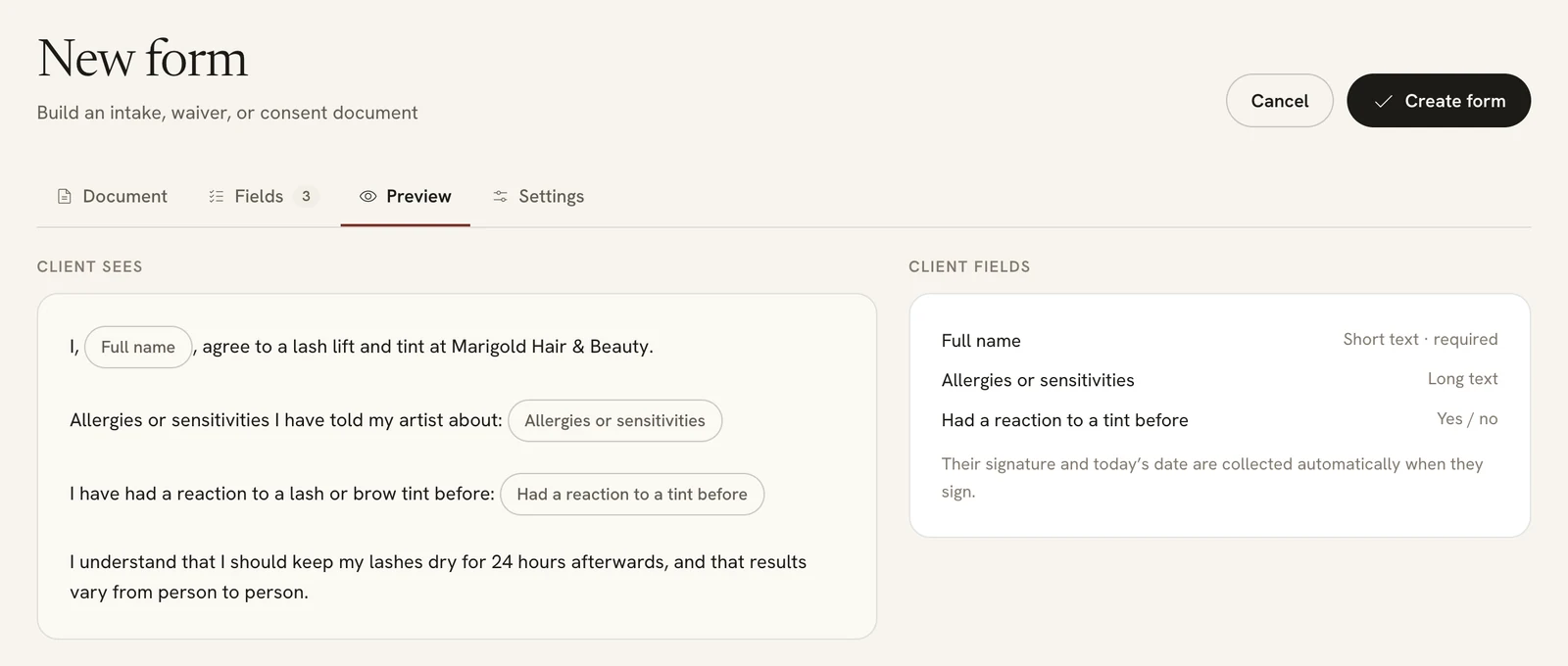
Click the Preview tab to see the form the way your client will. On the left is the document, with each blank showing the question that fills it. On the right are the questions the client answers, with their types.
 Open full size
 The client’s answers will fill the three blanks.
When it reads the way you want, click Create form. If the button is greyed out, the line under it says what’s missing and which tab to find it on. Parlor says “Form created.” and opens your new form.
Or start from a template
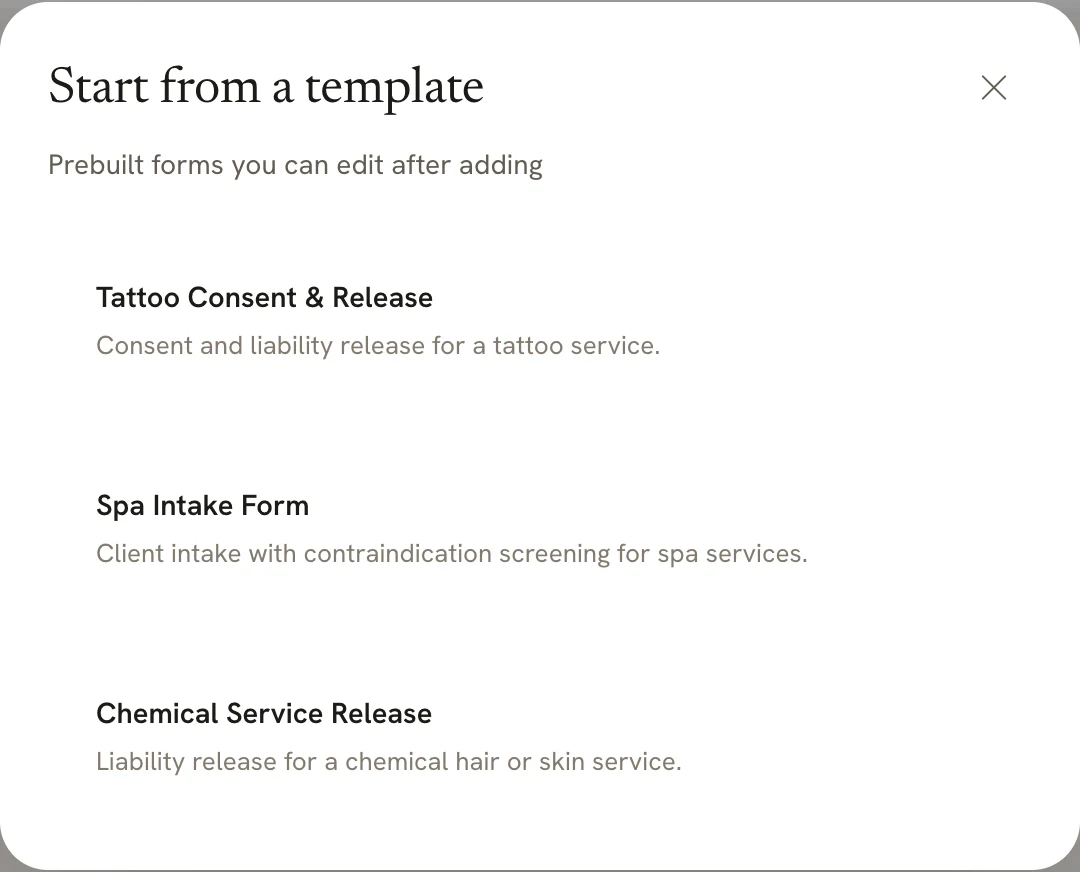
Parlor has three ready-made forms: a Tattoo Consent & Release, a Spa Intake Form and a Chemical Service Release. On the Forms page, click From template and choose one. Parlor adds it to your forms and opens it, so you can change the wording and questions to match your studio before you use it.
 Open full size
 Each template can be added once.
Send it automatically with a service
Open the form and click the Settings tab. Under Services that require this form, choose a service from Add a service… and click Add. Parlor says “Service added.” Add every service that needs this form.
 Open full size
 Clients who book Lash Lift & Tint now get this form.
From then on, when one of those services is booked, Parlor emails the client “Please complete your form for” your studio, with a Complete your form link. You can also attach a form from the service’s side, under Required forms, as shown in Set up your services.
What your client sees
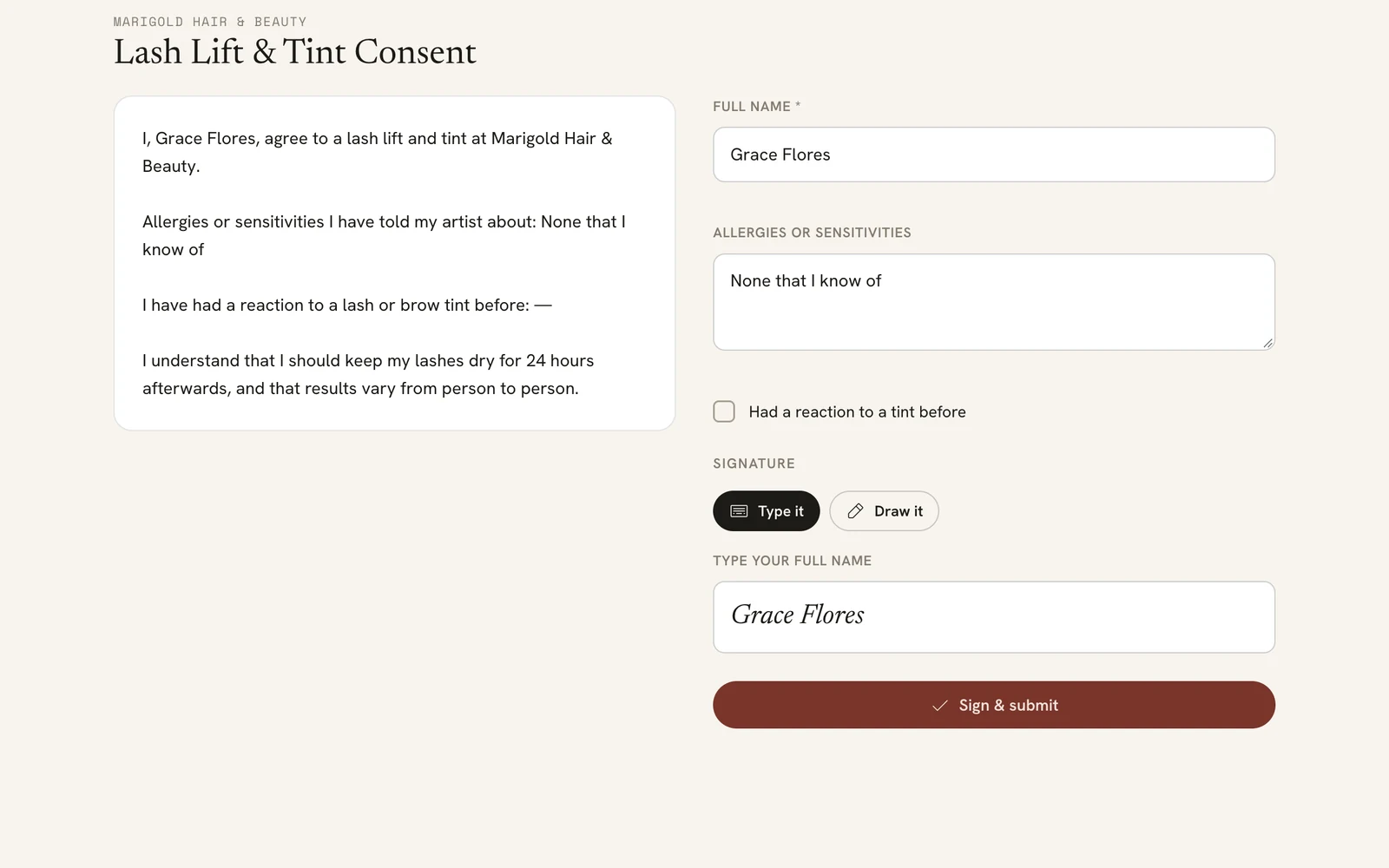
The link opens the form with your studio’s name at the top. The client fills in the questions on the right, and the document on the left fills in as they type. They sign by typing their name (Type it) or drawing their signature (Draw it), then click Sign & submit.
 Open full size
 Grace’s answers appear in the document as she types them.
Parlor thanks them with “All signed.” and a Download your signed copy button.
See who has signed
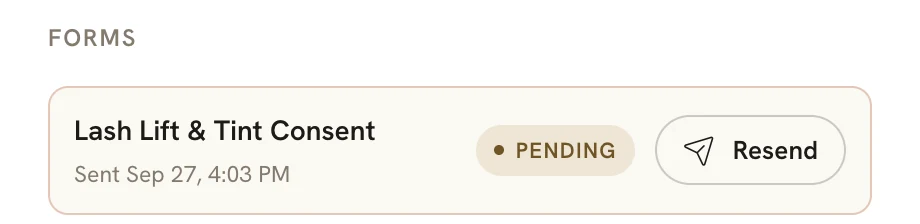
Open the appointment on the calendar. Under Forms, each form the appointment needs shows Pending with the time it was sent, and a Resend button in case the client can’t find the email.
 Open full size
 Sent when the appointment was booked, not signed yet.
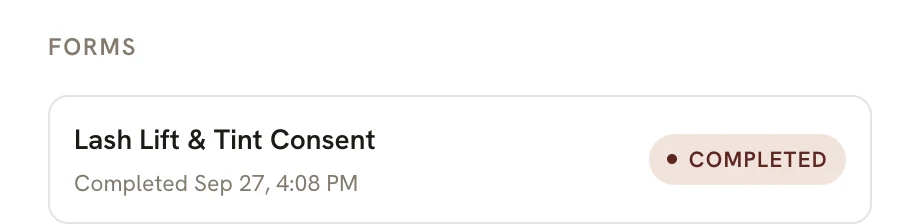
Once the client signs, it shows Completed with the time they signed.
 Open full size
 Signed five minutes after it was sent.
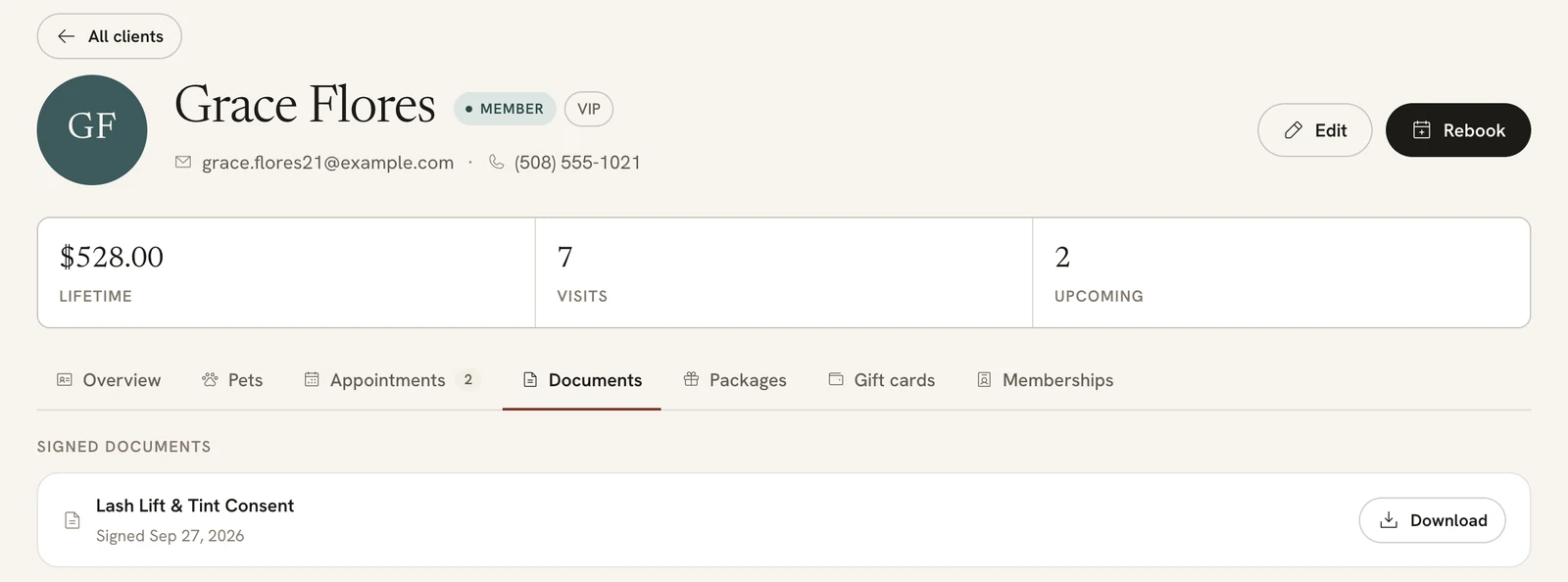
Every form a client has signed is kept on their profile. Open the client and click the Documents tab. Each signed form has the date it was signed and a Download button.
 Open full size
 The signed consent on Grace’s profile.
Change a form later
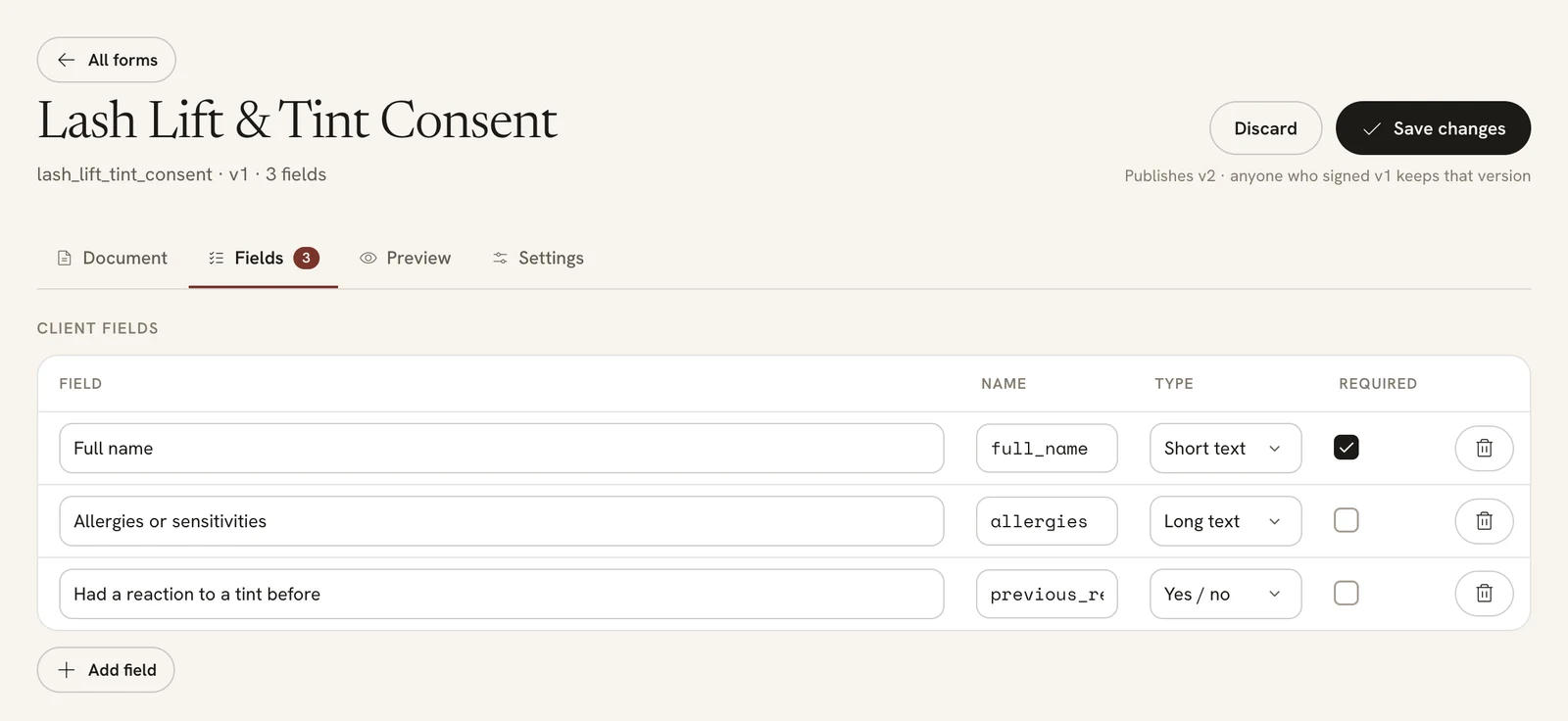
Open the form, make your changes on any tab, and click Save changes. Saving publishes a new version. The line under the button says so: “Publishes v2 · anyone who signed v1 keeps that version”. A client who already signed keeps the copy they signed. A client who hasn’t signed yet gets the new version when they open their link. To throw your changes away instead, click Discard.
 Open full size
 Changing one field publishes version 2.
You can rename the form and change its description on the Settings tab. The Form ID stays the same.
If something doesn’t look right
- New form is greyed out. Your login has Viewer access, which can read forms but not change them. Ask an owner or admin.
- Create form or Save changes is greyed out. The line under the button says what’s missing, like “Every blank in the document needs a field.” The tab with the problem has a warning mark.
- A template shows “Request failed with status code 422”. You’ve already added that template. Open it from your list of forms instead.
- A client says they can’t submit the form. Open the form’s Fields tab and check for a required Yes / no question. Turn Required off, click Save changes, and ask the client to open their link again.
- The client didn’t get the email. Open the appointment and click Resend next to the form.
That’s a form from start to finish: write it once, attach it to the services that need it, and every client who books one signs before they arrive.