How to draft a form by describing it to the assistant
Describe the consent or intake form you need in your own words, read the draft the assistant writes, fix anything by hand, and save it as an ordinary form.
On this page
What you need
- A Parlor login with Owner, Admin or Staff access
- A sentence or two on what the form is for and what it should ask
Instead of typing a form from a blank page, you can describe it to the assistant in Parlor and it writes a first draft: the document text, the blanks, and a question with the right type for each blank. You read the draft, ask for changes or make them yourself, and save it. What you save is an ordinary form, the same as one you’d build by hand, so everything in Build a consent or intake form applies to it.
This guide walks through a Keratin Smoothing Consent we drafted with the assistant in the Marigold demo studio. We described it in two sentences, asked for one change, fixed one question by hand, and saved it.
The whole thing in about three and a half minutes. Every step is also written out below, with the screenshots.
Open the assistant
On the Forms page, click Build with AI.
 Open full size
 Build with AI sits next to From template and New form.
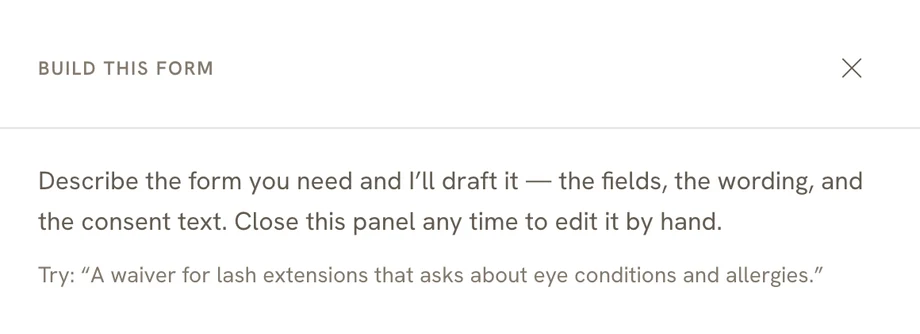
The form editor opens with the assistant’s panel, Build this form, over its right side. The panel starts with a suggestion of the kind of thing to ask for.
 Open full size
 The assistant’s panel, before you’ve asked for anything.
Describe the form
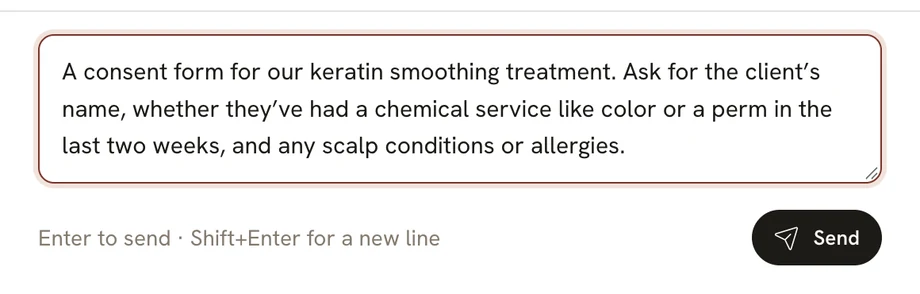
Type what you need in the box at the bottom of the panel. Say which service the form is for and what it should ask. You don’t need to write it the way the form will read.
 Open full size
 Two sentences were enough for a full consent form.
Click Send, or press Enter. Shift and Enter starts a new line instead. While the assistant writes, the button reads Thinking… and the editor is locked. It took about a minute for our first draft.
When it’s done, the assistant says what it wrote. Read it: it can add things you didn’t ask for. Ours added an optional question about pregnancy and breastfeeding, and said why.
Read the draft
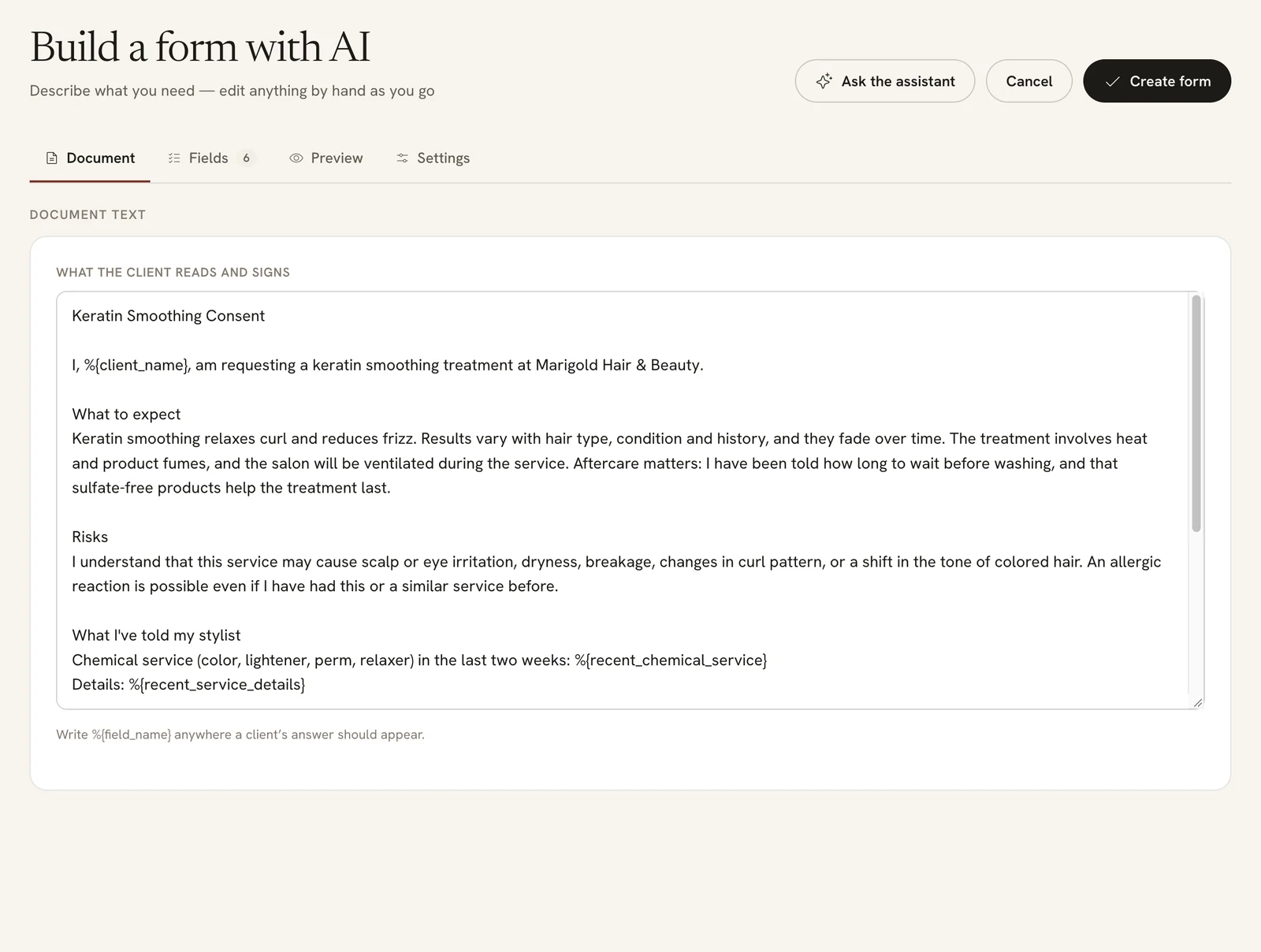
Close the panel with the X at its top right to see the whole editor. The assistant has filled in every tab: the document on Document, the questions on Fields, and the name, description and Form ID on Settings.
 Open full size
 The draft document, with its blanks already matched to questions.
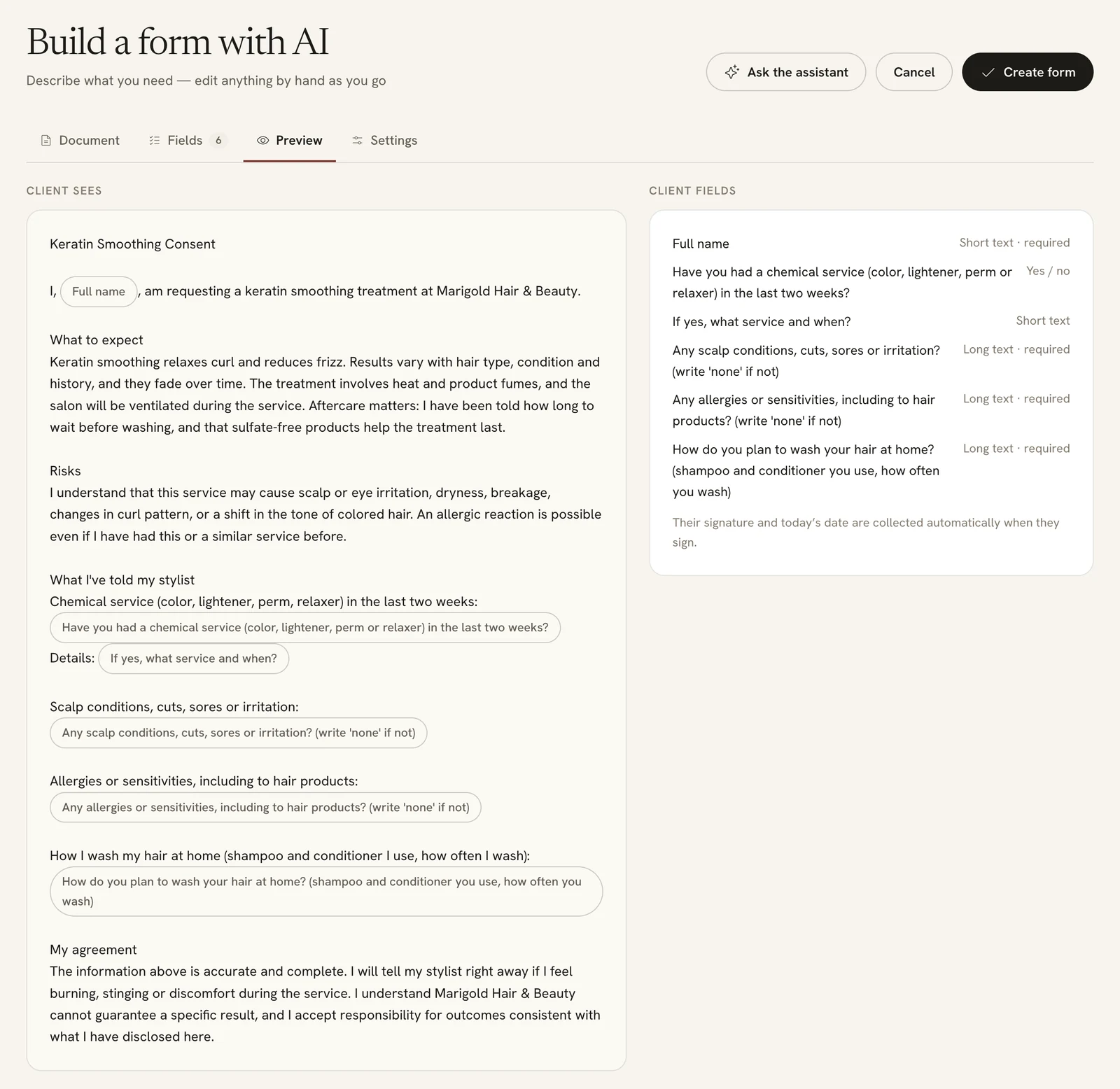
Click Preview to read it the way your client will.
 Open full size
 The draft as the client will see it, with its six questions on the right.
Ask for changes
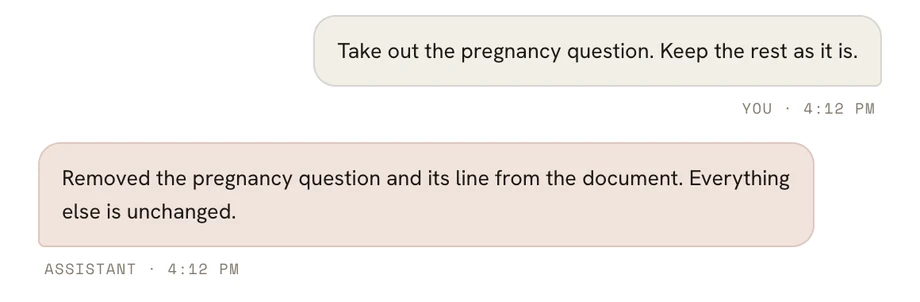
To change something, click Ask the assistant to open the panel again, and describe the change. The assistant changes the draft and says what it did.
 Open full size
 One sentence took out a question and its line in the document.
You can also change anything yourself, on any tab, exactly as you would on a form you built by hand.
Check the questions before you save
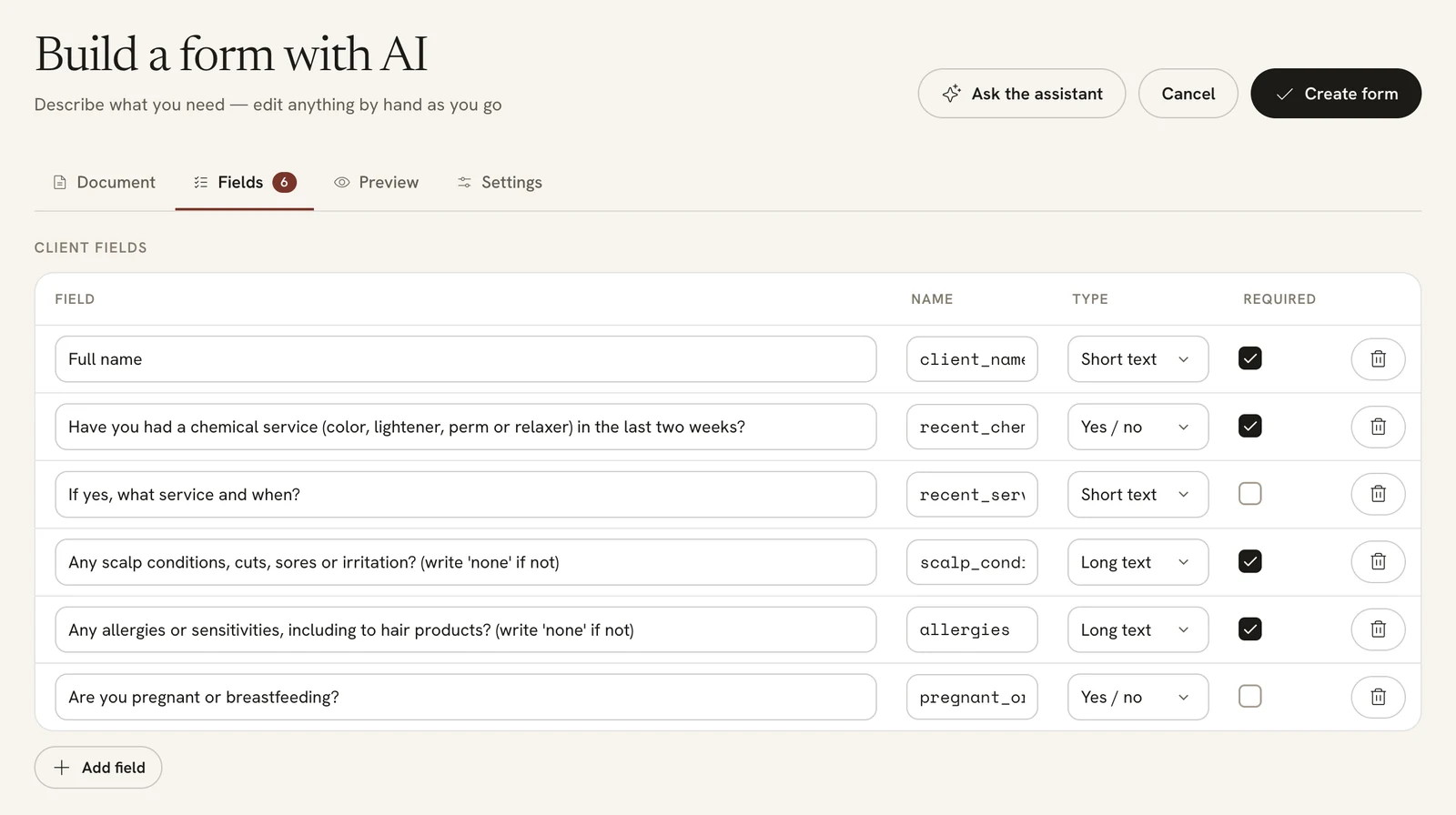
Click the Fields tab and check each question’s Type and Required box. The assistant marked our chemical service question, a Yes / no, as required.
 Open full size
 The chemical service question is a required Yes / no.
A required Yes / no can only be answered by ticking it, so a client whose answer is no couldn’t sign. Untick Required on every Yes / no question. Build a consent or intake form explains why.
Create the form
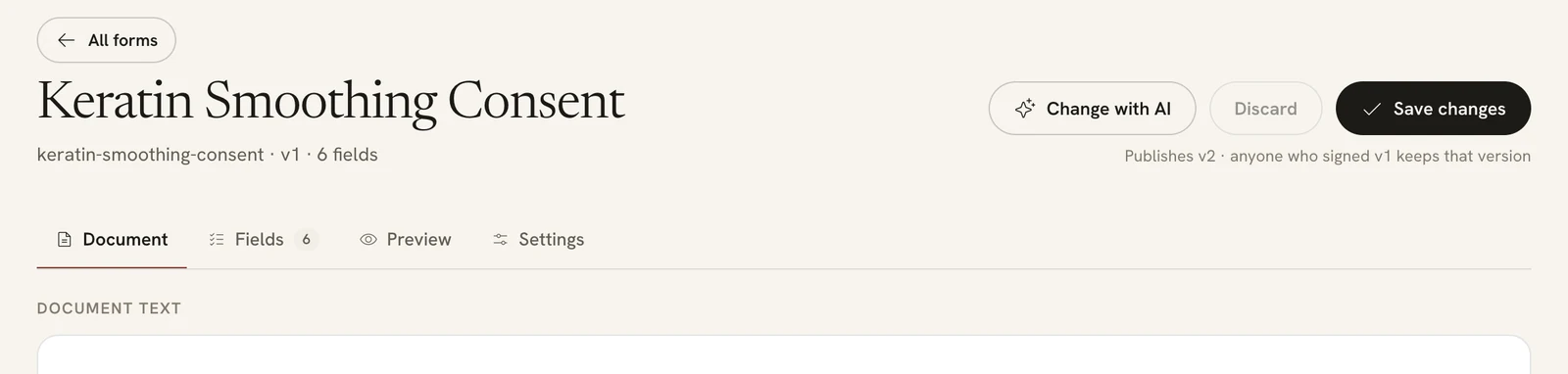
When the form reads the way you want, click Create form. Nothing is saved as a form until you do. Parlor says “Form created.” and opens it.
 Open full size
 The saved form is version 1, like any form built by hand.
From here it’s an ordinary form. Attach it to the services that need it on its Settings tab, as shown in Send it automatically with a service.
Change a saved form with the assistant
Open the form and click Change with AI. The button isn’t there while the form has changes you haven’t saved: save or discard them first.
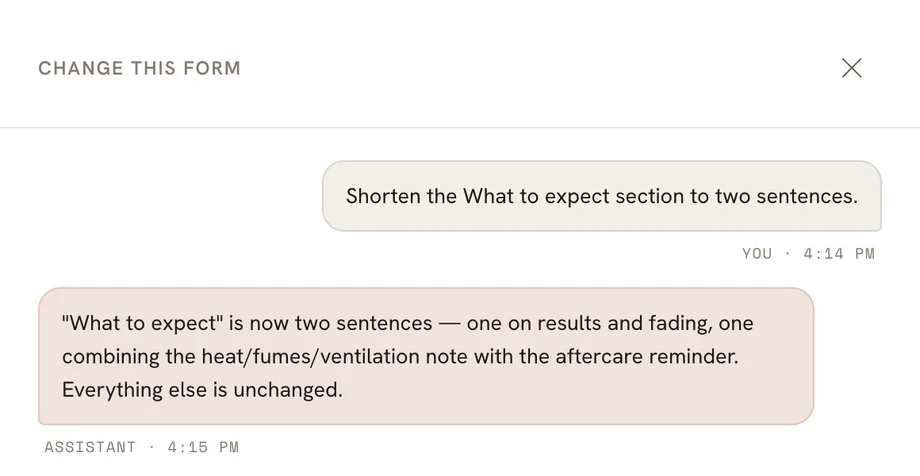
The panel is now called Change this form. Describe the change the same way. When you’re happy with it, click Save new version. As with any saved change, a client who already signed keeps the version they signed.
 Open full size
 Shortening one section of the saved form.
If something doesn’t look right
- Build with AI isn’t on the Forms page. Your login has Viewer access, which can read forms but not change them. Ask an owner or admin.
- “This studio has used up its AI form building for now.” Each studio can send the assistant a set number of messages a day. The message says when you can try again. Your draft stays, and you can keep editing it by hand.
- “The assistant is unavailable right now.” Your draft is safe. Keep editing it by hand, or try again later.
- A change you made by hand disappeared. The assistant’s next message put it back. Make the change again, after you’ve finished asking the assistant for changes.
- Create form is greyed out. The line under the button says what’s missing, like “The form needs a name.”
That’s a form drafted in a couple of messages: describe it, read what the assistant wrote, fix what needs fixing, and save it.