How to keep pet profiles and vaccination records for your grooming clients
Turn on pet profiles, add each client’s pets, upload a vaccination card for Parlor to read, and see which pets are missing records before the visit.
On this page
What you need
- A studio that grooms animals
- Each pet’s vaccination card, as a PDF or a phone photo
In Parlor, each pet belongs to a client. The pet has its own page with its breed, size, coat, behavior flags, grooming notes and vaccination records, and it’s the pet’s name you see on the calendar. The client is still the one who books and pays.
This guide covers turning pet profiles on, adding a pet, getting its vaccination records on file, and what happens when a pet is booked without them. For the screenshots we added three dogs to two of the Marigold demo studio’s clients.
The whole routine in a little over four minutes. Every step is also written out below, with the screenshots.
Turn on pet profiles
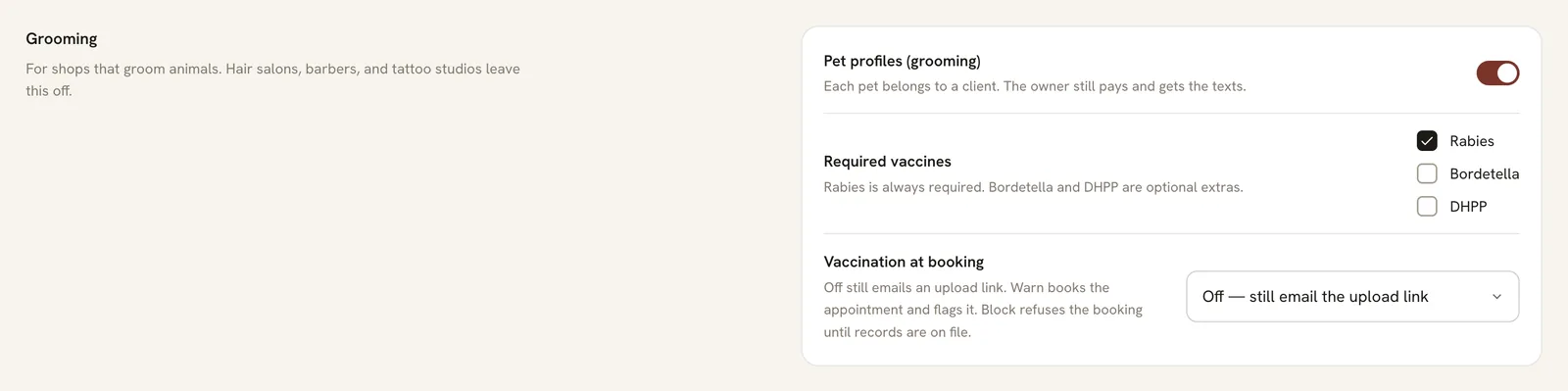
Open Settings, stay on the Studio tab, and find Grooming. Switch on Pet profiles (grooming). Two more settings appear:
- Required vaccines. Rabies is always required. Tick Bordetella and DHPP if you require them too.
- Vaccination at booking. What Parlor does when a pet is booked without its required records on file:
| Setting | What happens |
|---|---|
| Off — still email the upload link | The setting says Parlor still emails the owner a link to upload the card |
| Warn on the appointment | The booking goes through, the appointment is flagged, and the owner gets an upload link by email |
| Block booking until on file | Parlor refuses the booking until the records are on file |
Click Save settings. Only owners and admins can change these settings.
 Open full size
 Grooming, on the Studio tab of Settings.
Add a pet to a client
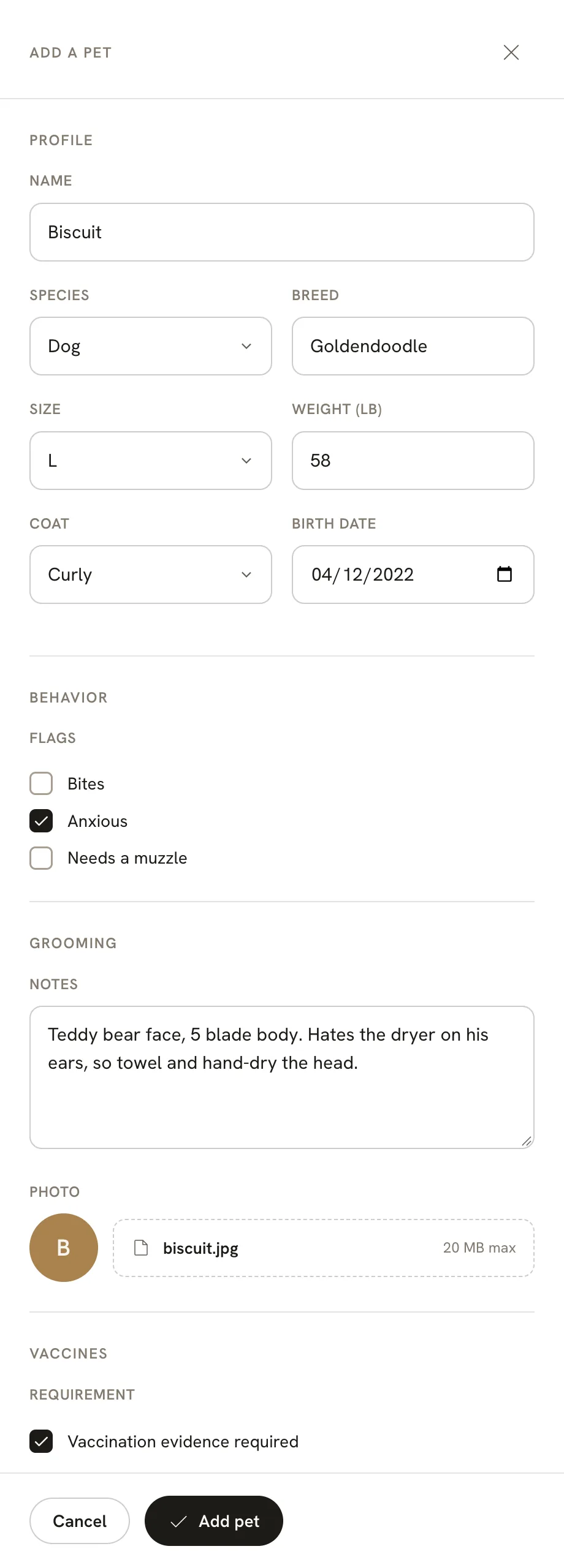
Open the client from Clients. Once pet profiles are on, the client has a Pets tab. Click Add a pet and fill in what you know:
- Name is the only required field.
- Species (Dog or Cat), Breed, Size (XS to XL), Weight (lb), Coat (Short, Medium, Long, Double or Curly) and Birth date.
- Flags: Bites, Anxious or Needs a muzzle. They show as badges wherever the pet appears.
- Notes for the groom: blade numbers, the cut, how the dog handles the dryer.
- Photo, a JPEG, PNG or WebP up to 20 MB.
- Vaccination evidence required. Tick this for every pet whose vaccines you check. It starts unticked.
Click Add pet. Parlor says “Biscuit added.”
 Open full size
 Only the name is required. The rest can wait until the first visit.
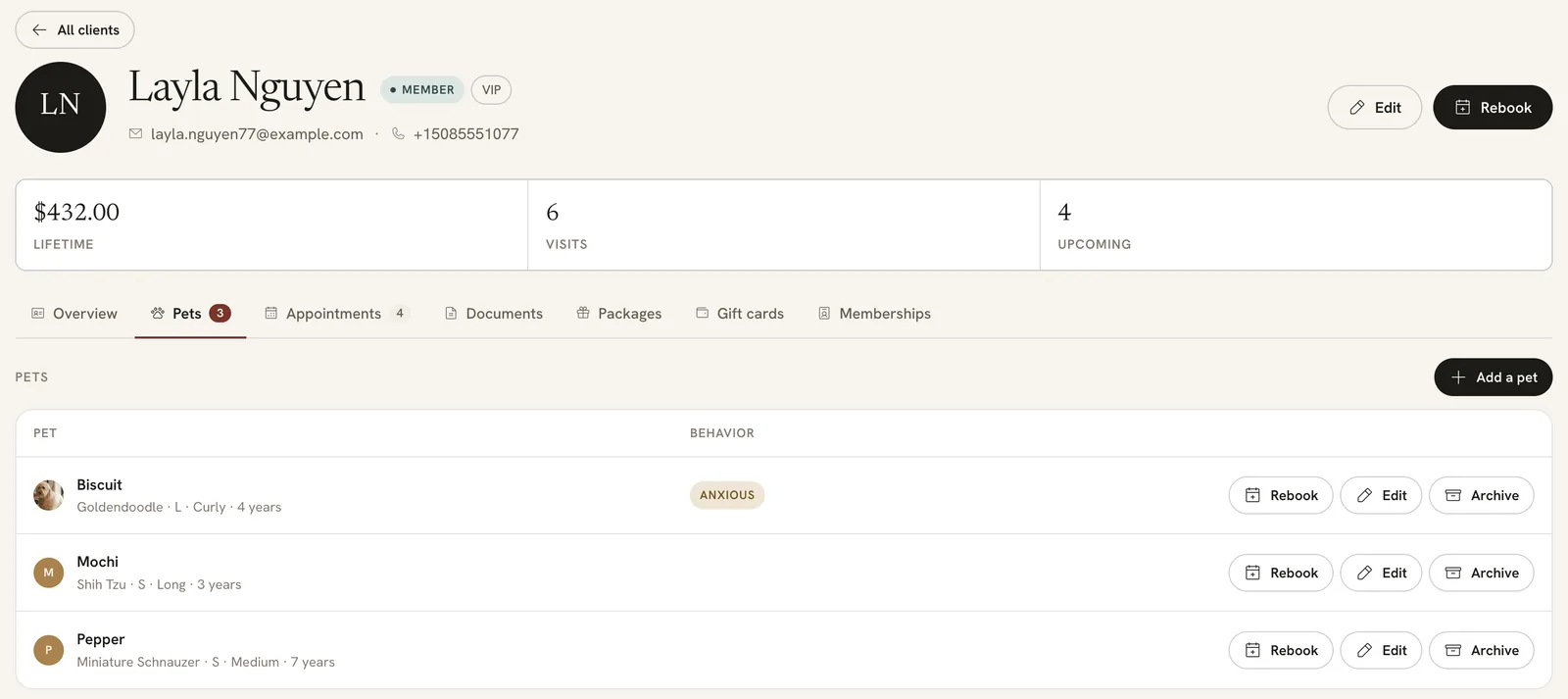
The Pets tab lists each pet with its breed, size, coat and age, its flags, and Rebook, Edit and Archive. Click a pet’s name to open its page.
 Open full size
 One client, three dogs.
 Open full size
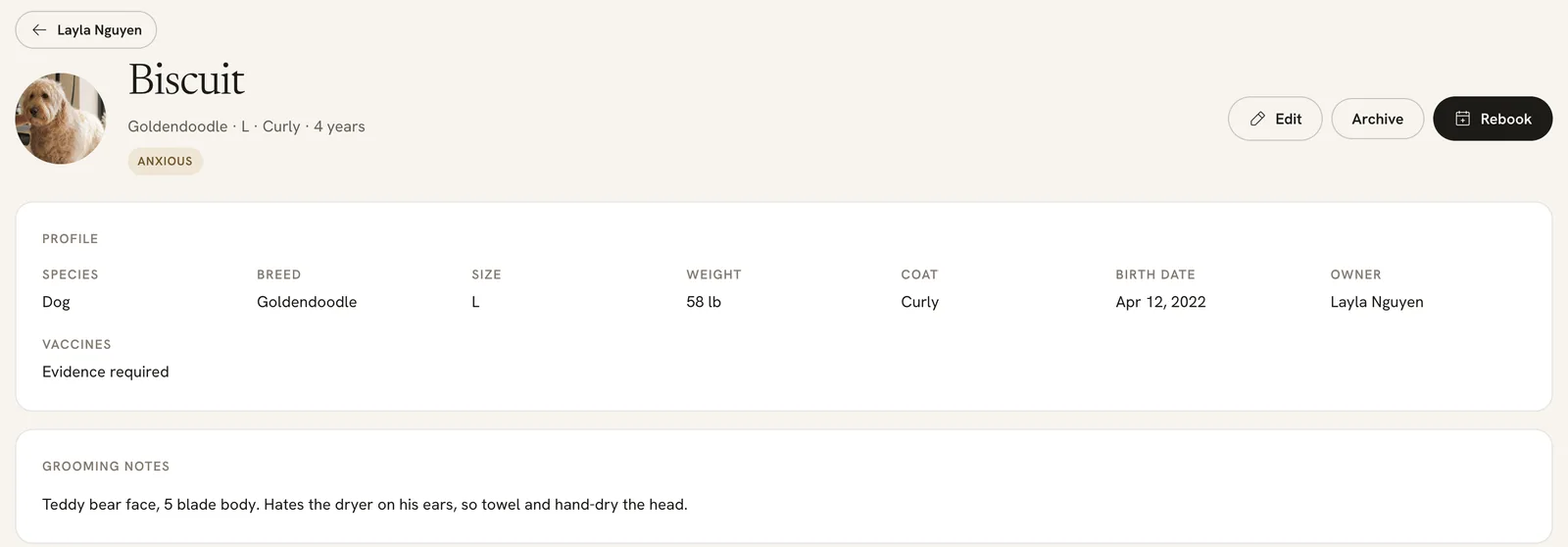
 The pet’s page. Vaccination records are further down.
Upload a vaccination card
On the pet’s page, scroll to Vaccination records and click Choose a file under Upload a card. Pick the card the owner sent you: a PDF, or a photo in JPEG, PNG or WebP, up to 20 MB. The upload starts as soon as you pick the file.
 Open full size
 Parlor reads the card while it uploads.
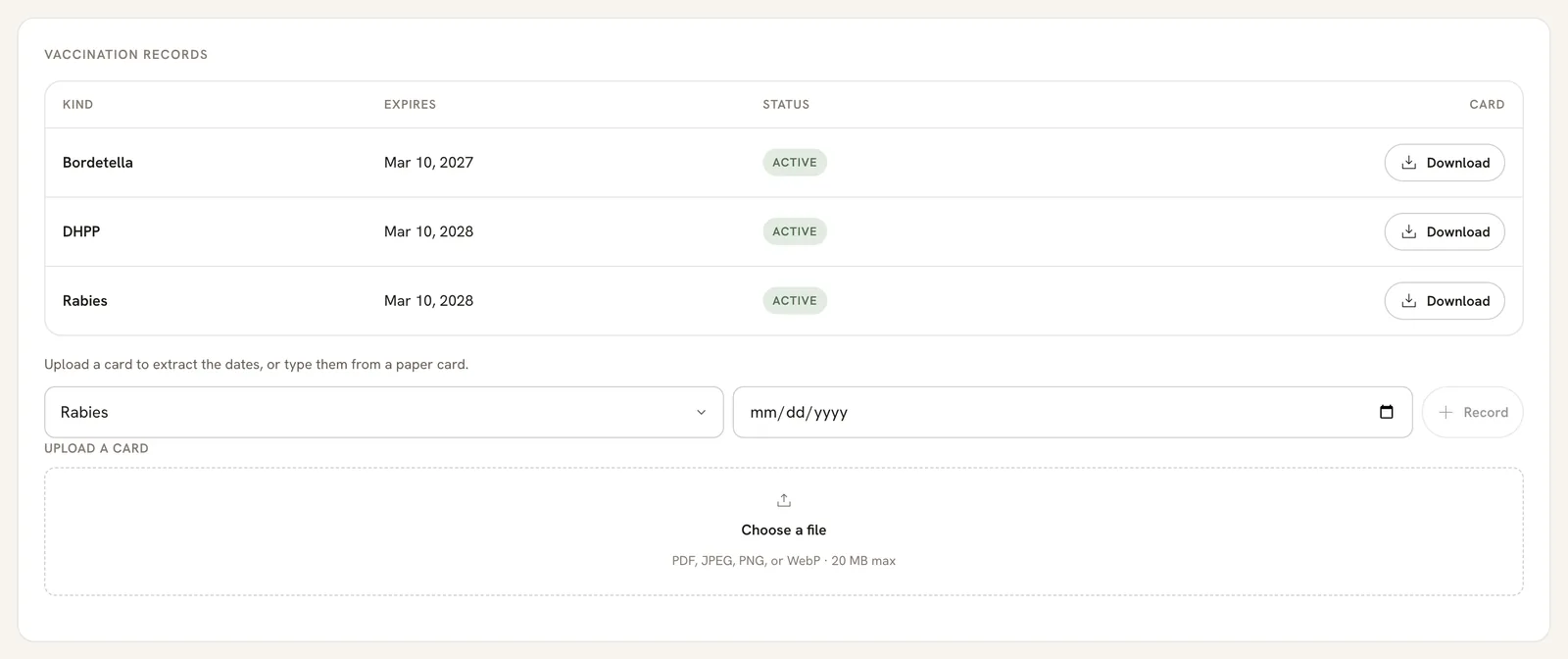
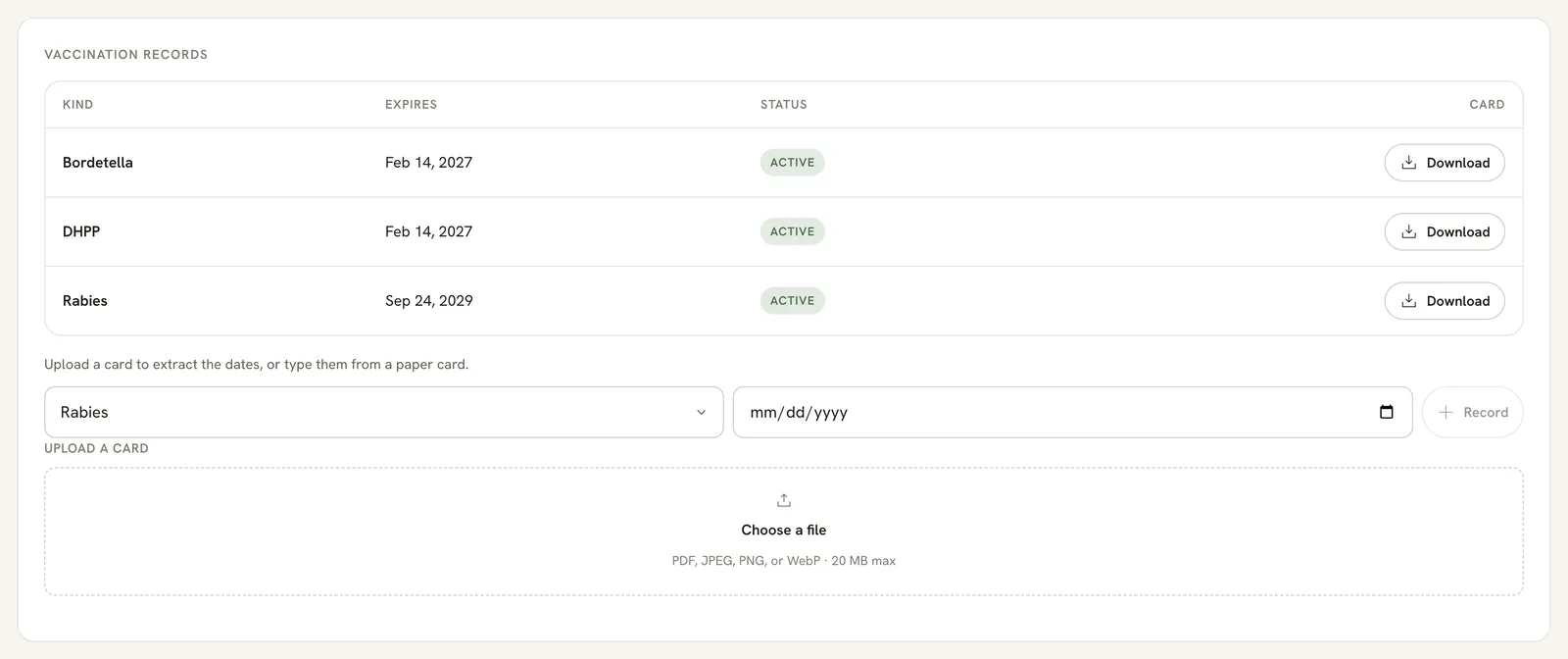
Parlor reads the card and files each vaccine on it with its expiry date. For Biscuit’s card that took about four seconds: three rows, Bordetella, DHPP and Rabies, each with its date. Parlor says “Card uploaded for Biscuit.” Download on each row gets the card back.
 Open full size
 Three vaccines from one card, each with its own expiry date.
Uploading the same card again doesn’t add duplicate rows.
Read the status
Each record has a status, worked out from its expiry date:
| Status | Meaning |
|---|---|
| Active | The vaccine is current |
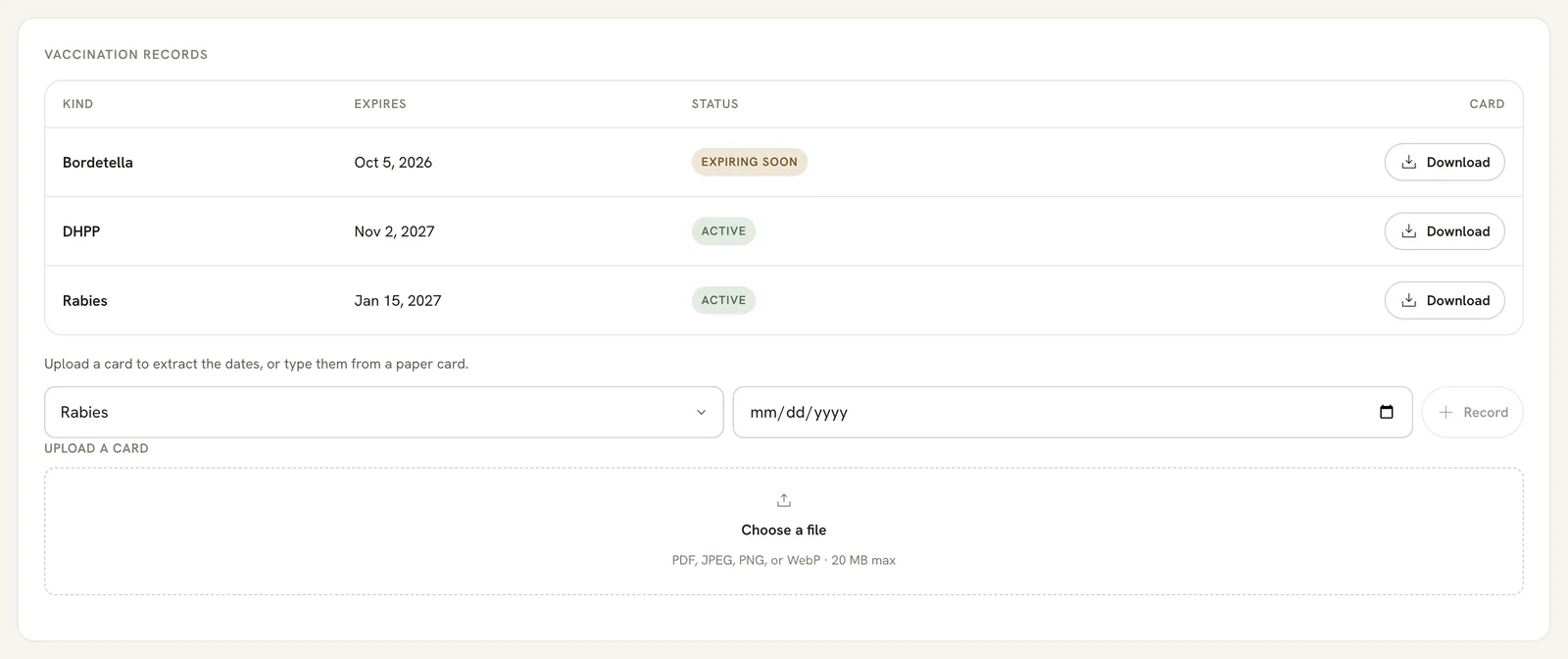
| Expiring soon | It expires within the next 30 days |
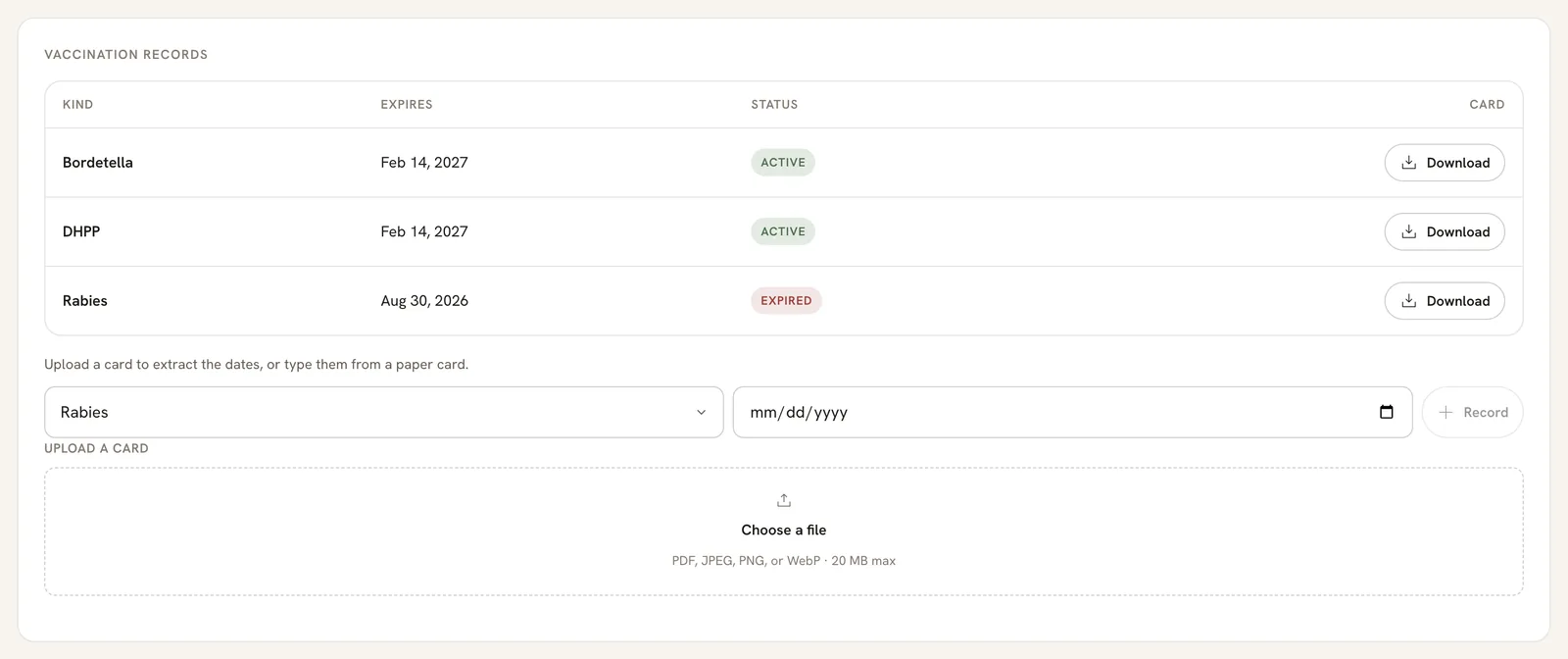
| Expired | The expiry date has passed |
Pepper’s Bordetella expires on October 5. We checked on September 26, nine days out, and it showed Expiring soon. That’s your cue to ask the owner for the new card.
 Open full size
 Expiring soon gives you 30 days’ notice.
 Open full size
 Tank’s card was read correctly, and his rabies had run out.
Type the dates from a paper card
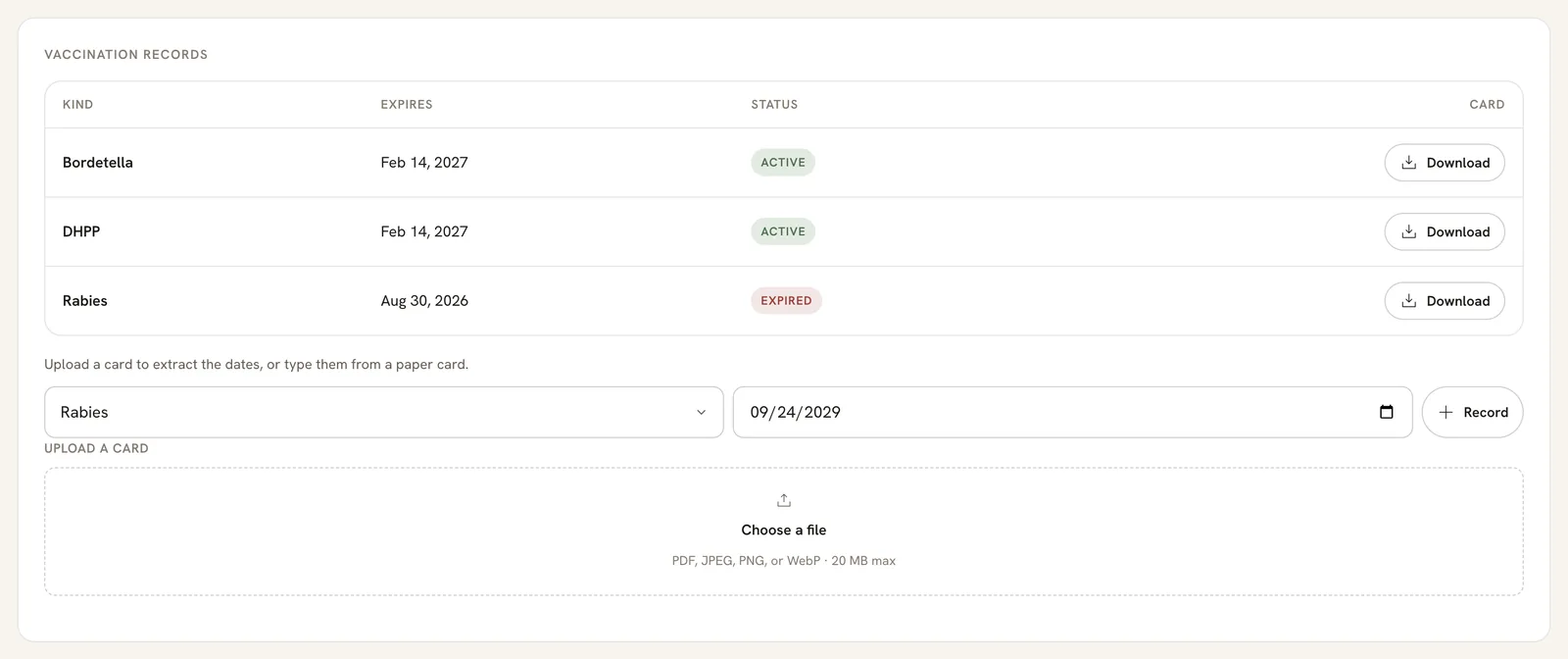
If the owner hands you a paper certificate, you don’t need to scan it. Under Vaccination records, pick the vaccine, enter the date it expires, and click Record. Parlor says “Vaccination recorded.”
 Open full size
 Tank’s owner brought in his new rabies certificate.
The new date replaces that vaccine’s row, so Tank’s rabies went from Expired to Active. Typing a date is also how you correct a date that came off a card wrong.
 Open full size
 One row per vaccine. The newest date wins.
Book a pet
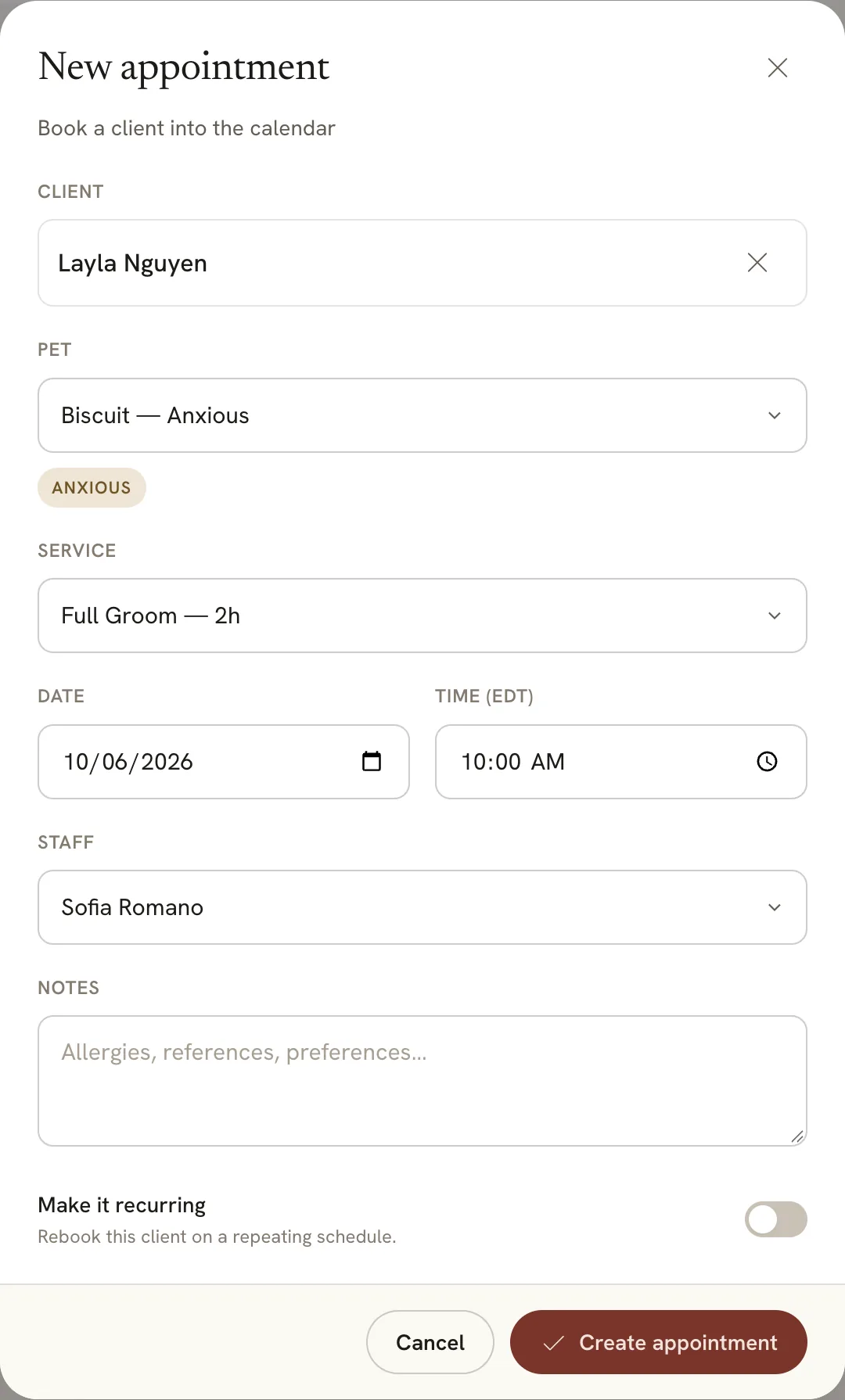
Click Rebook on the pet’s row or page, and New appointment opens with the client and the pet filled in. When you start a New appointment from anywhere else, pick the client first, then the pet under Pet. The pet’s flags show under it, so whoever takes the booking sees “Anxious” before the dog arrives.
 Open full size
 Rebook from the pet fills in the client and the pet.
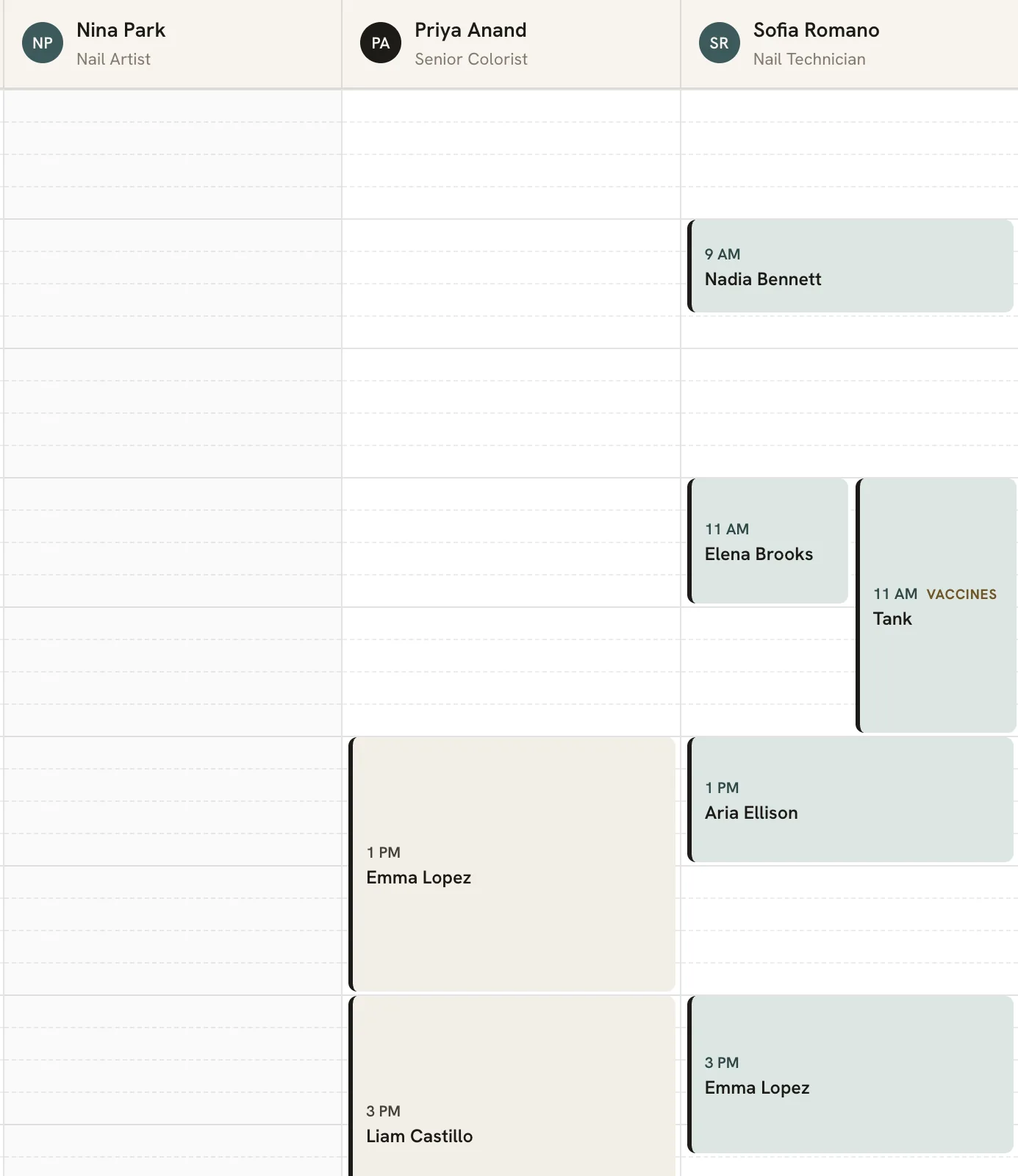
On the calendar, the appointment shows the pet’s name.
When a pet’s vaccines are missing
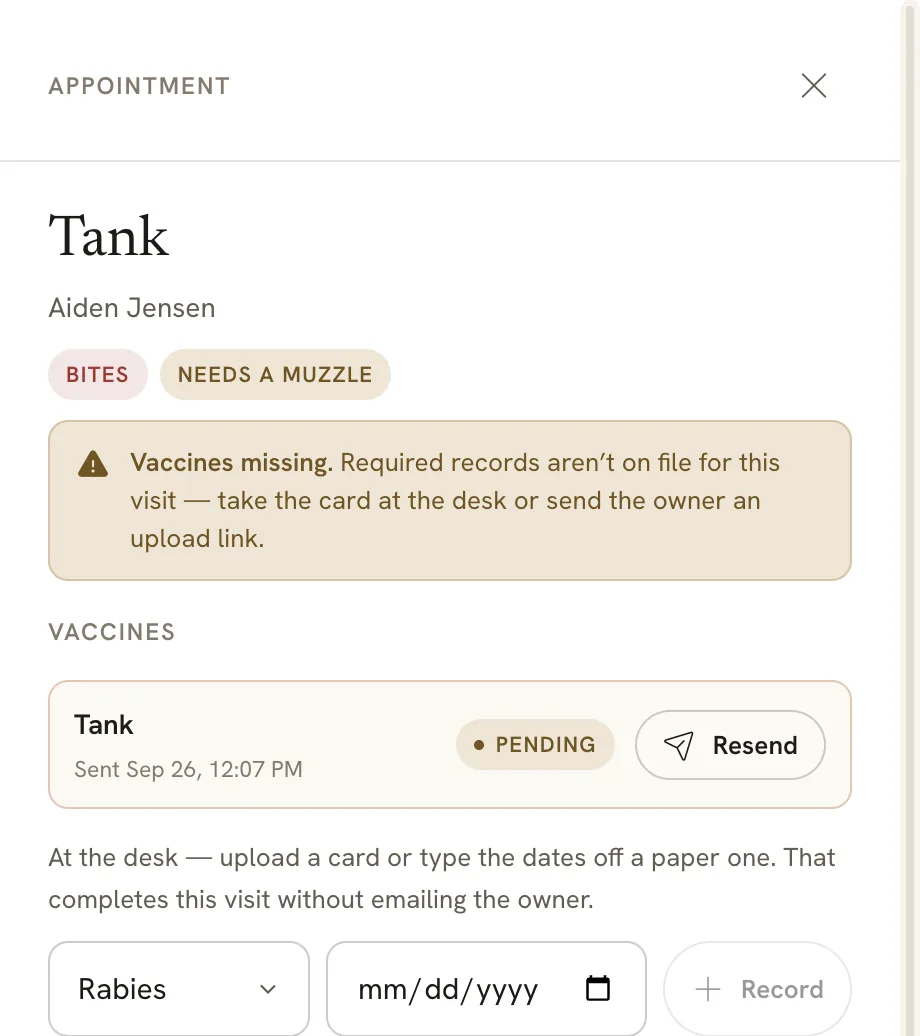
When the studio is set to Warn and a pet is booked without its required records, the calendar block carries a Vaccines tag. Open the appointment and you’ll see why: “Vaccines missing. Required records aren’t on file for this visit.”
 Open full size
 Tank’s groom, flagged from the moment it was booked.
The appointment’s Vaccines section shows the upload request Parlor emailed the owner, when it was sent, and Pending. Resend sends it again.
 Open full size
 The request, its status, and the desk entry in one place.
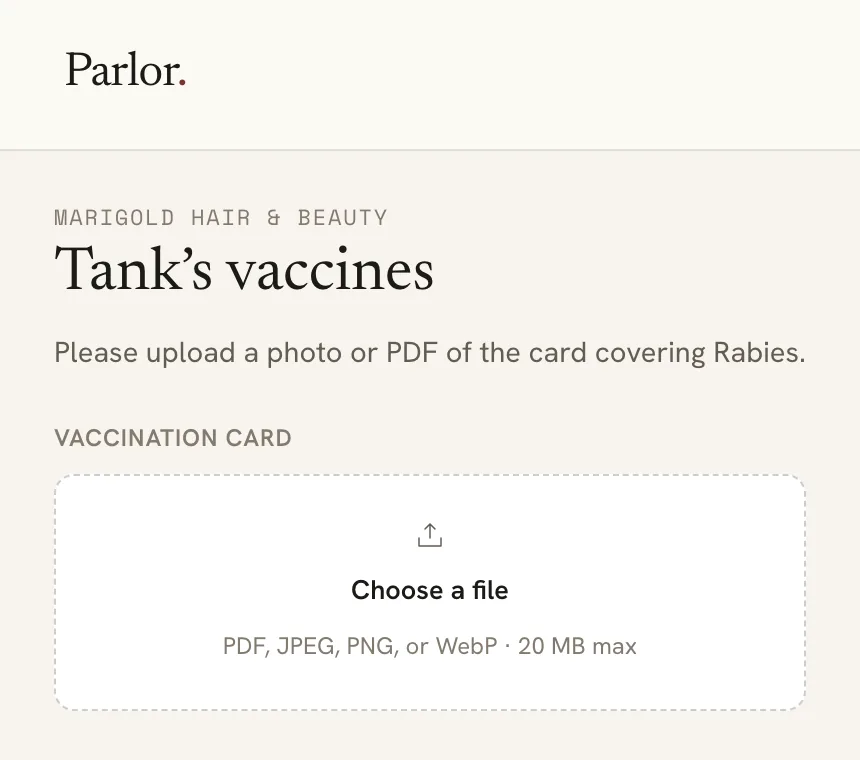
The owner gets an email, “Please share Tank’s vaccination records for Marigold Hair & Beauty”, with a link to upload the card. The link opens a page for that pet, with no sign-in.
 Open full size
 What the owner sees from the email.
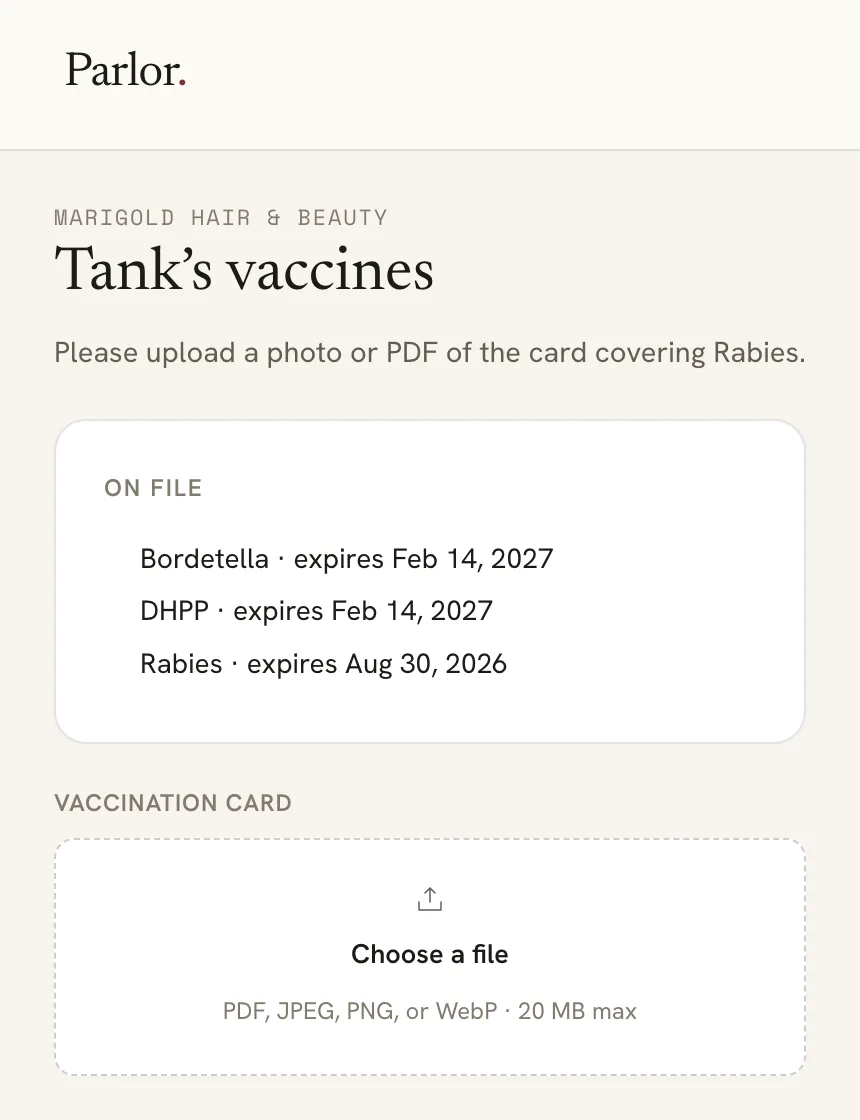
When the owner uploads, Parlor reads the card and files the records on the pet, the same as when you upload it. If a required vaccine on it has expired, the request stays Pending and the owner’s page lists what’s on file and asks again.
 Open full size
 Tank’s card came back with rabies expired, so the page still asks for it.
If the owner brings the card to the desk instead, upload it or type the dates in the appointment’s Vaccines section. That completes the visit without emailing the owner. Dates you add on the pet’s page count too.
Once the required records are current, the request shows Completed, the Vaccines tag comes off the calendar, and the owner’s link says “Records received.”
With Block, Parlor won’t make the booking at all. When we tried to book a pet with no records on file, New appointment refused with “vaccination evidence required”.
Archive a pet
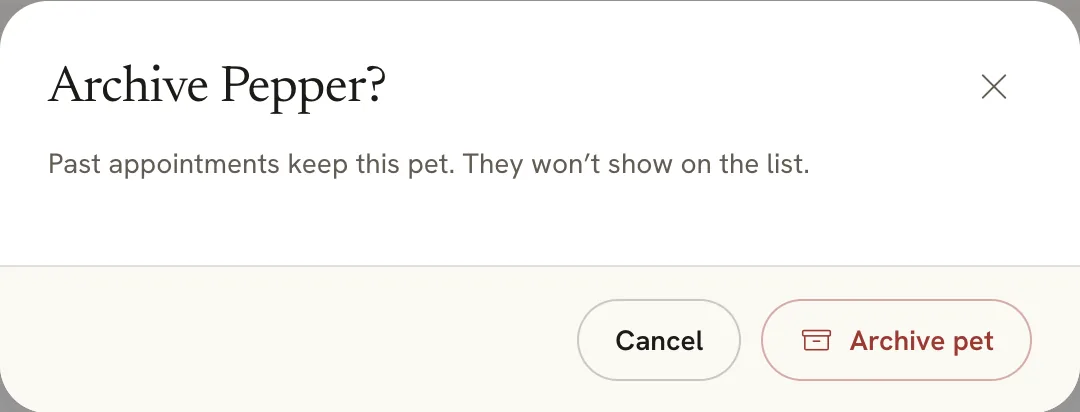
When a pet stops coming in, click Archive on its row or page, then Archive pet. Past appointments keep the pet, and it comes off the client’s Pets tab.
 Open full size
 Archiving keeps the pet’s history.
If something doesn’t look right
- There’s no Pets tab on the client. Pet profiles are switched off. Turn on Pet profiles (grooming) in Settings → Studio.
- “We couldn’t read that card.” Try the upload again, or use a clearer photo. One of our uploads failed on the first try and read correctly on the second. You can always type the dates instead.
- A date came off the card wrong. Type the right date for that vaccine and click Record. It replaces the row.
- A pet without records isn’t flagged. Check that Vaccination evidence required is ticked on the pet (click Edit). We saw the flag with Vaccination at booking set to Warn.
- You can’t change the Grooming settings. Only owners and admins can. Staff can add pets and record vaccines.
That’s the whole routine: add the pet once, get the card on file, and let the calendar tell you which dogs still need it.