How to book, move, check out and cancel appointments on the calendar
Everything the front desk does with an appointment in Parlor: book it, answer an online request, move it to another time, check it out, and mark a no-show or cancel.
On this page
What you need
- A Parlor login with Staff, Admin or Owner access
Every appointment follows the same path. It’s booked, the client comes in, and the visit is paid for. Along the way it might start as an online request, move to another time, or end as a no-show or a cancellation.
This guide follows that path in the order you’ll meet it at the front desk. We walked through every step in the Marigold demo studio, signed in as Marcus, who has Staff access. Anything only an owner or admin can do says so.
The whole day at the front desk in a little under five minutes. Every step is also written out below, with the screenshots.
Read the calendar
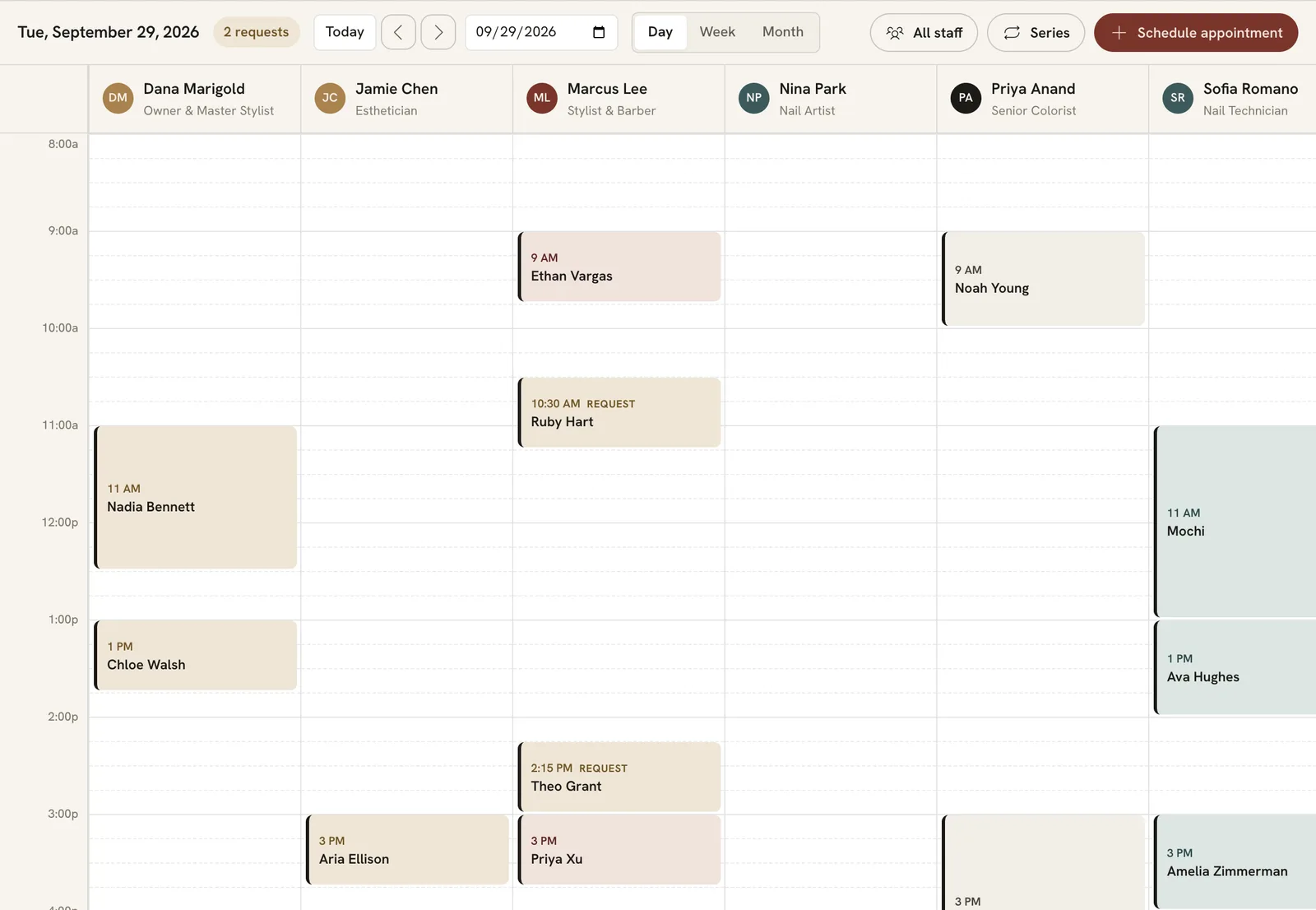
Open Calendar in the sidebar. Choose Day, Week or Month at the top. Day view gives each provider their own column, so you can see who’s free at a glance. Today and the arrows move through the dates, and the date box jumps to any day. All staff narrows the calendar to one provider, or to Just me if clients book you.
 Open full size
 Day view, one column per provider. The two blocks tagged Request are waiting on a yes.
Each block shows the start time and the client. A Request tag means a client asked for that time online and it’s waiting for an answer. The count next to the date, 2 requests here, is how many are waiting.
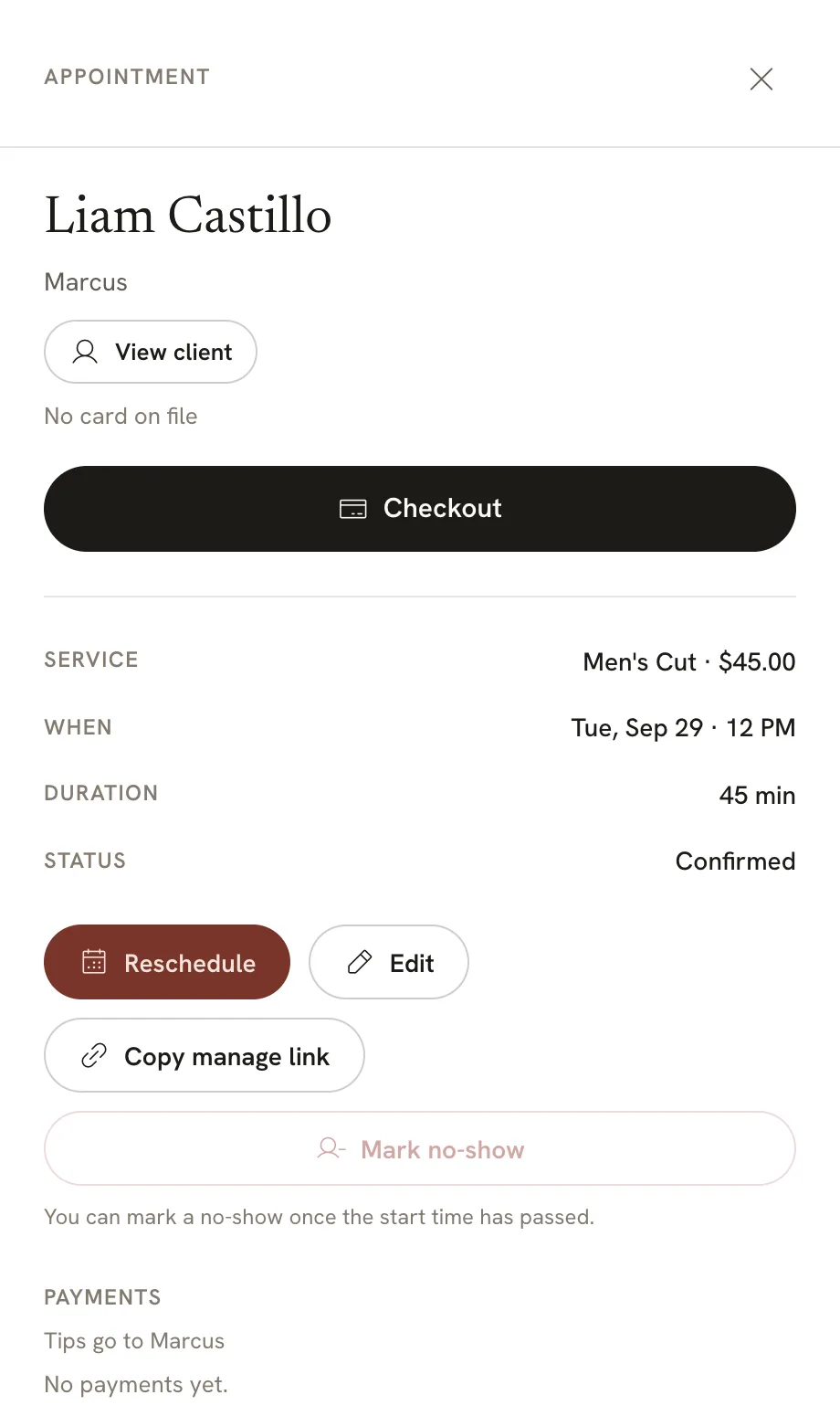
Click any block to open the appointment. Everything you do to it happens in that panel: Checkout, Reschedule, Edit and Mark no-show.
 Open full size
 Mark no-show stays greyed out until the start time has passed.
Book an appointment
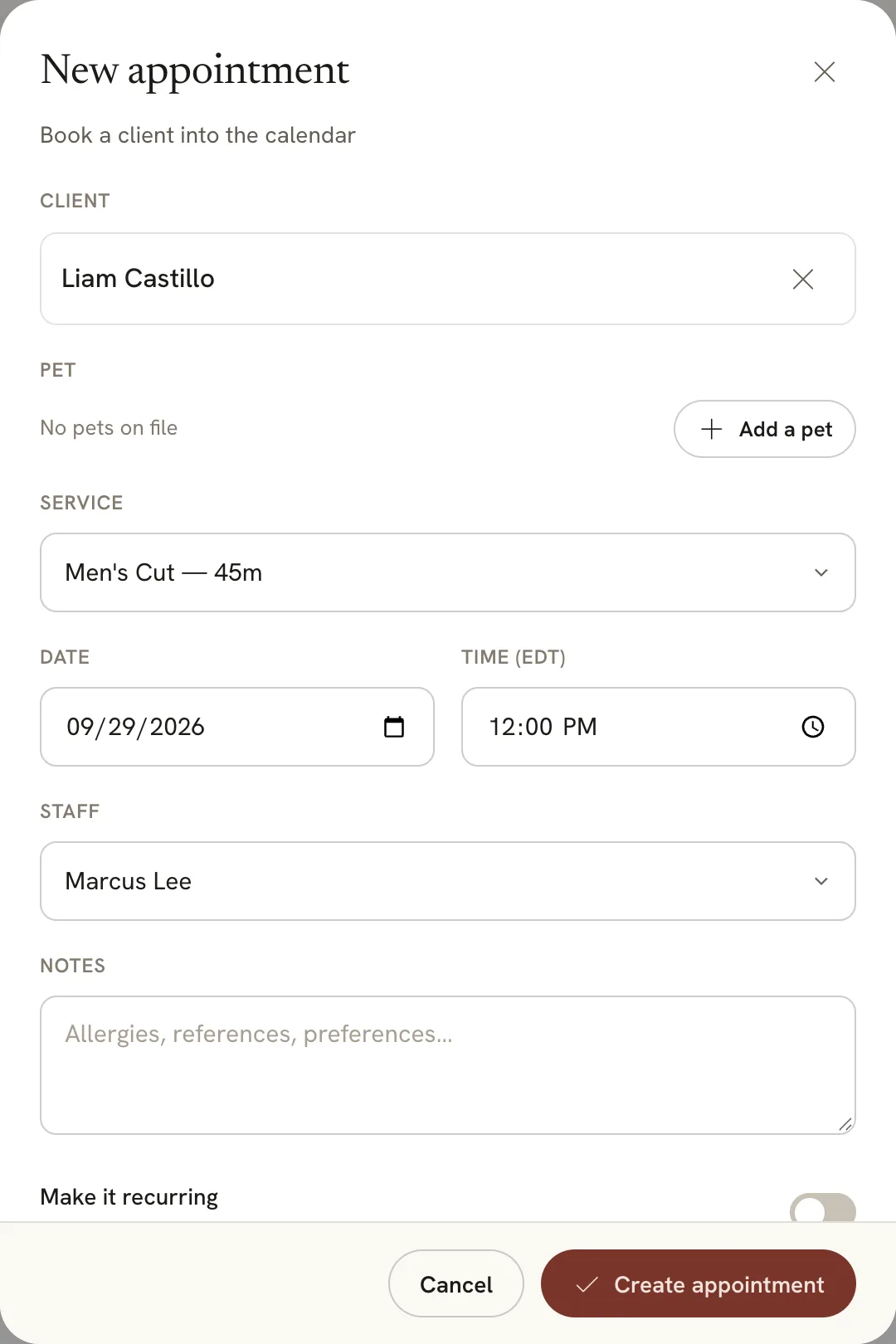
Click Schedule appointment on the calendar, or New appointment at the top of any page. You can also click an empty time on the calendar. In Day view, that fills in the date, time and provider for you.
- Client. Type the first letters of their name and pick them from the list.
- Service. Each appointment has one service.
- Date and Time.
- Staff, the provider doing the service.
- Notes, if there’s anything the provider should know, like an allergy.
Click Create appointment. Parlor says “Appointment created” and the booking goes on the calendar as Confirmed. Appointments you book at the desk never wait for approval. If the client has an email address and has agreed to email, Parlor sends them a confirmation with a link to manage their booking.
 Open full size
 A 45-minute men’s cut with Marcus, booked from the desk.
To book a client on a repeating schedule, switch on Make it recurring before you click Create appointment. Parlor won’t book a time that has already passed.
Answer a booking request
Some services, or some providers’ calendars, need a yes from the studio before an online booking is confirmed. Those bookings arrive as requests. A request holds the time so nobody else can book it, and nothing is confirmed or charged until someone approves it.
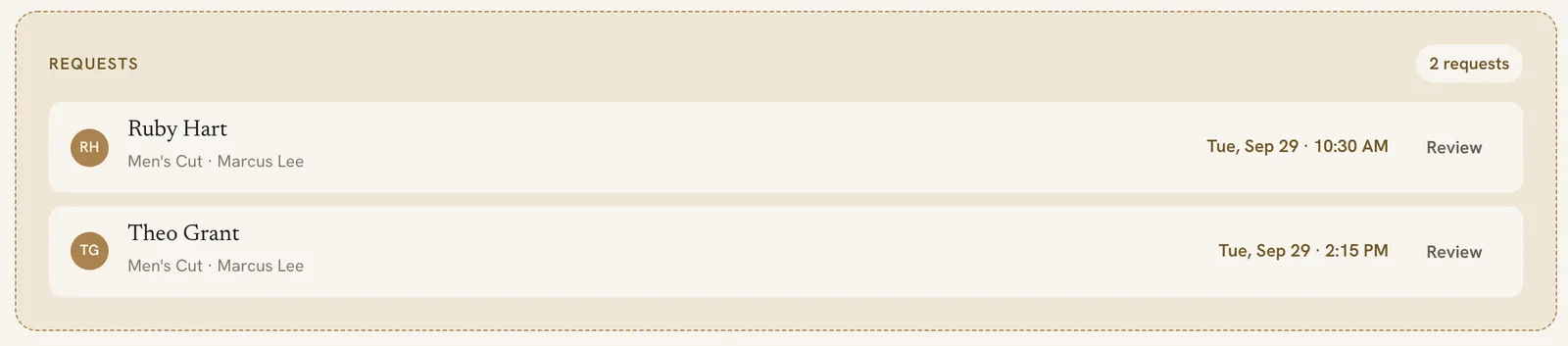
Requests are listed at the top of Today, with a Review button on each one.
 Open full size
 Requests wait here until someone answers them.
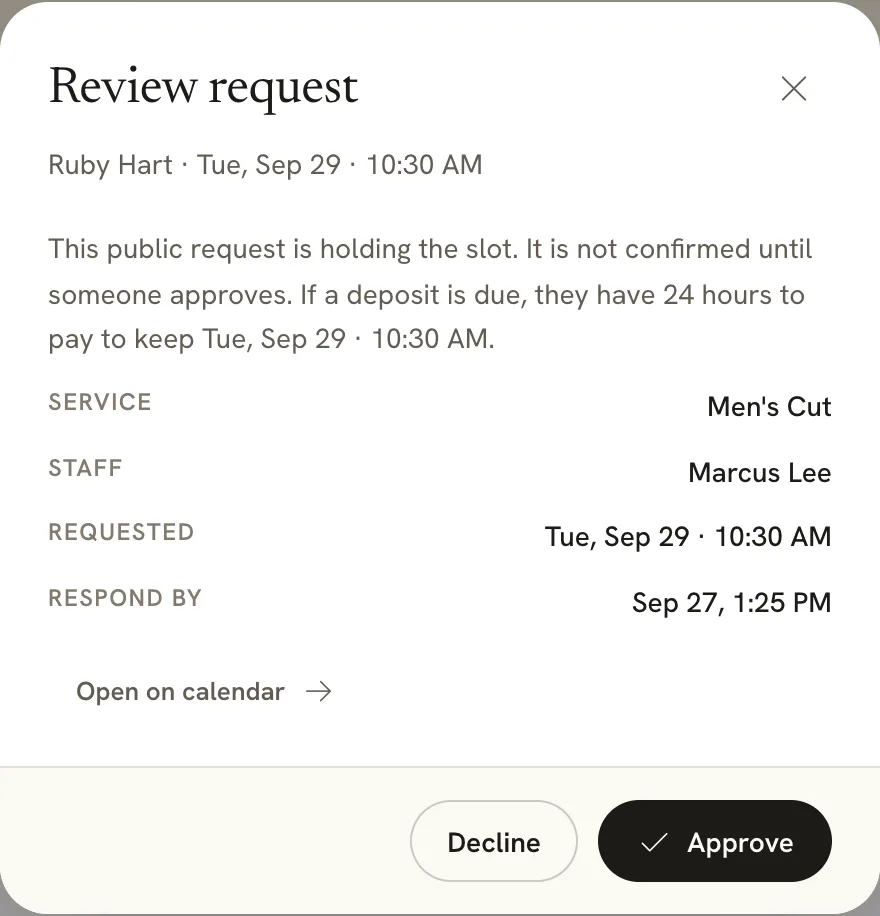
Click Review to see the service, the provider, the time they asked for, and Respond by, the deadline for an answer. Then choose:
- Approve to confirm it. If your studio takes a deposit, the client is emailed a link to pay it, and they have 24 hours to pay to keep the time. Until they pay, the appointment shows as Holding.
- Decline to turn it down and free the time.
 Open full size
 The same Approve and Decline buttons are in the appointment panel on the calendar.
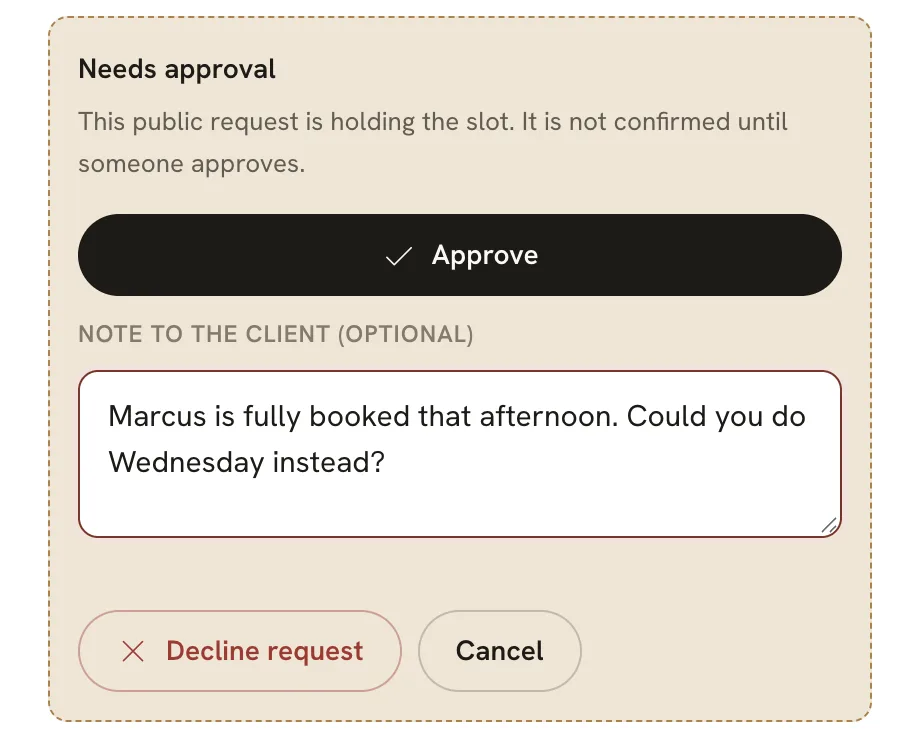
When you decline, you can add a Note to the client, like another day that would work. Click Decline request. Parlor emails the client that it couldn’t confirm their request, with your note and a link to book another time.
 Open full size
 Your note goes into the email the client gets.
A request nobody answers by its Respond by time is declined automatically, and the time opens up again.
Owners and admins can answer any request. Staff can answer requests for their own appointments. If a request is for another provider, that provider, an owner or an admin can answer it.
Move an appointment to another time
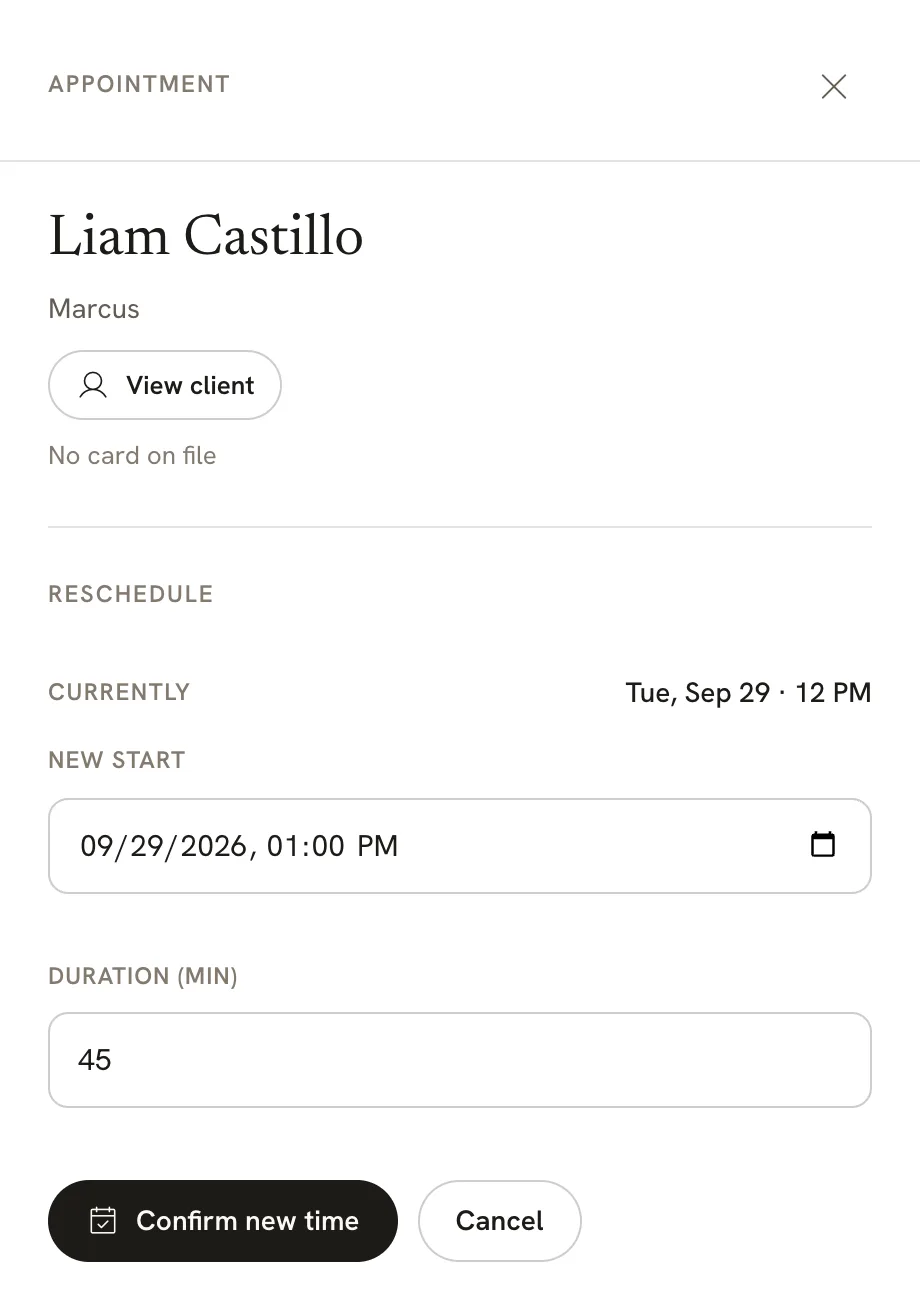
Open the appointment and click Reschedule. Choose the New start, change Duration (min) if the visit needs more or less time, and click Confirm new time. Parlor says “Appointment rescheduled.” and moves the block. If the client has an email address and has agreed to email, Parlor sends them their confirmation again with the new time.
 Open full size
 Moving Liam from 12 PM to 1 PM on the same day.
The new time has to be free and in the future. A request has to be approved before you can move it. An appointment that’s already been checked out can’t be moved, so book a new one instead.
Check out when the visit is done
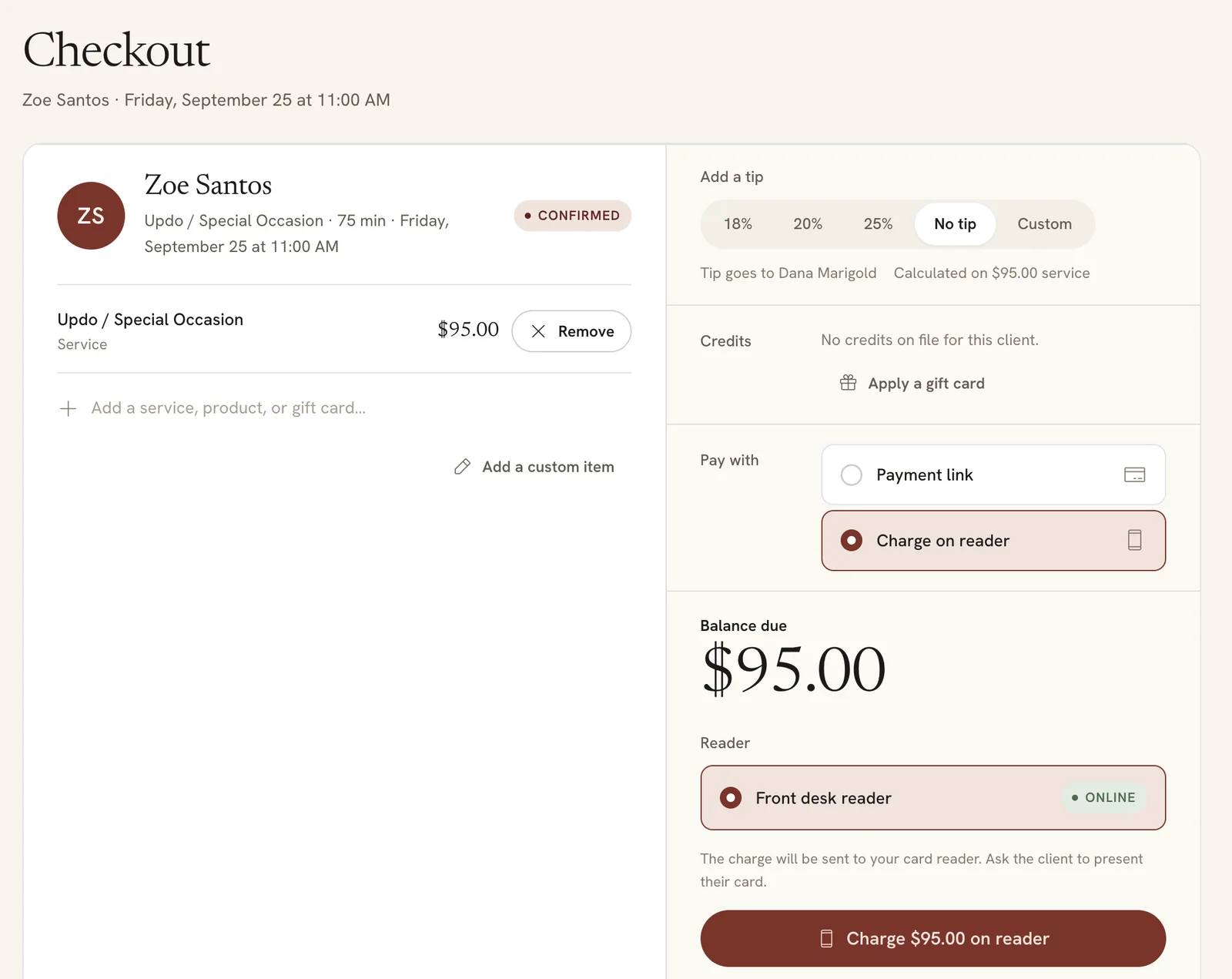
When the client comes to the desk, open their appointment and click Checkout. The ticket opens with the service already on it. Add a tip or anything else they’re buying, then take the payment with Payment link or, if your studio has a card reader, Charge on reader. The ticket marks itself paid when the payment goes through.
 Open full size
 The checkout screen, with the service on the ticket and the balance due.
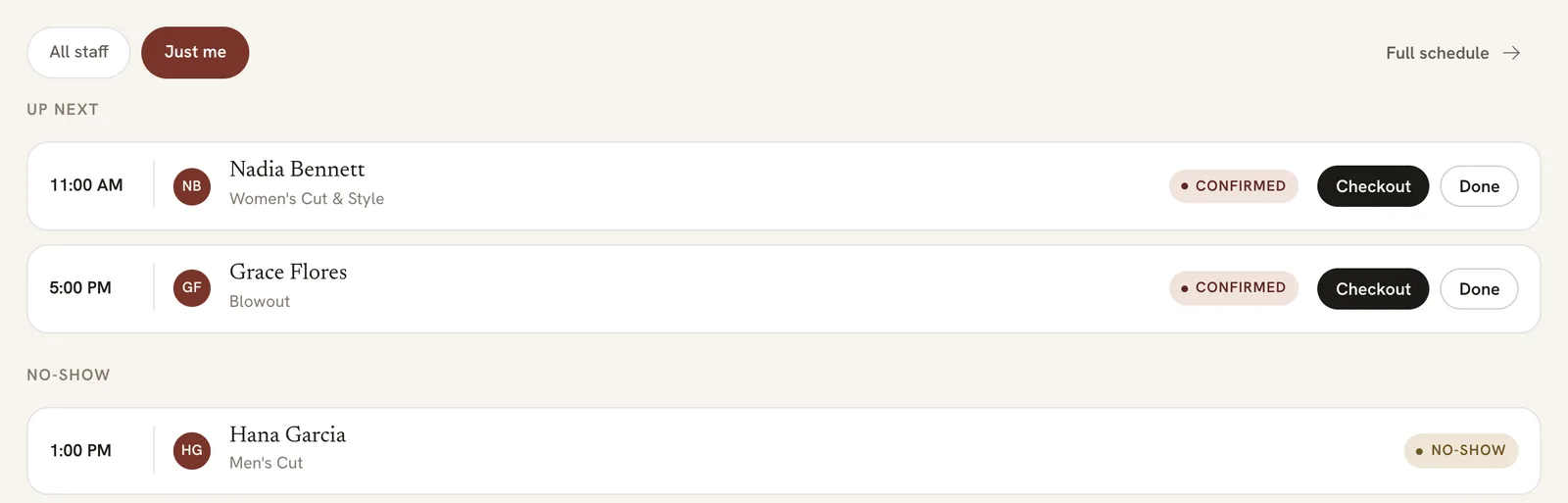
The Today page lists your visits under Up next, each with its own Checkout button. For a visit with nothing to charge, click Done instead. It’s marked Completed and moves to the Done list. A completed visit hasn’t been paid, so you can still check it out later from the appointment.
 Open full size
 Just me shows your own visits. All staff shows everyone’s.
Taking a card on a reader is covered step by step in How to buy a Stripe card reader and pair it with Parlor.
Mark a no-show
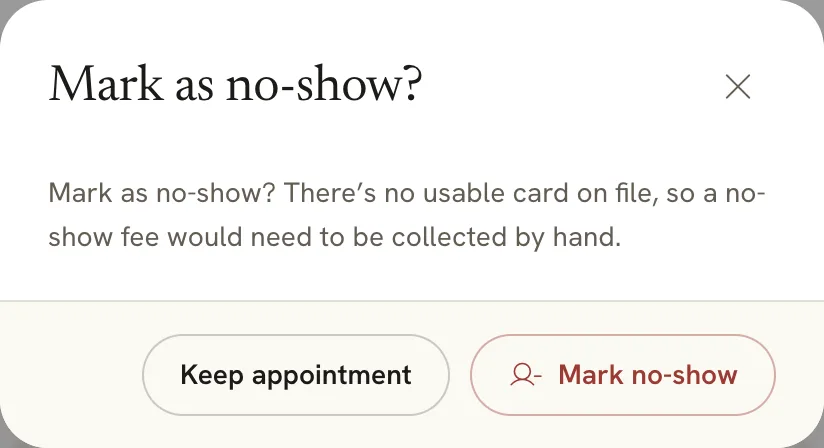
Once the start time has passed and the client hasn’t come, open the appointment and click Mark no-show. Parlor asks you to confirm. Click Mark no-show again, and it says “Marked as no-show.”
 Open full size
 Without a usable card on file, the fee has to be collected by hand.
If your studio charges a no-show fee, Parlor charges it to the client’s card on file. If there’s no usable card, or the charge doesn’t go through, Parlor records the fee and alerts the owner to collect it. Either way, the client is emailed that they missed their appointment. Only an owner or admin can waive or refund a fee.
Always use Mark no-show for a client who didn’t come, not Edit. It’s the only way the fee is charged.
Cancel an appointment
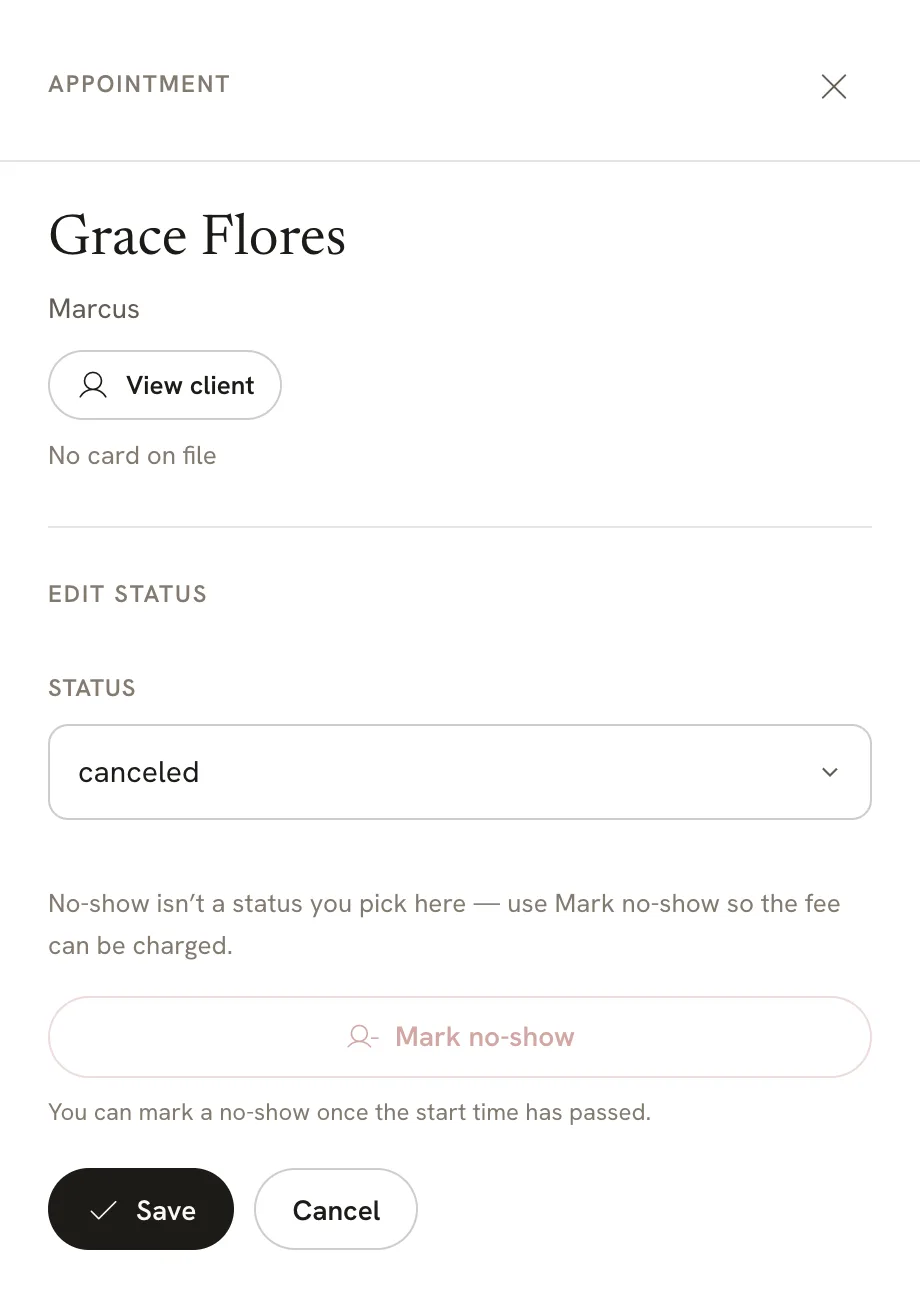
Open the appointment, click Edit, choose canceled in the Status list, and click Save. Parlor says “Appointment updated.” The Cancel button next to Save only closes the editor without changing anything.
 Open full size
 Choose canceled, then Save.
Parlor frees the time. If your studio has a waitlist, clients waiting for a matching time are emailed that a spot opened up. If the client has an email address and has agreed to email, they’re told their booking was canceled.
If something doesn’t look right
- Approve and Decline aren’t there. The request is for another provider. That provider, an owner or an admin can answer it.
- Reschedule is greyed out. The appointment is a request waiting for an answer, or it has already been checked out.
- Mark no-show is greyed out. The start time hasn’t passed yet.
- A time looks taken, but the client says they canceled. Open the block and check Status. Canceled appointments stay on the calendar.
- Parlor won’t book a time. The time has already passed, or the provider already has an appointment then.
That’s the whole life of an appointment: booked, maybe moved, then checked out, or marked as a no-show or canceled.