How to sell session packages and redeem them at checkout
Set up a package of prepaid sessions, sell it to a client or give it free, take a session off at checkout, and void or retire a package.
On this page
What you need
- A Parlor login. Creating a package takes Owner or Admin access.
- To sell a package for payment: payments set up in Parlor (Settings → Payments)
- The services the package covers, already on your menu
A package is a set number of sessions that a client pays for up front, at one price. You choose which services a session can be used for, how long the package lasts, and how long the client waits between visits. Each time the client comes in for a covered service, the front desk takes one session off at checkout instead of charging for the service.
This guide walks through a Manicure Five package in the Marigold demo studio: five manicures, classic or gel, for $150. We set it up, sold it to a client, paid for it with a card, and used a session at checkout. Anything only an owner or admin can do says so.
The whole thing in about four and a half minutes. Every step is also written out below, with the screenshots.
What’s in a package
Every package has:
- A price, what the client pays once, up front.
- Sessions, how many visits it covers. You set this when you create the package, and it can’t be changed afterward.
- Covered services. A session can be used for any one of them. Manicure Five covers Classic Manicure and Gel Manicure.
- How long it lasts (optional), in days from the day the client gets it. It’s good through the end of the last day, in your studio’s time zone. Leave it blank and the package never expires.
- Days between uses (optional). A client can’t use a session again until that many days after the last one. Leave it blank for no wait.
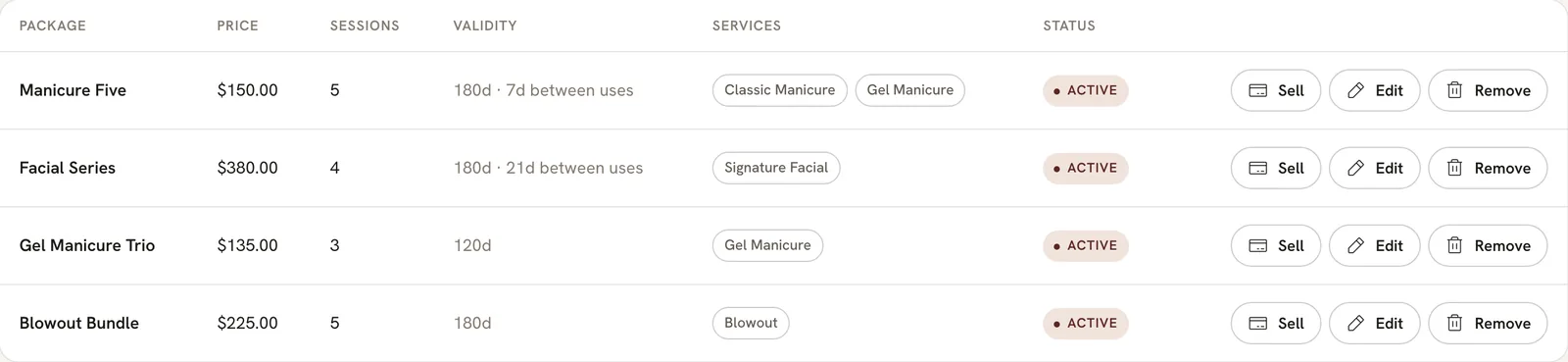
Open Packages in the sidebar, under Sell, to see yours. Each row shows the price, the number of sessions, how long it lasts and the wait between uses, and the services it covers.
 Open full size
 Four packages at Marigold. The first one is the Manicure Five we set up for this guide.
Across the top of the page, Active packages counts the packages your clients hold, and Deferred revenue is what clients have paid for sessions they haven’t used yet. A comped package adds nothing to it.
Create a package
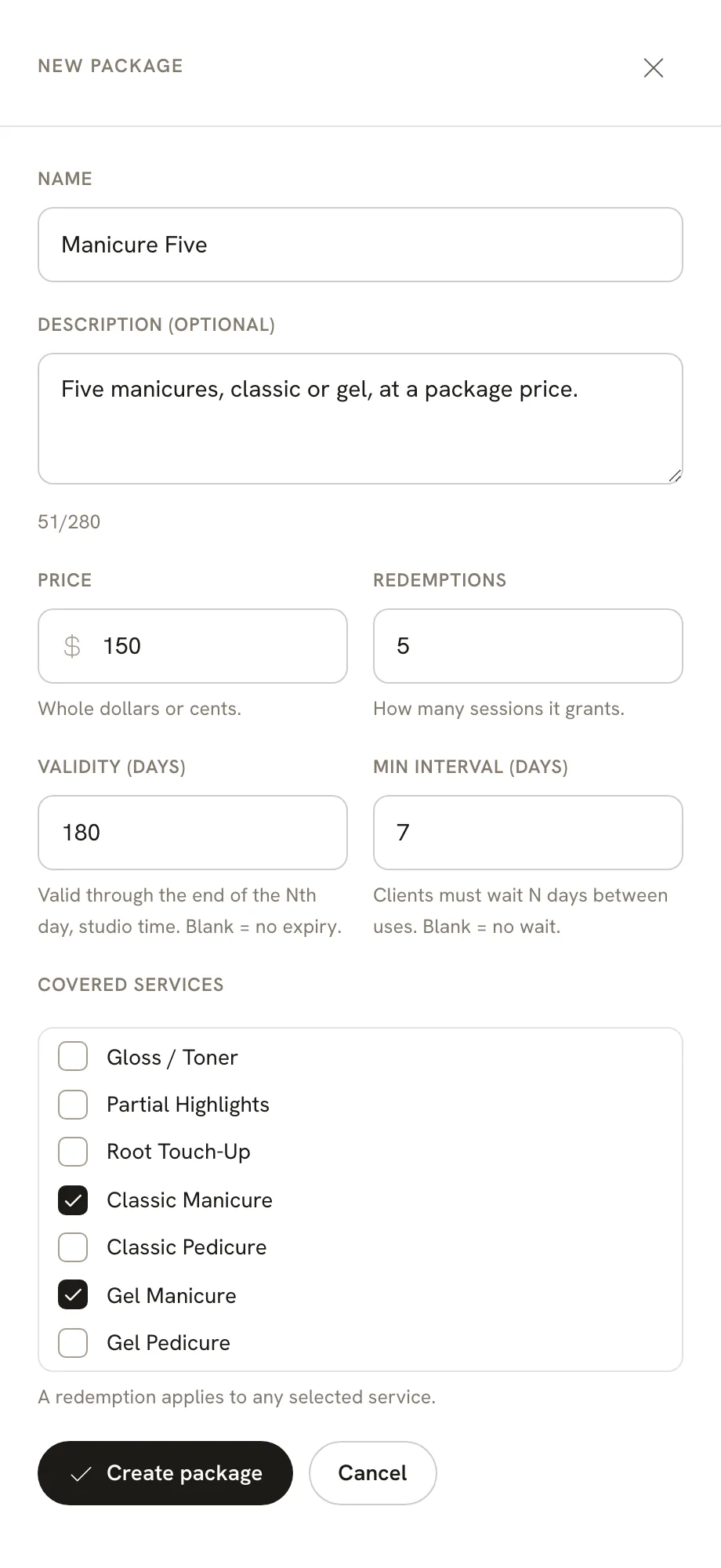
Only an owner or admin can create a package. On the Packages page, click New package and fill in:
- Name, the way clients should see it, like “Manicure Five”.
- Description (optional), up to 280 characters.
- Price, in whole dollars or cents.
- Redemptions, the number of sessions.
- Validity (days), how long it lasts. Blank means it never expires.
- Min interval (days), the wait between uses. Blank means no wait.
- Covered services. Tick every service a session can be used for.
Click Create package. Parlor says “Package created.” and adds it to the list.
 Open full size
 Five manicures for $150, good for 180 days, at least a week apart.
Sell a package to a client
Anyone who can book appointments can sell a package. Start from the package or from the client.
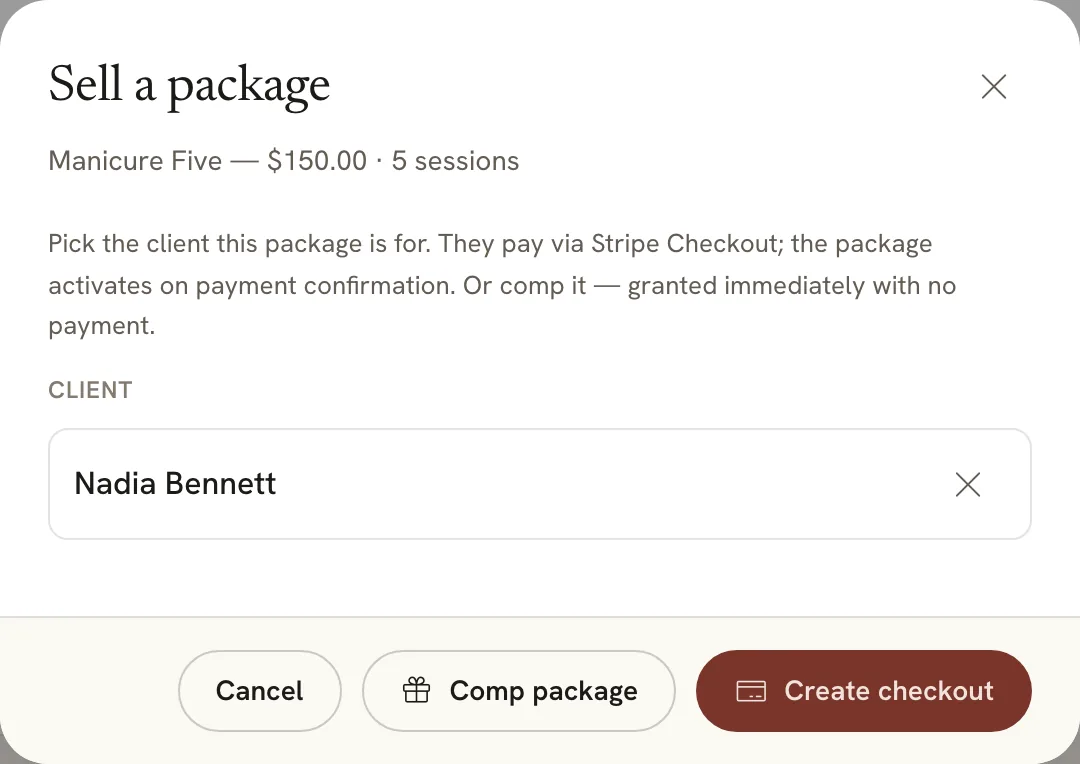
From the Packages page. Click Sell on the package’s row. Type the first letters of the client’s name and pick them from the list.
 Open full size
 Owners and admins also see Comp package here.
From the client’s profile. Open the client, go to the Packages tab, click Sell, and choose the package from the list.
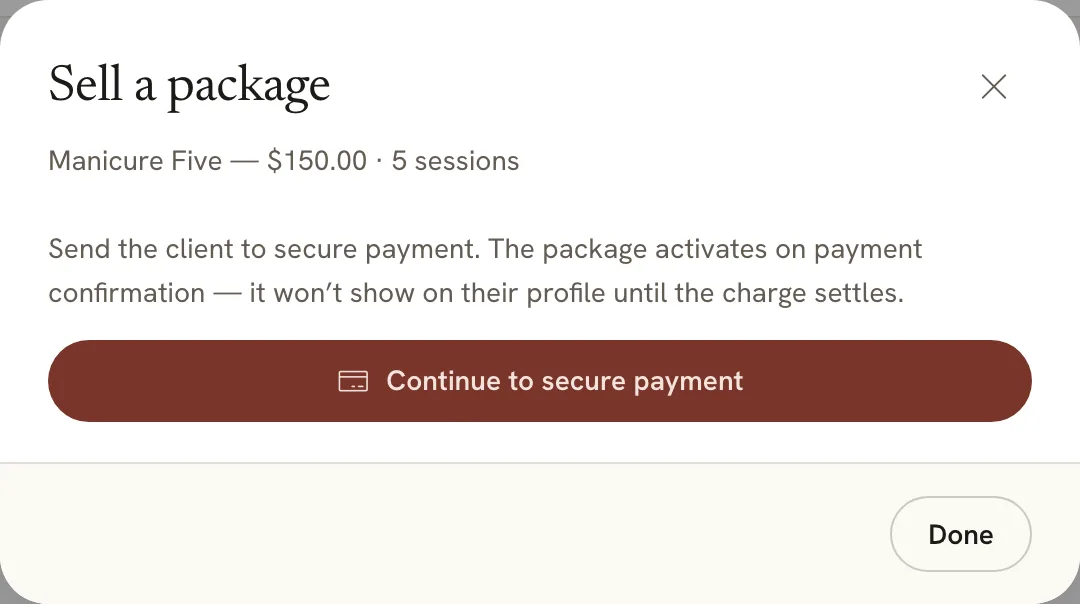
Either way, click Create checkout, then Continue to secure payment. The payment page opens on your screen, and the client enters their card there. When the payment goes through, you’re brought back to Parlor.
 Open full size
 The package isn’t the client’s until the payment goes through.
The package shows on the client’s profile once the payment is confirmed, not before. If the client closes the payment page without paying, they don’t get the package.
Give a package for free
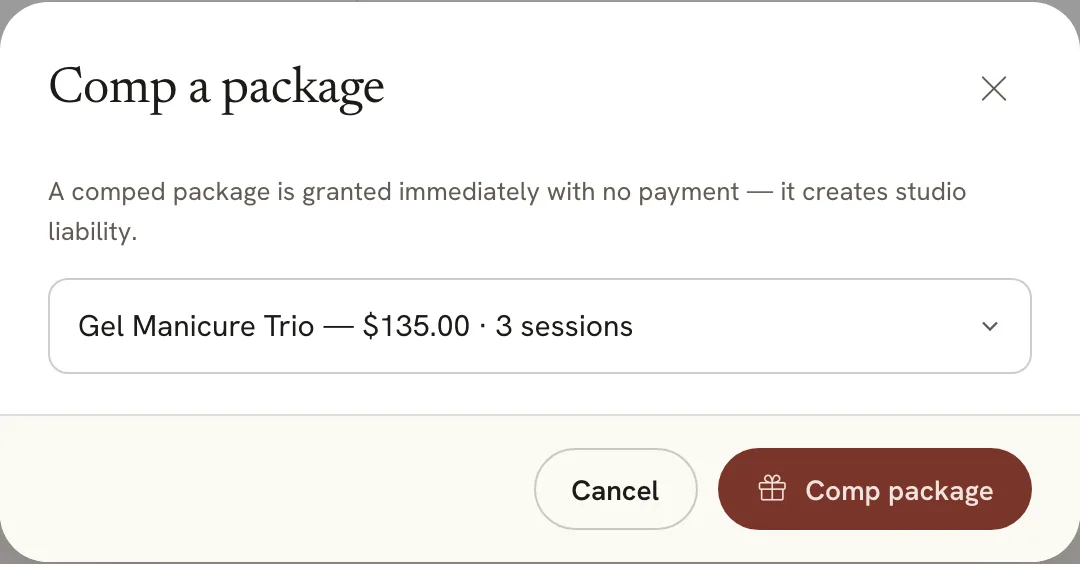
Only an owner or admin can comp a package. Use it for a gift, a make-good, or a package the client paid for some other way. The client gets it straight away, with no payment.
Open the client, go to the Packages tab, click Comp, choose the package, and click Comp package. Or click Sell on the Packages page, pick the client, and click Comp package there. Parlor says “Package comped.”
 Open full size
 A comped package is the client’s as soon as you click.
Use a session at checkout
When a client with a package comes in, book and check out the appointment as you normally would. Open the appointment and click Checkout. Under Credits, the ticket lists every package the client can use for this service, with the sessions left.
 Open full size
 Grace Flores has a Manicure Five, and a gel manicure is one of its services.
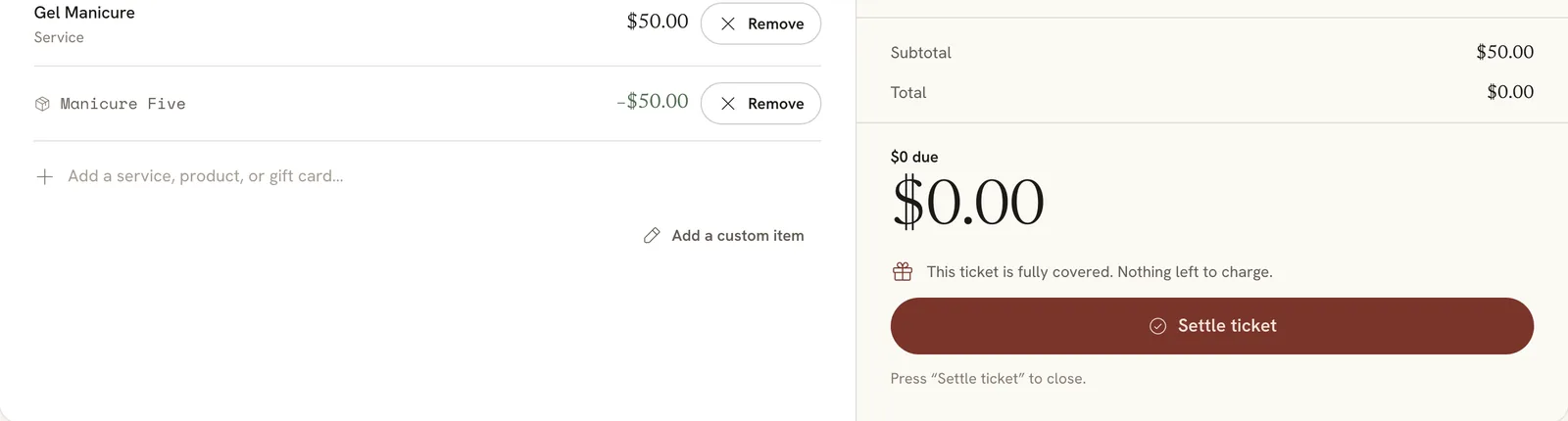
Click Apply. The package goes on the ticket as its own line, taking off the price of the service. When nothing is left to pay, Parlor shows $0 due. Click Settle ticket to close it. If there’s still something to pay, like another item, take the payment the usual way.
 Open full size
 The package covers the $50 manicure, so there’s nothing to charge.
Applied the wrong package? Before you settle, click Remove on its line. Parlor shows what the new total will be. Click Remove package to take it off.
A package isn’t listed under Credits when:
- The service on the ticket isn’t one the package covers.
- The client used it too recently. The profile shows the next date they can use it.
- Every session is used, or the package has expired or been voided.
See what a client has left
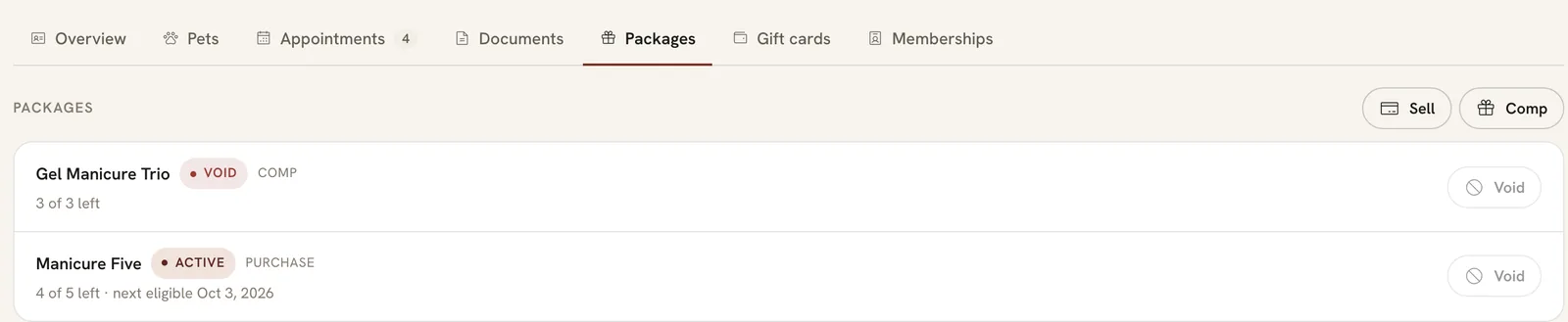
Open the client and go to the Packages tab. Each package shows how many sessions are left, like 4 of 5 left, and when the client can use it next if there’s a wait between uses. Purchase or Comp says how they got it.
 Open full size
 Nadia used a session on September 26, so her next one can be on October 3.
Void a client’s package
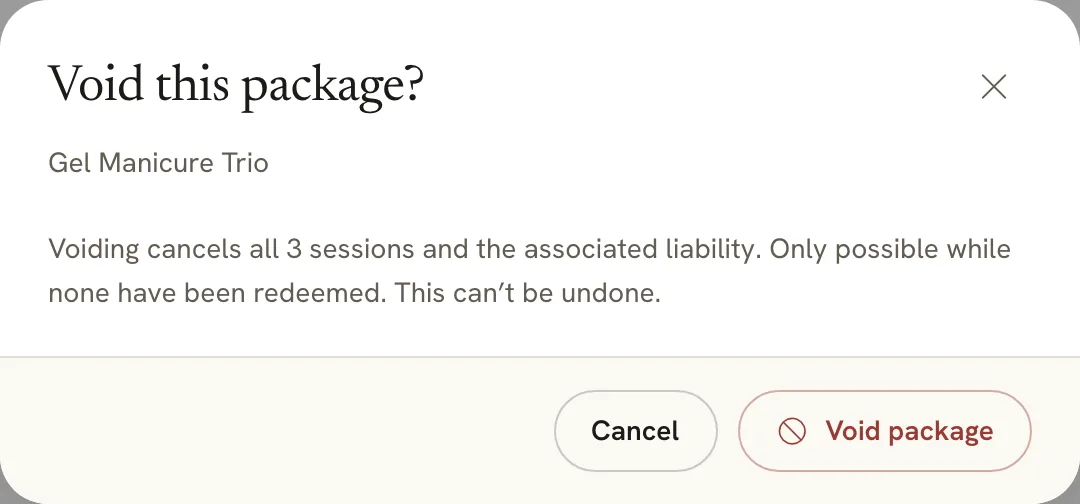
Only an owner or admin can void a package, and only before any of its sessions have been used. After the first one, Void is greyed out.
On the client’s Packages tab, click Void on the package, then Void package. Parlor says “Package voided.” and marks it Void. It can’t be undone.
 Open full size
 Voiding cancels every session on the package.
Stop selling a package
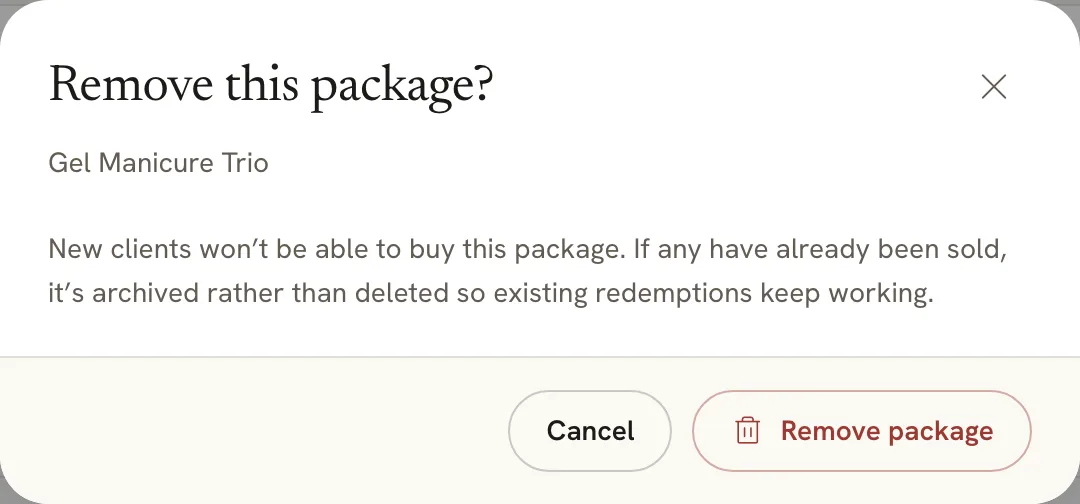
Only an owner or admin can remove a package. On the Packages page, click Remove on its row, then Remove package. Parlor says “Package removed.”
Clients can’t buy it after that. If you’ve sold it before, Parlor archives it instead of deleting it, and clients who already have it can keep using their sessions.
 Open full size
 Removing a package never takes sessions away from clients who have it.
If something doesn’t look right
- New package is greyed out. Your login has Staff access. Ask an owner or admin.
- The client paid, but the package isn’t on their profile. It appears once the payment is confirmed. If they closed the payment page before paying, sell it again.
- The package isn’t under Credits at checkout. The service isn’t covered, the wait between uses isn’t over, or the package is used up, expired or voided. The client’s Packages tab shows which.
- Void is greyed out. At least one session has been used.
That’s a package from start to finish: set it up once, sell it or comp it, and take a session off each visit until it’s used up.